


How To Disable Widgets on Lock Screen
By selma čitakovićon 05/17/2026 |
![{$insert['content_title']](/content/file/6015_image2.png
)
One thing Windows 11 seems to love is putting widgets everywhere. You'll find them in the Start menu, taskbar, and even the lock screen. There, you can add things like Weather, Timer, Watchlist, Sports, and more in the Personalization settings. The lock screen widgets were previously known as "Weather and more."
However, if you're not a fan, you can easily disable them and free up your lock screen. Let me guide you through the process!
Via Settings
This method takes only a few clicks, but it only affects the current user. If you'd like to turn off widgets for all users, check out the rest of the guide.
Anyway, here's how to turn off widgets on your lock screen for your current user account:
- Go to Settings > Personalization > Lock screen.
- Toggle off Widgets.
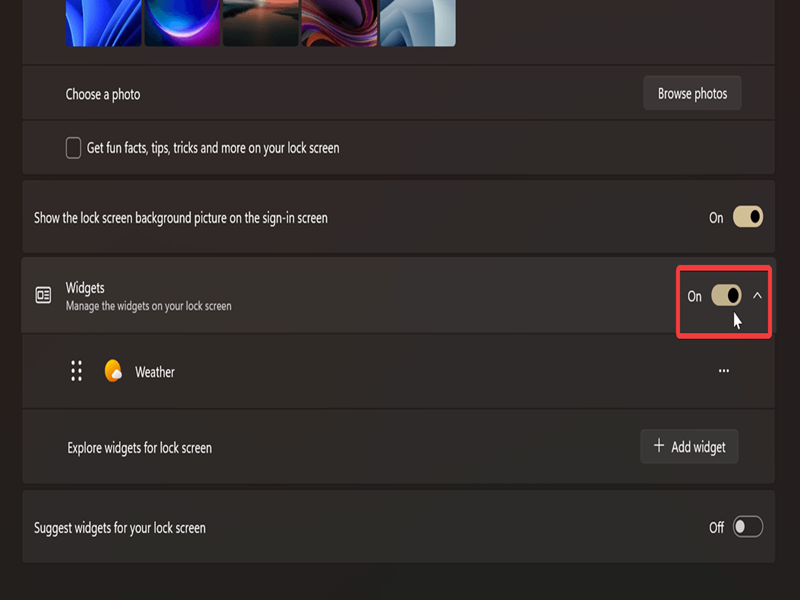
That was almost too easy.
Via Local Group Policy Editor
Alternatively, there's a specific group policy to disable lock screen widgets for all user accounts. However, the Local Group Policy Editor is available exclusively in Windows Pro, Education, and Enterprise editions. The group policy is also yet to be rolled out in all regions. So, if you can't find it, skip to the next method.
Make sure you've signed in as an administrator and follow these steps:
- Type Local Group Policy in Windows Search and click on Open.
- Go to Computer Configuration > Administrative Templates > Windows Components > Widgets on the left.
- Double-click Disable Widgets On Lock Screen on the right side.
- To turn off widgets, select Enabled and click OK.
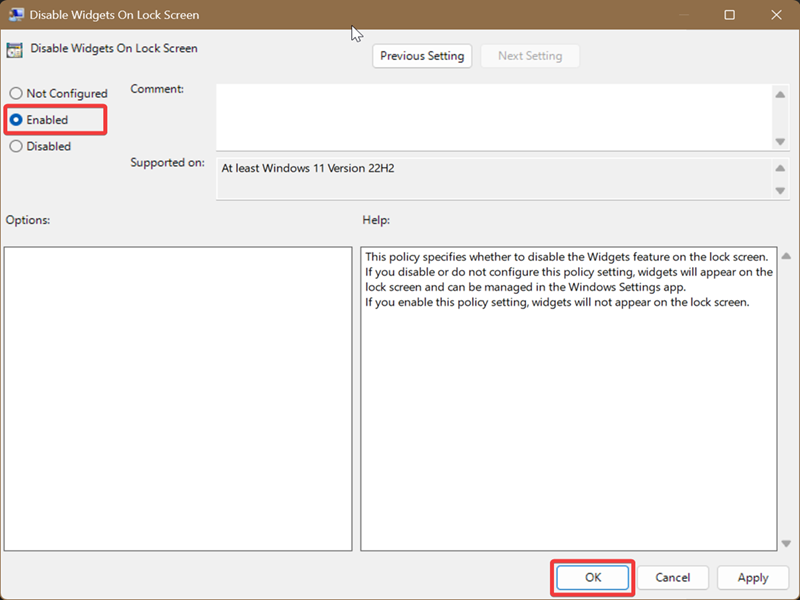
If you want to undo the change, select Not Configured instead and click OK.
The same Widgets folder also contains another policy: Allow widgets. If you disable this one, you'll disable widgets in general on your device.
Via Registry Editor
Finally, you can make a few registry edits and disable widgets on the lock screen for all users. As always, if you're worried about making mistakes, I recommend you create a system restore point just to be safe. However, you should be fine as long as you follow the instructions closely.
Like in the previous method, you'll have to sign in as an administrator first.
- Type Registry Editor in Windows Search, and click on Run as Administrator.
- Go to Computer\HKEY_LOCAL_MACHINE\SOFTWARE\Policies\Microsoft on the left. You can paste this in the address bar at the top.
- Right-click the Microsoft folder, and select New > Key. Name it Dsh.
- Click on Dsh, and then right-click an empty spot on the right side. Select New > DWORD (32-bit) Value.
- Name it DisableWidgetsOnLockScreen, and double-click it.
- Select Hexadecimal in Base, and type 0 in the Value data field. Click OK when done.
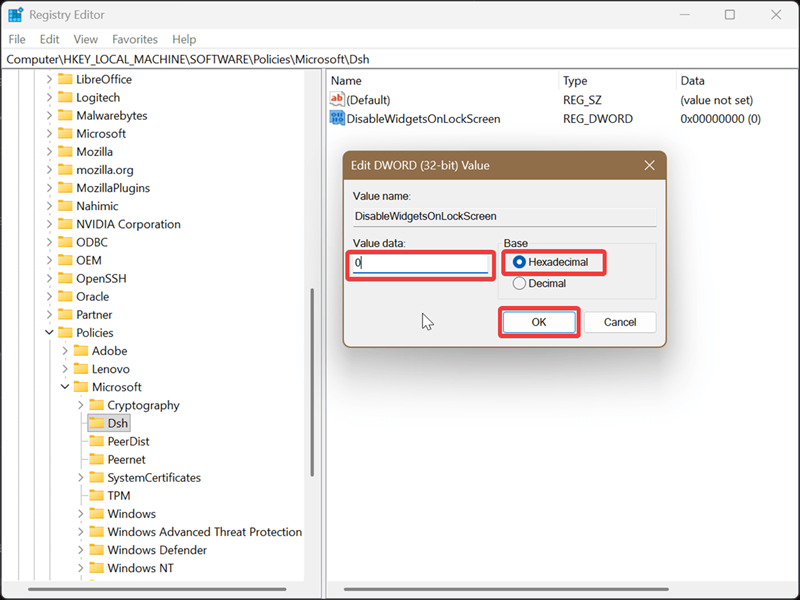
To undo this change, just right-click DisableWidgetsOnLockScreen and select Delete.
Enjoy your new, clean lock screen!

|
selma citakovic
Selma is a gamer, geek and gremlin hunter with a passion for cyber security and smashing Windows bugs before they bite. She’s IBM-certified, loves real freeware, despises bloatware, and powers most of her troubleshooting with an unhealthy amount of coffee. |
comments powered by Disqus
