


How To Find the Installation Date of Apps
By selma čitakovićon 04/12/2026 |
![{$insert['content_title']](/content/file/5909_image4.png
)
Need to find out when you installed a specific app? Windows keeps track of the last modified and installation dates for your desktop and Microsoft Store apps in several ways. I'll cover them all below, so take your pick.
Via Settings
Let's do it the "intended" way first:
- Go to Settings > Apps > Installed apps.
- You'll see a list of programs with a date next to each.
- You can select Sort by: Date installed to organize them, starting with the most recent ones.
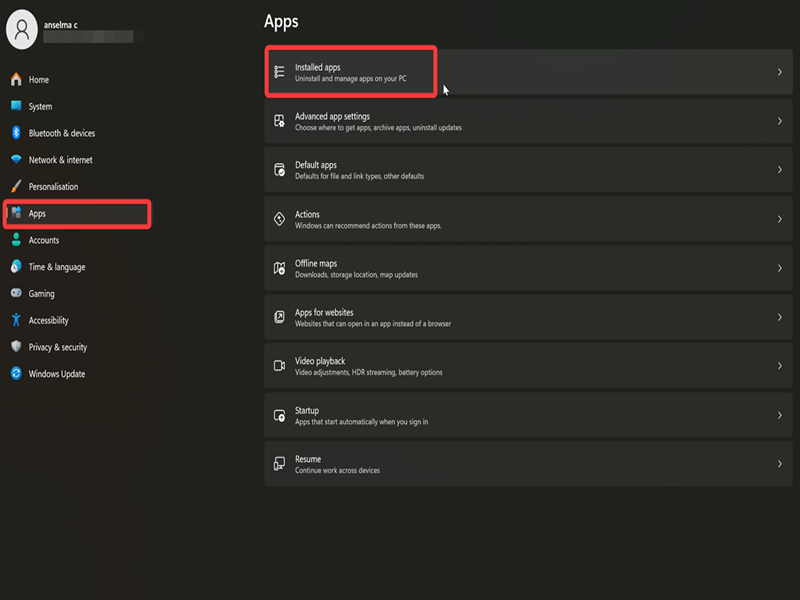
This list includes both desktop and Microsoft Store apps.
Via Control Panel
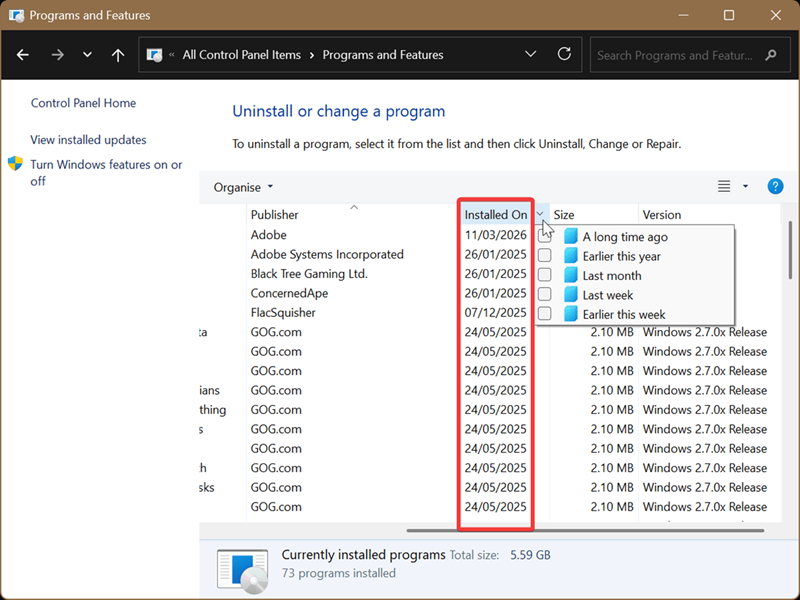
Alternatively, you can use the good ol' Control Panel to access your installed programs. However, it won't list Microsoft Store apps.
Here are the steps:
- Type Control Panel in Windows Search, and select Open.
- In View by: in the top right, select either Small icons or Large icons.
- Click on Programs and Features.
- You can see the dates in the Installed On column.
- Click the arrow next to it to sort them based on the time they were installed/modified: A long time ago, Earlier this year, Last month, Last week, Earlier this week.
Via Command (PowerShell)
Or if you're a fan of commands, you can use PowerShell to find out the install date:
- Press Win + R, type powershell, and press Enter.
- Type the following command(s) and press Enter.
- For desktop apps installed for the current user: Get-ItemProperty HKCU:\Software\Microsoft\Windows\Currentversion\Uninstall\* | select-object DisplayName, InstallDate
- For 32-bit apps installed for all users: Get-ItemProperty HKLM:\SOFTWARE\WOW6432Node\Microsoft\Windows\Currentversion\Uninstall\* | select-object DisplayName, InstallDate
- For 64-bit apps installed for all users: Get-ItemProperty HKLM:\SOFTWARE\Microsoft\Windows\Currentversion\Uninstall\* | select-object DisplayName, InstallDate
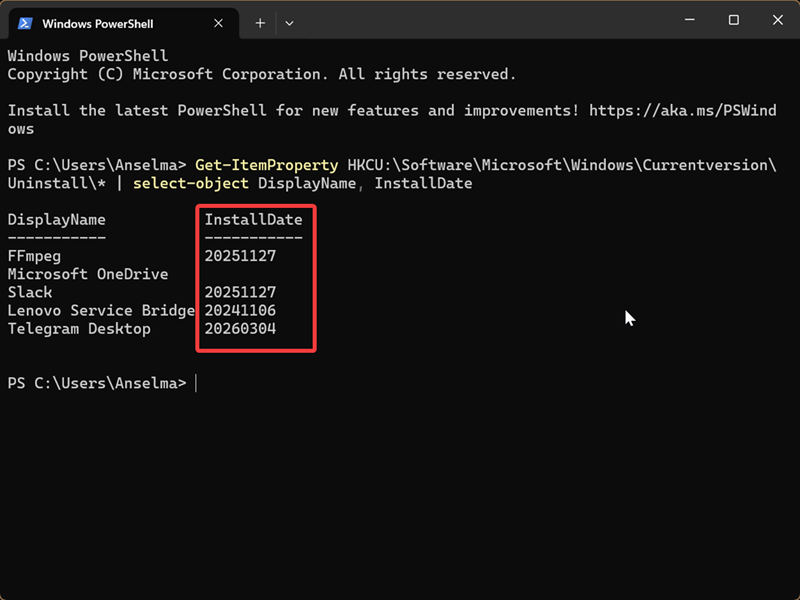
You'll see a nice, formatted list in the terminal window. Make sure you don't accidentally open Command Prompt instead, though. It won't work.
Via Microsoft Store
If you just want to focus on Microsoft Store apps, use this method:
- Open the app, and go to Library on the left side.
- You'll see a list of programs, with a date in the middle.
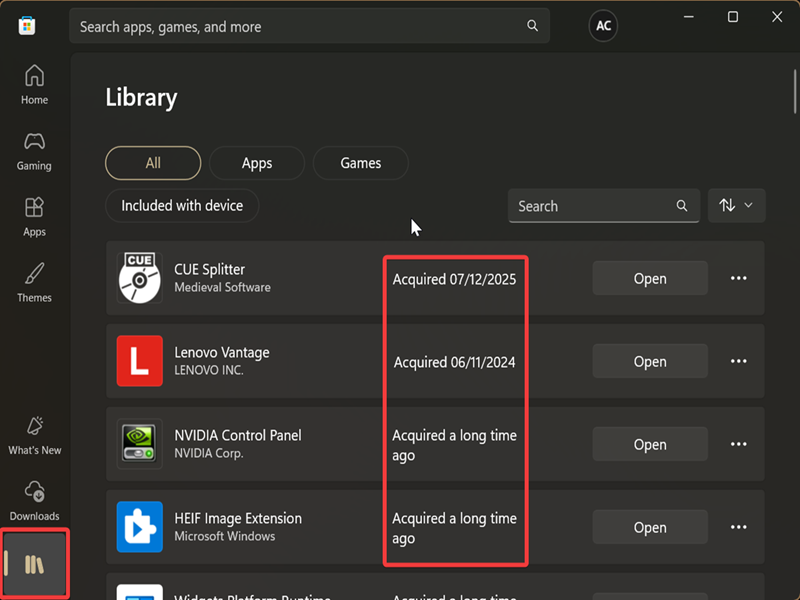
However, if it's an older installed app, it won't say the exact date. You'll see something like "Acquired a long time ago." Not really helpful, huh! In that case, you should try the first method in this guide or the one below.
Via Microsoft Store CLI
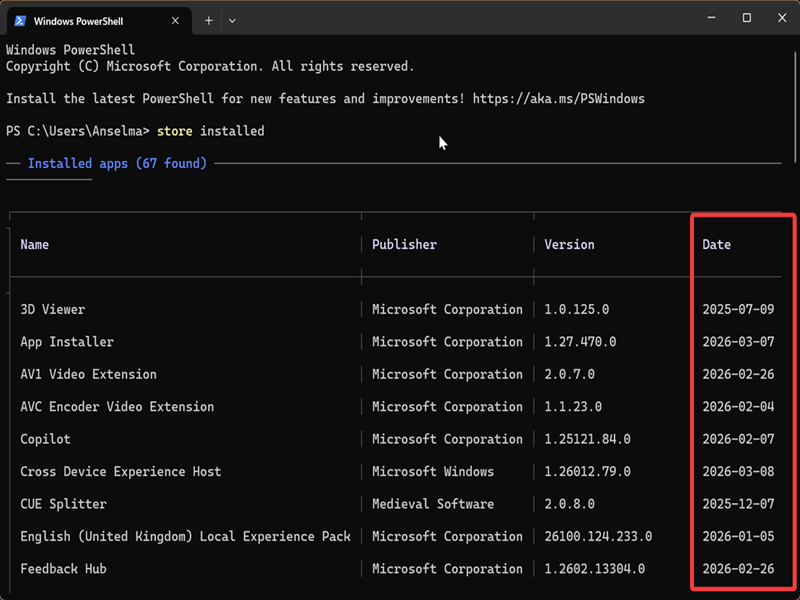
Alternatively, you can use the new command-line tool that lists all your Microsoft Store apps:
- Right-click the Windows Start button and select Terminal. Open either PowerShell or Command Prompt; it doesn't matter.
- Type the following command and press Enter: store installed
- You should see a Date column in the list.
And that's all! Hopefully, these tips will make your search much easier.

|
selma citakovic
Selma is a gamer, geek and gremlin hunter with a passion for cyber security and smashing Windows bugs before they bite. She’s IBM-certified, loves real freeware, despises bloatware, and powers most of her troubleshooting with an unhealthy amount of coffee. |
comments powered by Disqus
