


How to fix a Kernel Security Check Failure Error in Windows 10
By Timothy Tibbettson 07/21/2023 |
A Kernel Security Check Failure Error is an error that appears with a blue screen. The issue could be compatibility, corrupted data, memory or even drivers. Here are some steps to resolve this error.
If you can't boot into Windows, then you need to boot into Safe Mode or boot into Troubleshooting, which we explain in step 6 below.
1: Boot Into Safe Mode
If you're getting a blue screen, also known as a Blue Screen of Death (BSOD), try first to boot into Safe Mode as a few of these steps require that.
2: Test Your Memory
Memory is often behind this problem. While there are many free apps to test your memory, they take hours to run if you use in-depth scanning. If you use fast scanning, you might miss something. Since most of us have more than one stick of RAM, shut down and remove one and see if your computer boots. Repeat this step for each stick of RAM.
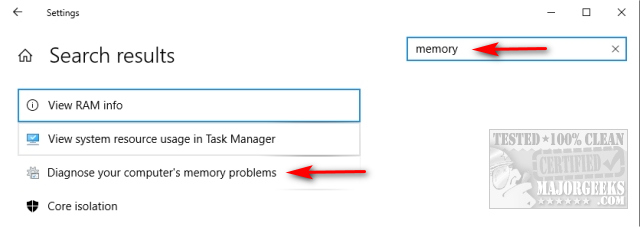
If you can't remove one stick for some reason, Windows can try and diagnose memory issues. Go to the Control Panel and type in memory in the search bar and click on Diagnose your computer's memory problems. You can restart immediately or on the next reboot. We want to restart immediately.
3: Windows Updates
Check for any pending Windows Updates. If available, download and install them.
4: Update and Verify Your Drivers
As we mentioned earlier, drivers can cause this error. There are two things you can look into.
First, download Driver Booster to be sure everything is updated. Often there are essential system drivers that Windows Updates does not install, and even if it does, they tend to be outdated.
Driver Verifier Manager can identify problematic drivers. Open the Command Prompt, or press the Windows Key + R, type in verifier and press the Enter key. Click on Create standard settings and click Next. Click on Automatically select unsigned drivers and click Next.
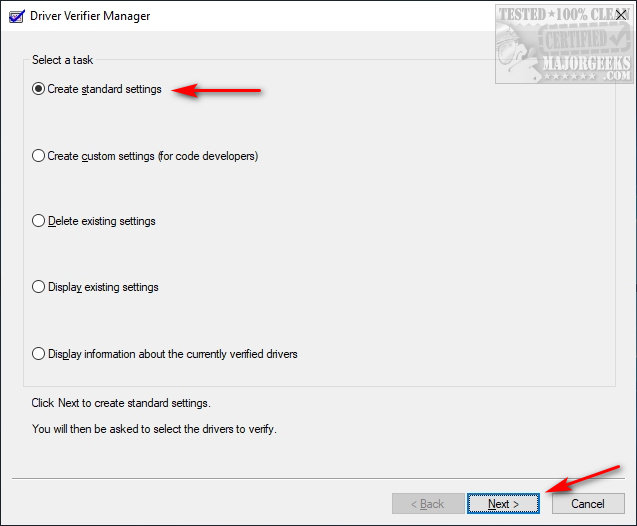
Click back and check Automatically select drivers built for older versions of Windows. If any unsigned drivers are found, they should be updated or uninstalled.
If any unsigned or older drivers are found, you'll want to go to the manufacturer's website and see if there is a newer driver. You could also uninstall that device and let Windows redetect it and install the best available driver.
5: Scan Your Drive for Errors
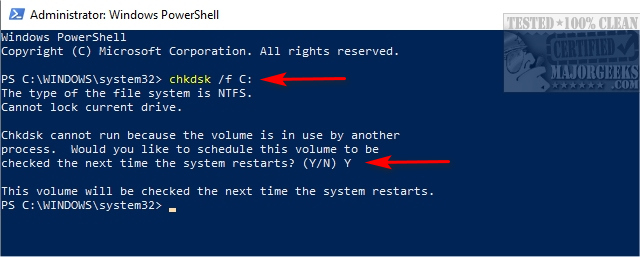
Open a Command Prompt or Powershell and type in chkdsk /f C:. You may be prompted to scan on the next reboot. Enter Y, press Enter, and reboot.
6: Boot to Advanced Startup Options
If you can't get to Windows at all, we have a few options. You could boot from your Windows DVD if you have one, or if you have access to another computer, download Windows 10 Media Creation Tool and create a Windows 10 DVD. Everyone should have a copy of Windows on DVD for cases just like this.
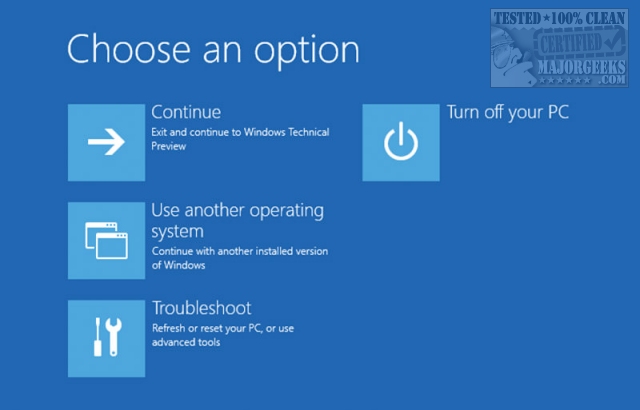
If not, you might have to reboot Windows a few times before it recognizes you need help. If you can't boot into Windows, we have to try more extreme measures. Either pull the plug or hold down the power button to force your computer off and turn it back on. You may need to do this four or five times before it works and brings up Troubleshooting.
Click Troubleshoot > Advanced Options.
Reset This PC will reset Windows without losing your files.
Otherwise, if you want to continue trying to repair your computer, most of the steps we discussed and more can now be accessed under Advanced Options.
System Restore can Restore your PC to the point before your problem started.
Uninstall Updates is a good choice if your problem started immediately after a Windows Update.
System Image Recovery can recover your computer assuming you backed it up using this method.
Startup Repair can be useful, but we doubt it will help with this error.
Command Prompt is helpful for running chkdsk /f C: as mentioned earlier.
UEFI Firmware Settings is for advanced users and also of no help to us with this error.
See more recovery options features Startup Settings. In other words, this is where you boot into Safe Mode.
7: Faulty Hardware
If all else failed, any of your hardware could be failing, and that's tough to determine. If it is hardware, it's most likely memory (which we discussed checking earlier), video card, or hard drive. A failing motherboard is tough to diagnose as well. USB Wi-Fi adapters, especially TP-Link have been a known cause. Speaking of which, you can also unplug any other USB devices or any removable cards to eliminate them from the mix.
Unless you have spare hardware laying around to test, we have a problem. You might need to take your PC to a shop where they can try different hardware. Hard drives are cheap nowadays, but we hope Check Disk would have found any problems.
Phew! That was fun. We hope we resolved your problem.
Similar:
Windows 10 Problems You Can Fix Yourself With Included Troubleshooters
How-To Delete Pending Windows Updates
How-To Backup and Restore Your Drivers
How-To Stop Windows Updates From Downloading Drivers on Windows 10
comments powered by Disqus
If you can't boot into Windows, then you need to boot into Safe Mode or boot into Troubleshooting, which we explain in step 6 below.
1: Boot Into Safe Mode
If you're getting a blue screen, also known as a Blue Screen of Death (BSOD), try first to boot into Safe Mode as a few of these steps require that.
2: Test Your Memory
Memory is often behind this problem. While there are many free apps to test your memory, they take hours to run if you use in-depth scanning. If you use fast scanning, you might miss something. Since most of us have more than one stick of RAM, shut down and remove one and see if your computer boots. Repeat this step for each stick of RAM.
If you can't remove one stick for some reason, Windows can try and diagnose memory issues. Go to the Control Panel and type in memory in the search bar and click on Diagnose your computer's memory problems. You can restart immediately or on the next reboot. We want to restart immediately.
3: Windows Updates
Check for any pending Windows Updates. If available, download and install them.
4: Update and Verify Your Drivers
As we mentioned earlier, drivers can cause this error. There are two things you can look into.
First, download Driver Booster to be sure everything is updated. Often there are essential system drivers that Windows Updates does not install, and even if it does, they tend to be outdated.
Driver Verifier Manager can identify problematic drivers. Open the Command Prompt, or press the Windows Key + R, type in verifier and press the Enter key. Click on Create standard settings and click Next. Click on Automatically select unsigned drivers and click Next.
Click back and check Automatically select drivers built for older versions of Windows. If any unsigned drivers are found, they should be updated or uninstalled.
If any unsigned or older drivers are found, you'll want to go to the manufacturer's website and see if there is a newer driver. You could also uninstall that device and let Windows redetect it and install the best available driver.
5: Scan Your Drive for Errors
Open a Command Prompt or Powershell and type in chkdsk /f C:. You may be prompted to scan on the next reboot. Enter Y, press Enter, and reboot.
6: Boot to Advanced Startup Options
If you can't get to Windows at all, we have a few options. You could boot from your Windows DVD if you have one, or if you have access to another computer, download Windows 10 Media Creation Tool and create a Windows 10 DVD. Everyone should have a copy of Windows on DVD for cases just like this.
If not, you might have to reboot Windows a few times before it recognizes you need help. If you can't boot into Windows, we have to try more extreme measures. Either pull the plug or hold down the power button to force your computer off and turn it back on. You may need to do this four or five times before it works and brings up Troubleshooting.
Click Troubleshoot > Advanced Options.
Reset This PC will reset Windows without losing your files.
Otherwise, if you want to continue trying to repair your computer, most of the steps we discussed and more can now be accessed under Advanced Options.
System Restore can Restore your PC to the point before your problem started.
Uninstall Updates is a good choice if your problem started immediately after a Windows Update.
System Image Recovery can recover your computer assuming you backed it up using this method.
Startup Repair can be useful, but we doubt it will help with this error.
Command Prompt is helpful for running chkdsk /f C: as mentioned earlier.
UEFI Firmware Settings is for advanced users and also of no help to us with this error.
See more recovery options features Startup Settings. In other words, this is where you boot into Safe Mode.
7: Faulty Hardware
If all else failed, any of your hardware could be failing, and that's tough to determine. If it is hardware, it's most likely memory (which we discussed checking earlier), video card, or hard drive. A failing motherboard is tough to diagnose as well. USB Wi-Fi adapters, especially TP-Link have been a known cause. Speaking of which, you can also unplug any other USB devices or any removable cards to eliminate them from the mix.
Unless you have spare hardware laying around to test, we have a problem. You might need to take your PC to a shop where they can try different hardware. Hard drives are cheap nowadays, but we hope Check Disk would have found any problems.
Phew! That was fun. We hope we resolved your problem.
Similar:
comments powered by Disqus
