


How To Fix - "There Are Currently No Power Options Available"
By selma čitakovićon 01/11/2026 |
Seeing the "There are currently no power options available" message above your power button is an unpleasant surprise. It means that something has temporarily restricted your access to power options. But the question is: what? It could be software, misconfigured group policies, registry entries, or power plans.
I'll help you troubleshoot below, so you can get your precious shutdown and restart buttons back.
Uninstall the problematic software, then restart
First, let's get this one out of the way. A lot of users have complained about missing power options right after using LockDown Browser and similar software that locks down your computer.
If you've recently installed such a program, open Settings and go to Apps > Installed apps. Find your target, click the three dots next to it, and click Uninstall.
After that, you should restart. Since you can't use your power buttons for that, you can do it via Command Prompt:
- Press Win + R, type cmd, and press Enter.
- Type the following command and press Enter: shutdown /r.
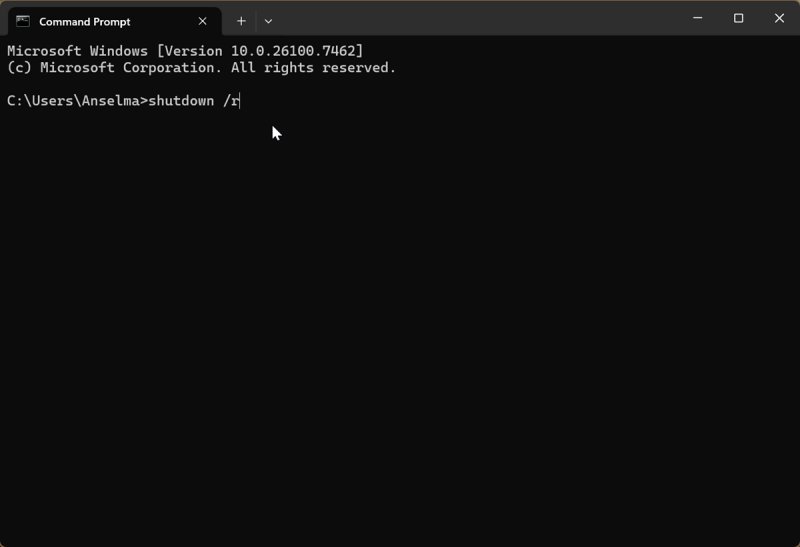
If this doesn't work, move on to the next step.
Edit the Windows Registry
As always with Registry tweaking, there's the risk of messing something up if you don't know what you're doing, or if you're not following the instructions properly. The following steps are perfectly safe, as long as you don't stray from them.
I've provided two sets of instructions, depending on the options you have available in the Registry.
Anyway, try this first:
- Press Win + R, type in regedit, and press Enter.
- Go to HKEY_CURRENT_USER\Software\Microsoft\Windows\CurrentVersion\Policies\. You may want to back it up, just in case. To do so, right-click the Policies folder on the left and select Export. Save the backup file as something memorable.
- The Policies folder should have a subfolder called Explorer. If it doesn't, jump to the next set of instructions. Otherwise, click on the Explorer subfolder, then double-click the NoClose registry entry on the right.
- Type in 0 in the Value data field, and select OK.
- Now, double-click the NoLogOff entry and also input 0 as its value. Hit OK.
- After editing those two values, it's time to restart. Press Win + R again, type in cmd, and press Enter.
- In Command Prompt, type shutdown /r and press Enter to restart your PC.
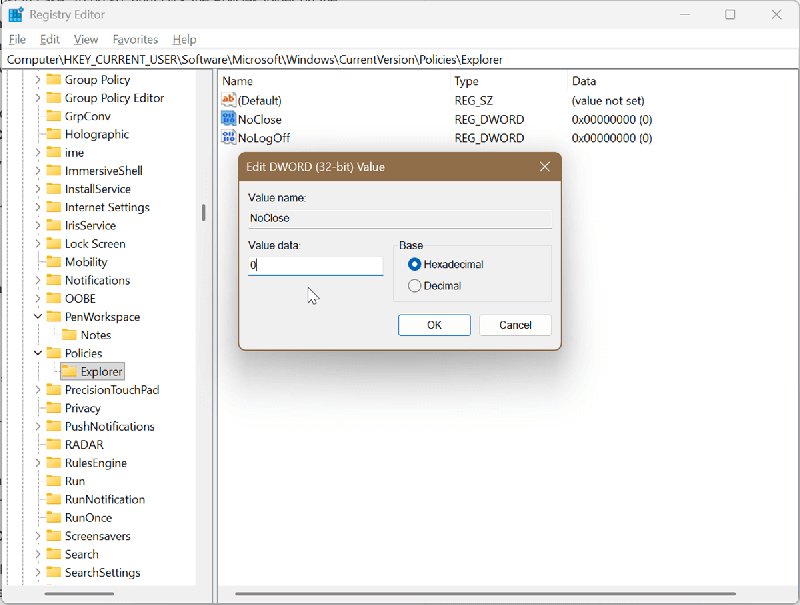
Alternatively, do this if you can't see some of the options I've mentioned in the Registry:
- Navigate to the same path as before, but this time, right-click the Policies folder and select New > Key. Name it Explorer.
- Right-click the newly-created Explorer subfolder, and select New > DWORD (32-bit) Value. Name it NoClose. The default value should be 0, so you don't need to change it.
- Again, right-click the Explorer subfolder, select New > DWORD (32-bit) Value, but name it NoLogOff this time.
- As explained previously, restart by typing shutdown /r in Command Prompt.
The NoClose and NoLogOff entries are responsible for the power and log off buttons, so editing them should turn your power options normal again.
Use the Local Group Policy Editor
The Local Group Policy Editor also allows you to change background rules and restrictions that might be affecting your power options. However, it's only available to Windows Pro, Education, and Enterprise versions. Sorry, Home edition owners!
Here's how to use it:
- Press Win + R, type gpedit.msc, and press Enter.
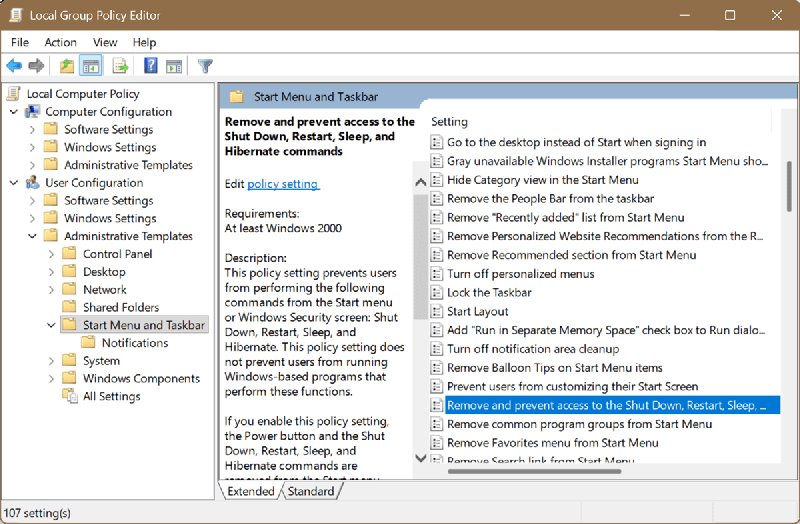
- On the left side, go to User Configuration > Administrative Templates > Start Menu and Taskbar.
- On the right side, find and double-click Remove and prevent access to the Shut Down, Restart, Sleep, and Hibernate commands.
- Select the Disabled option in the top-left.
- Click on Apply, then OK.
- Restart by typing shutdown /r in Command Prompt.
Restore the default power plan
It's possible that you or someone else misconfigured your PC's power plans. In that case, restoring the default settings should help:
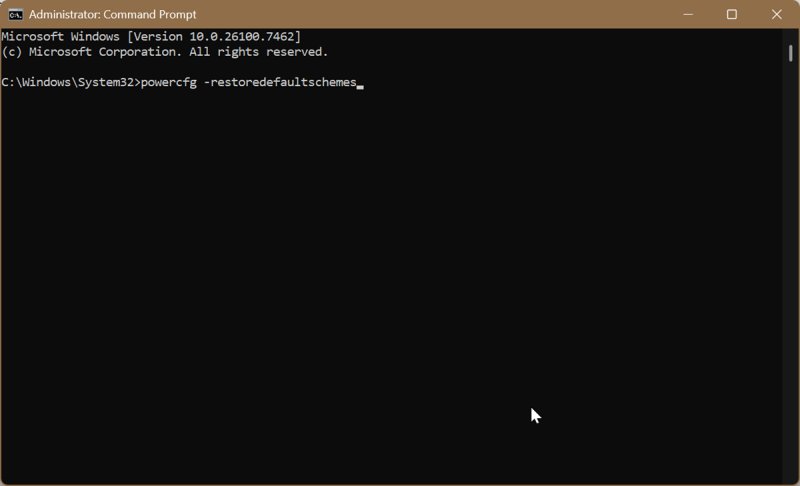
- Search for Command Prompt and select Run as administrator. You'll need elevated rights for this.
- Type the following command and press Enter: powercfg -restoredefaultschemes.
Run the Power troubleshooter
I generally don't put much stock in Windows troubleshooters, since they've rarely helped me. Still, it's worth a try as it doesn't take too long, and it might diagnose problems you've missed.
However, Windows 11 is planning to retire some troubleshooters, including the Power one. This means you won't be able to find it in Settings > System > Troubleshoot > Other troubleshooters. But that won't stop us!
Here's a workaround:
- Search for Command Prompt and select Run as administrator.
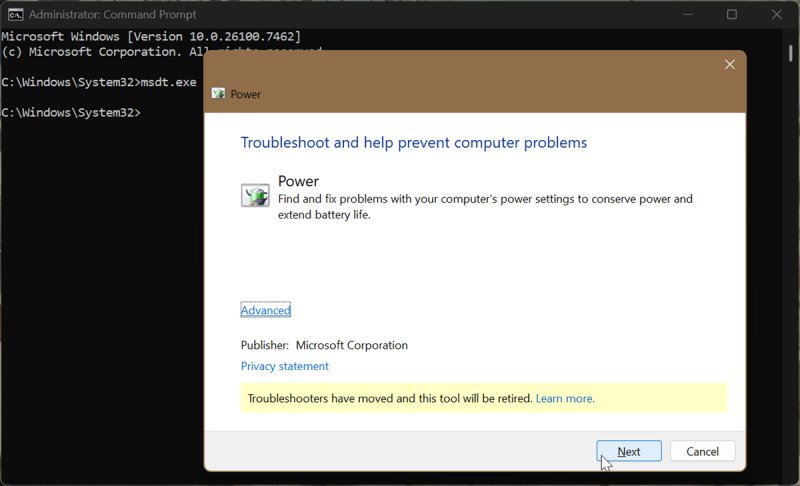
- Type msdt.exe -id PowerDiagnostic and press Enter.
- This will launch the Power troubleshooter. Follow the on-screen instructions.
All things considered, the first two solutions usually do the trick. The first one, with software that restricts your power settings, is an especially common scenario. Either way, you should be able to use your power buttons again.

|
selma citakovic
Selma is a gamer, geek and gremlin hunter with a passion for cyber security and smashing Windows bugs before they bite. She’s IBM-certified, loves real freeware, despises bloatware, and powers most of her troubleshooting with an unhealthy amount of coffee. |
comments powered by Disqus
