


How To Fix Thumbnail Previews in Windows 11
By selma čitakovićon 03/30/2026 |
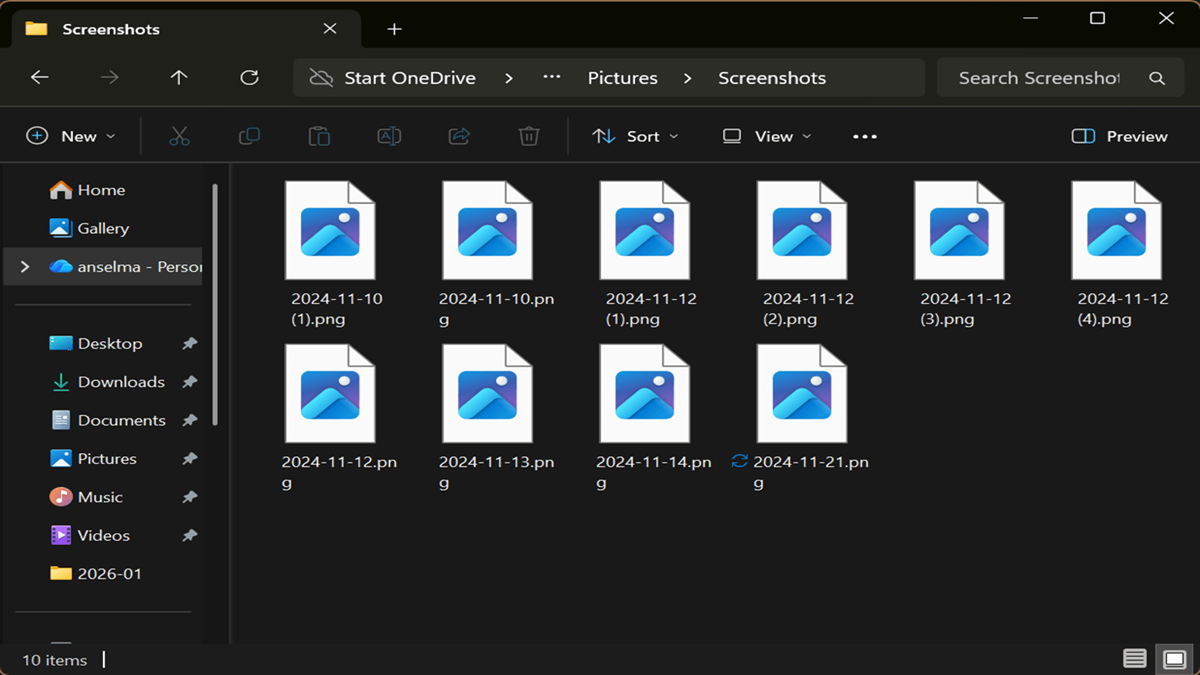
Thumbnail previews for files and folders are supposed to be enabled by default in Windows 11. However, sometimes they just don't work. You'll see a generic app icon instead, which isn't really helpful. So, if you're tired of playing a guessing game with your thumbnail-less files, read on. I'll show you how to fix this problem, step-by-step.
If you're using OneDrive, it's known to be buggy and randomly stops showing thumbnail previews. Cloud solutions like OneDrive get their thumbnails from the cloud, instead of generating them locally, which can confuse File Explorer. The solutions near the end of the guide address this issue specifically, but you should still try the previous steps first.
Additionally, make sure you've enabled the correct layout settings first.
Thumbnail previews won't work if you're using the Small icons, Details, or List folder layouts. It has to be either Medium/Large/Extra large icons, Tiles, or Content layout. You can check by right-clicking an empty spot in File Explorer and selecting View.
Uncheck "Always show icons, never thumbnails" in Folder Options
Let's start with the most likely cause behind the problem: a specific setting in Folder Options. Here's how to find it:
- Open Windows Explorer (Win + E).
- Click the See more button (the three dots in the command bar), and select Options.
- Go to the View tab and uncheck Always show icons, never thumbnails, and click OK.
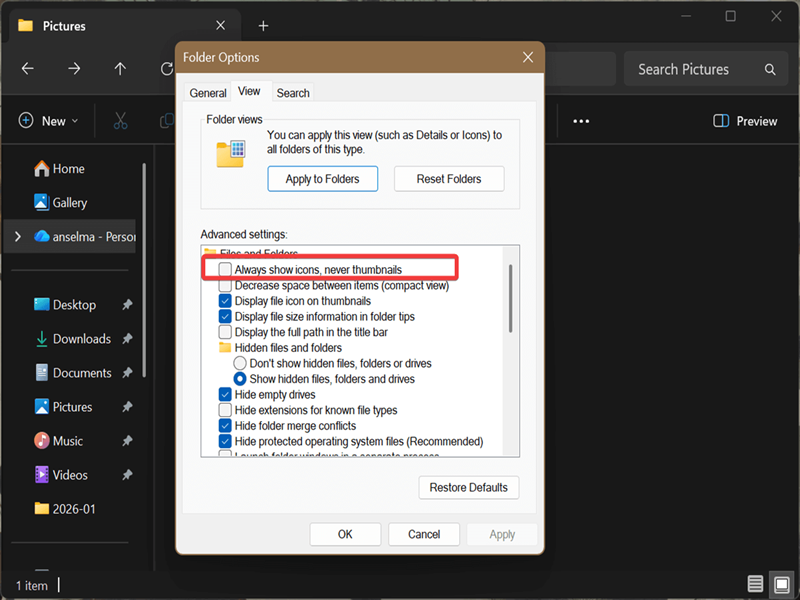
If it was already unchecked: check it, hit OK, then uncheck it again and hit OK. Many users reported that this worked.
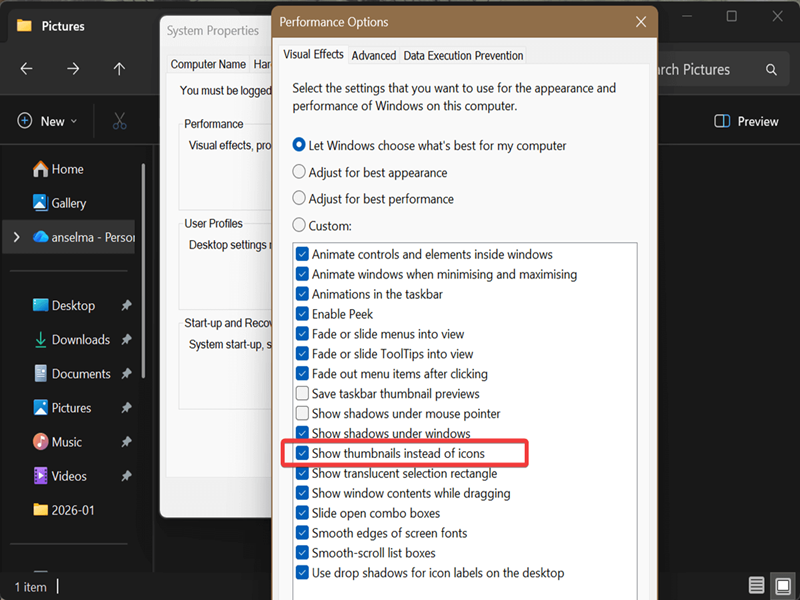
Check "Show thumbnails instead of icons" in Visual Effects
This is a very similar option to the previous one, but in a completely different location (because Windows!):
- Type View advanced system settings in Windows Search, and select Open.
- Go to the Advanced tab, and click on Settings under Performance.
- While in the Visual Effects tab, make sure you check Show thumbnails instead of icons and click OK.
Refresh File Explorer
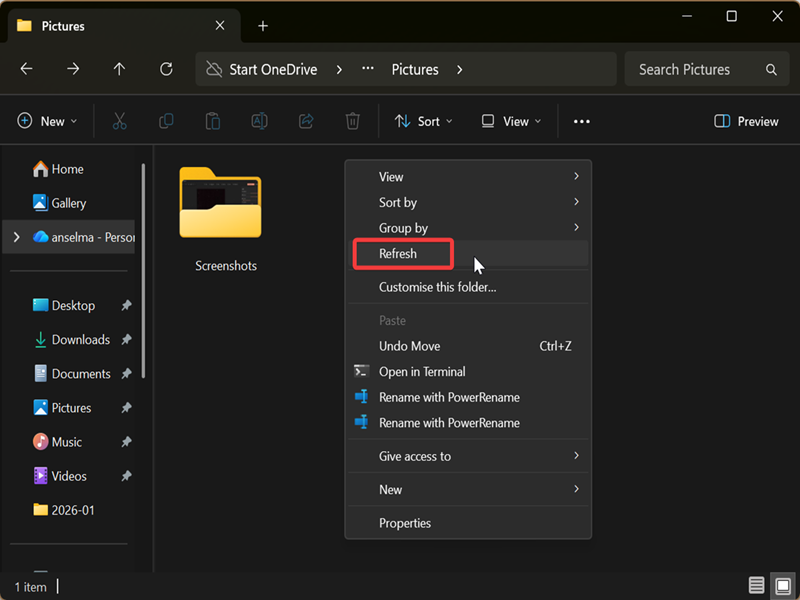
Before doing anything complicated, try this.
Open some pictures or other files, then right-click an empty spot in File Explorer. Select Show more options, then Refresh. Hopefully, your thumbnails should be back.
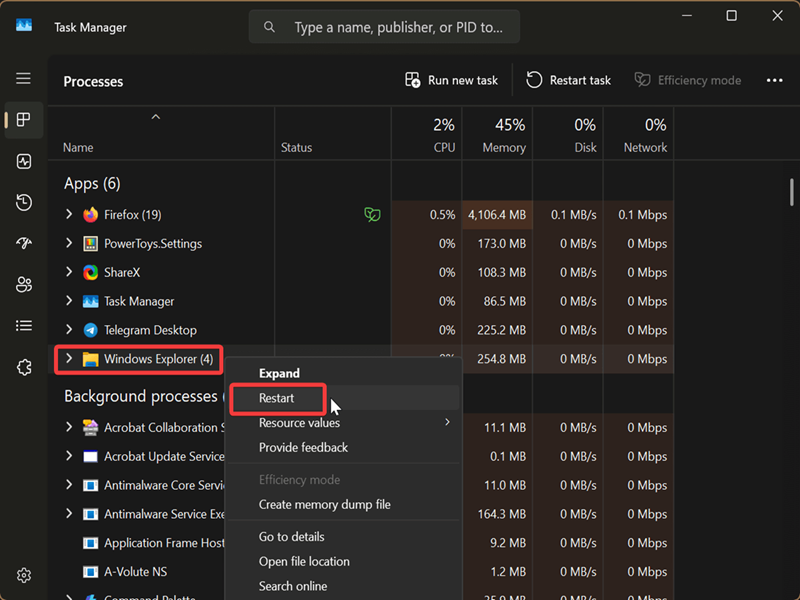
Restart File Explorer from Task Manager
If a quick refresh didn't help, maybe a restart will:
- Right-click the Windows Start icon in the taskbar and open Task Manager.
- Find the Windows Explorer process, right-click it, and select Restart.
Restore File Explorer defaults
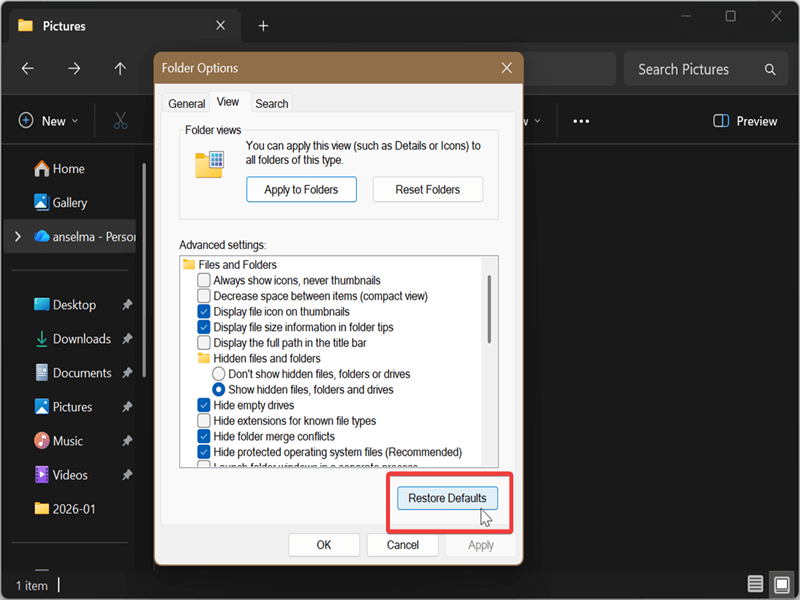
Thumbnail previews are enabled by default. So, you can try undoing any accidental changes by restoring defaults:
- Open Windows Explorer (Win + E).
- Click the See more button (the three dots in the command bar), and select Options.
- Go to the View tab and click the Restore Defaults button.
Clear thumbnail cache
Disk Cleanup is a built-in tool that lets you delete different types of files, including thumbnails. After clearing out the cache, Windows will rebuild it, and you should see thumbnail previews again.
Here's how:
- Type Disk Cleanup in Windows Search and open it.
- Scroll down and check Thumbnails, then hit OK.
- Confirm your decision by clicking Delete files.
- Close Disk Cleanup and restart.
Change your default photo/video app
Some users reported only experiencing these problems with the default Photos app. Try switching to an alternative, like IrfanView.
You can also change file associations to the app you want to use, like this:
- While in File Explorer, right-click the target file, and click on Open with > Choose another app.
- Find the app you want to use from now on, and click the Always button near the bottom.
Move the target folder outside of the OneDrive folder
If you're experiencing problems specifically with folders managed by OneDrive, you can try moving them to restart thumbnail previews. Find the OneDrive folder in C:\Users*UserName*\OneDrive. You can also find it on the left panel in Windows Explorer, in the same section as Home.
Just drag the affected folders anywhere else on your local disk, as long as it's not a path managed by OneDrive.
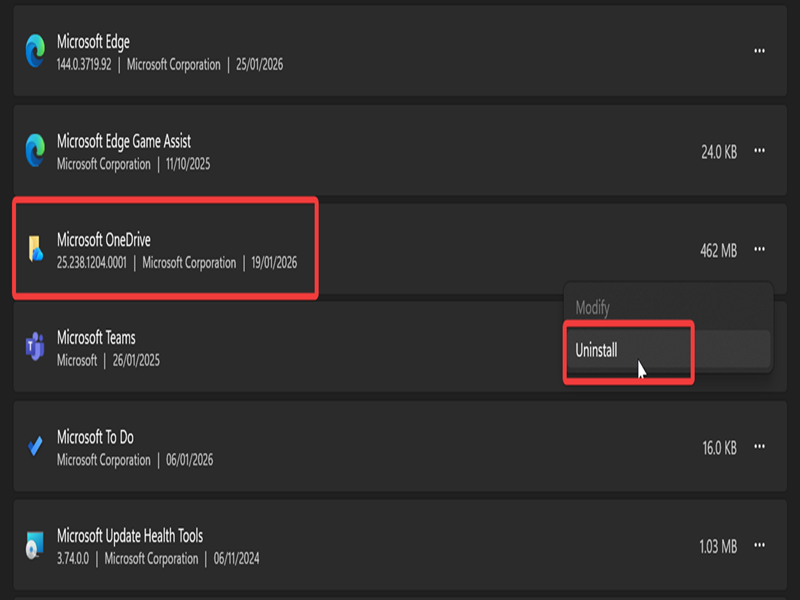
Uninstall OneDrive
A lot of users reported that the issues only stopped after uninstalling OneDrive. Here's how to do so, if you can bear to part from it:
- Go to Settings > Apps > Installed apps.
- Scroll down to Microsoft OneDrive and click the three dots next to it.
- Hit Uninstall.
(Bonus) Use PowerToys to add more thumbnail previews
Microsoft PowerToys is a free and open-source tool suite that lets you improve basic Windows capabilities, including File Explorer. With the File Explorer Add-ons feature, you can add more supported file types for thumbnail previews, such as:
- PDF files (.pdf)
- SVG images (.svg)
- QOI images (.qoi)
- STL files (.stl)
- G-code files (.gcode).
To do so, open PowerToys and go to File Management > File Explorer add-ons on the left side pane. Scroll down until you find the Thumbnail icon Preview section, and toggle on the file types you want. You'll need to reboot for the changes to take effect.
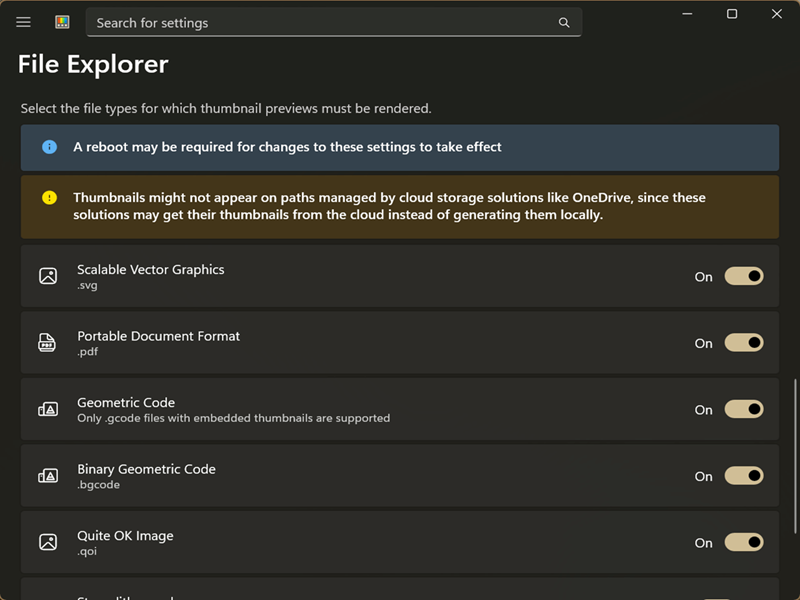
I added this as a bonus option since it isn't really a fix. Still, it's a neat addition, especially because of PDF thumbnail previews.
Overall, this problem isn't new or unique to Windows 11. Windows 10 also had thumbnails disappearing, which we've addressed in earlier guides. If you know of any more solutions, feel free to share them below.

|
selma citakovic
Selma is a gamer, geek and gremlin hunter with a passion for cyber security and smashing Windows bugs before they bite. She’s IBM-certified, loves real freeware, despises bloatware, and powers most of her troubleshooting with an unhealthy amount of coffee. |
comments powered by Disqus
