


How To Manually Enable or Disable Scheduled Maintenance Tasks
By selma čitakovićon 05/17/2026 |
![{$insert['content_title']](/content/file/6019_image3.png
)
Maintenance tasks run in the background and keep your Windows PC optimized with regular updates, scans, and security checks. They're designed to work quietly during the times your device is idle. The default time for daily maintenance is 2 AM, but you can change it.
You can also create a list of all currently active and disabled automatic maintenance tasks, in case there's something specific you're trying to track down. Once you find this activity, you can enable or disable it in the Task Scheduler.
Here's how:
- Press Win + R, type powershell, and press Enter.
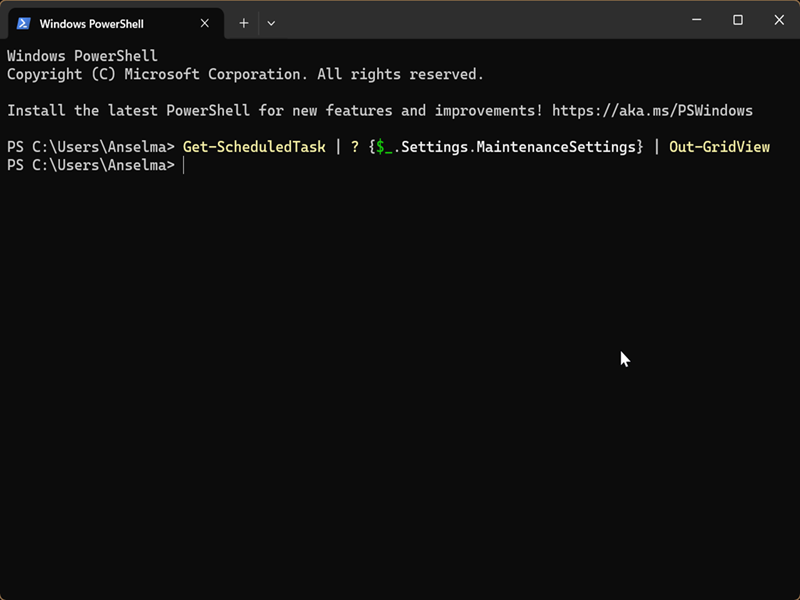
- Type the following command and press Enter: Get-ScheduledTask | ? {$_.Settings.MaintenanceSettings} | Out-GridView
- This will open a separate window, with a nice table listing all the maintenance tasks.
- Alternatively, you can try this command: Get-ScheduledTask | ? {$_.Settings.MaintenanceSettings} | Format-Table -AutoSize | Out-file -FilePath "$Env:userprofile\Desktop\MaintenanceTasks.txt"
- This will save a list of tasks on your desktop as a "MaintenanceTasks.txt" file.
The text file offers the same level of detail as the custom table. Both include the TaskPath, TaskName, and State (whether it's Ready or Disabled).
When you've identified the activity you want to enable/disable, let's open Task Scheduler:
- Press Win + R, type taskschd.msc, and press Enter.
- On the left side, navigate to the task's location. You can find it in the TaskPath column (for example: \Microsoft\Windows\RecoveryEnvironment\).
- Find the task (you can refer to TaskName), select it, and click either Disable or Enable on the right side.

That's all! You can run the commands from the first part of the guide again to check the task's state and confirm everything worked.

|
selma citakovic
Selma is a gamer, geek and gremlin hunter with a passion for cyber security and smashing Windows bugs before they bite. She’s IBM-certified, loves real freeware, despises bloatware, and powers most of her troubleshooting with an unhealthy amount of coffee. |
comments powered by Disqus
