


How To Repair or Reset Broken Apps in Windows 11
By selma čitakovićon 07/18/2026 |
![{$insert['content_title']](/content/file/6218_image2.jpg
)
You can reset or repair Microsoft Store and built-in Windows apps if they're malfunctioning or crashing. A reset will revert the app to its default state, though you'll lose your saved preferences and app data. A repair, on the other hand, will let you keep your data, but it's not always available as an option.
Still, even if you do have to reset, it's a small sacrifice if it means getting the app working properly again.
Let me show you how!
Via Settings
Here are the steps:
- Go to Settings > Apps > Installed apps. However, some built-in apps have been moved to Settings > System > System Components, so you may have to check out both locations.
- Either way, find the one you want to reset and click the three dots next to it.
- Select Advanced options.
- On the next page, click on the Terminate button to stop the app first.
- Now, select either Repair (if available) or Reset.
- Confirm your decision and wait for the process to finish.
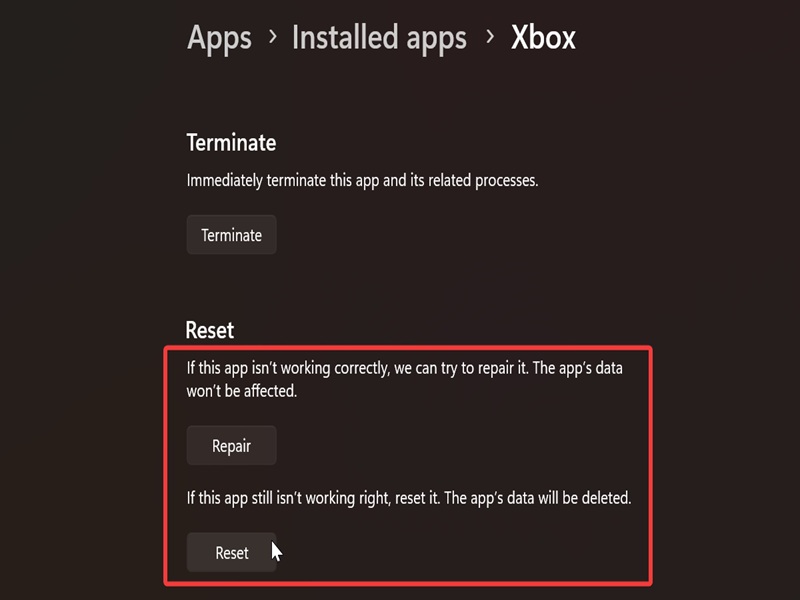
If a repair doesn't help and the app still doesn't work, just go for the reset since it's a more thorough fix.
Additionally, if you can't find the app in the Settings, you can look for it in the Start menu:
- Open the Start menu and go to the All apps section. (List view is especially helpful here.)
- Find the app you need, right-click it, and select App settings.
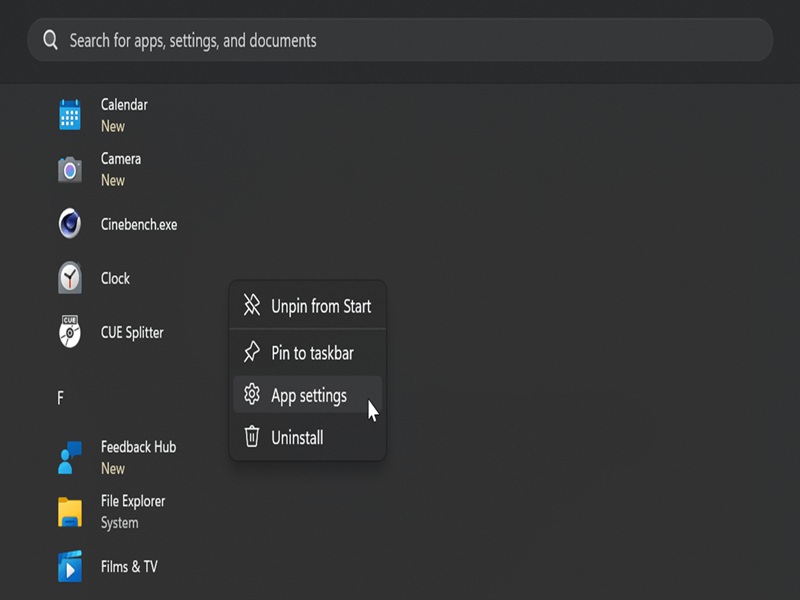
This will take you to its Advanced options page in step 4.
Via PowerShell
Or you can do it this way! However, you can only reset apps with PowerShell, not repair them.
- Type PowerShell in Windows Search, and select Open.
- Paste the following command and hit Enter: Get-AppxPackage | Select Name >"$env:userprofile\Desktop\Apps_List.txt"
- This will save a list of all apps on your desktop. Open it and find the one you want to reset. You'll need its name in a bit.
- Open PowerShell again and paste this: Get-AppxPackage *UWP app name* | Reset-AppxPackage. Replace the placeholder with the app's name from the text file (for example, Microsoft.MSPaint), and hit Enter.
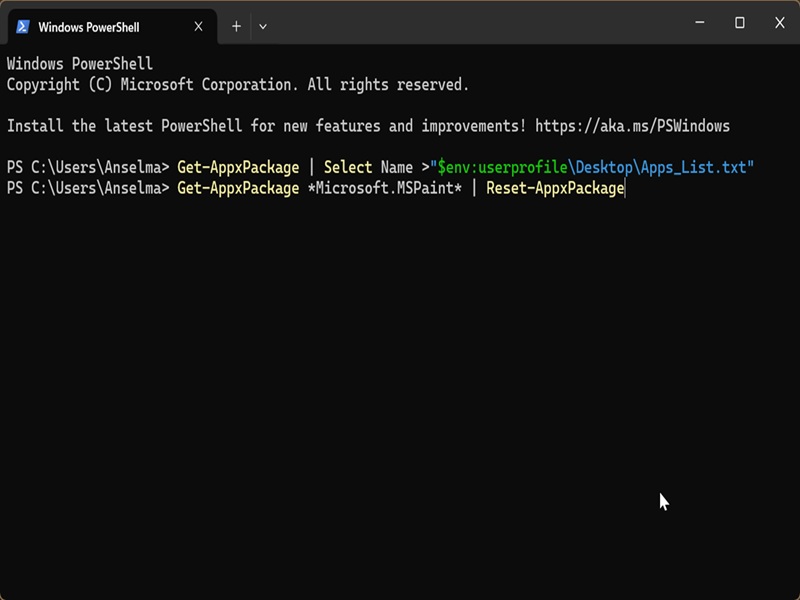
If the commands somehow don't work, check if the Capability Access Manager Service is active and running. To find it, press Win + R, type services.msc, and hit Enter. It should say "Running" under Status.

|
selma citakovic
Selma is a gamer, geek and gremlin hunter with a passion for cyber security and smashing Windows bugs before they bite. She’s IBM-certified, loves real freeware, despises bloatware, and powers most of her troubleshooting with an unhealthy amount of coffee. |
comments powered by Disqus
