


How To Set a Metered Connection for a Wi-Fi Network in Windows 11
By selma čitakovićon 04/08/2026 |
![{$insert['content_title']](/content/file/5941_image2.png
)
You can set up a metered Wi-Fi connection in Windows to limit your data usage. All mobile data connections are configured as metered by default, but Ethernet and Wi-Fi aren't, so you'll need to enable them manually.
However, once you do, you should know that some apps may behave differently. They won't run in the background, and certain Windows updates won't download or install automatically. In return, you'll use less data, which is helpful, especially if you're on a limited data plan.
Here's how!
Via Settings
First, let's visit the network settings:
- Go to Settings > Network & internet > Wi-Fi > Manage known networks.
- Select the network you want to configure as metered.
- This will take you to the network's properties page. Toggle on Metered connection, right under Network profile type.
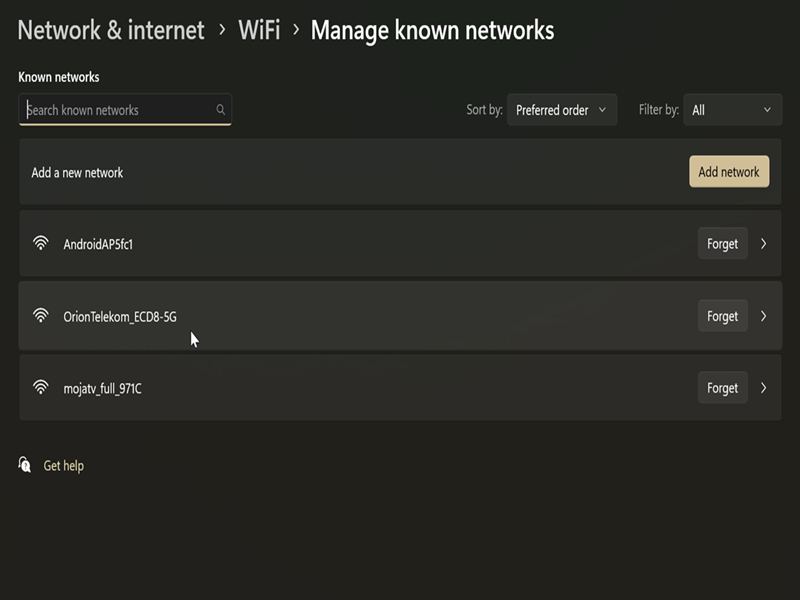
You can always toggle it off again if you want to.
Via Command
Alternatively, you can use either PowerShell or Command Prompt to turn on (or off) metered connections. You'll have to sign in as an admin for it to work, though.
Here are the steps:
- Type PowerShell or Command Prompt in Windows Search, and select Run as administrator.
- Type the following command and press Enter: netsh wlan show profiles
- You'll see a list of all your active Wi-Fi profiles on your device. Remember the name of the network you want to set as metered; you'll need it in a moment.
- Now, type the following command and press Enter, but replace "network name" with the actual name from the previous step: netsh wlan set profileparameter name="network name" cost=Fixed. For example, in my case, the full command looked like this: netsh wlan set profileparameter name="OrionTelekom_ECD8-5G" cost=Fixed
- To set it as non-metered instead, type this and hit Enter: netsh wlan set profileparameter name="network name" cost=Unrestricted. Again, make sure you replace the placeholder "network name."

If everything works, you should see a message saying your network profile was updated successfully.
Additionally, you can check in the terminal whether a connection is metered or not, if you're unsure:
- Type this command (in the same elevated terminal) and press Enter: netsh wlan show profile name="network name"
- As before, substitute the placeholder with your real network name. After entering it, you should see a list of settings. Look for the Cost settings section.
- If it says "Unrestricted" next to Cost, the connection is non-metered. However, if it says "Fixed," the connection is metered.
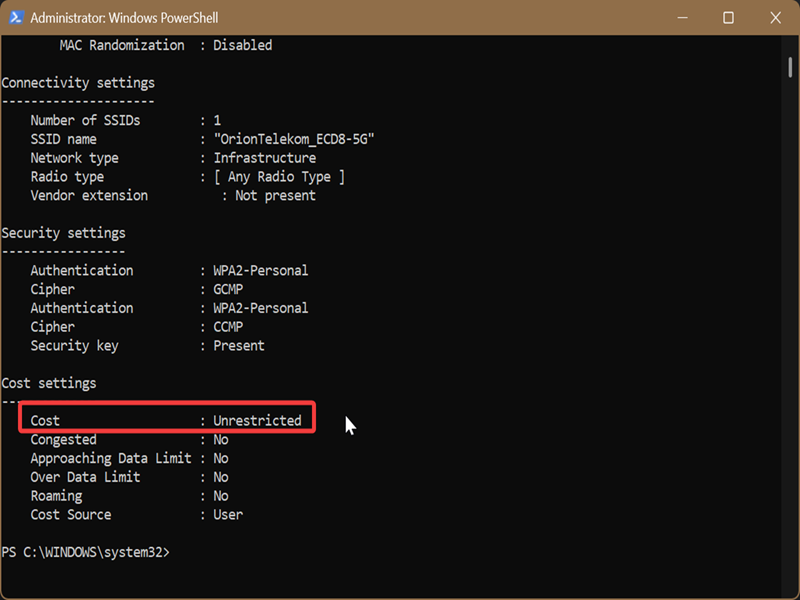
I recommend trying this command-based method if the option in the Settings is greyed out for some reason. Good luck!

|
selma citakovic
Selma is a gamer, geek and gremlin hunter with a passion for cyber security and smashing Windows bugs before they bite. She’s IBM-certified, loves real freeware, despises bloatware, and powers most of her troubleshooting with an unhealthy amount of coffee. |
comments powered by Disqus
