


How To Set Default Apps in Windows 11
By selma čitakovićon 03/29/2026 |
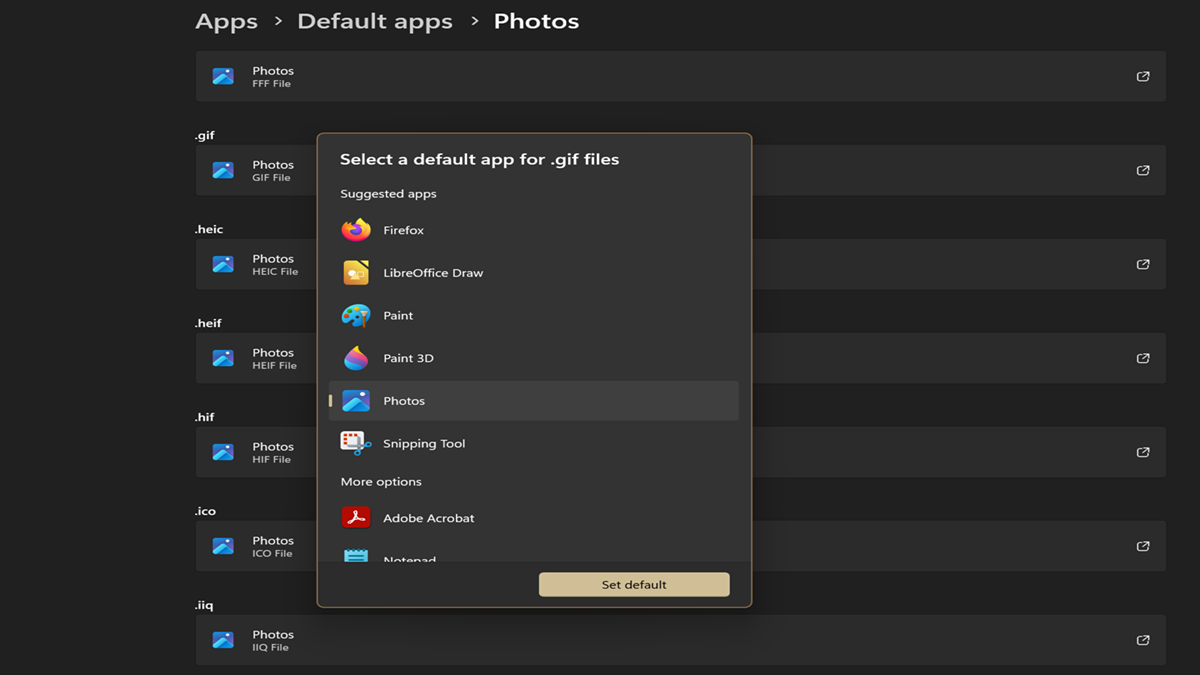
When you install Windows 11, it assigns default apps, like Photos for images or Edge as the browser. Thankfully, you don't have to stick to these choices. You can always set up your own defaults.
I'll show you how below.
Set defaults via "Open with" in the context menu
You can change your preferences directly in File Explorer:
- Right-click a file, then select Open with.
- If you haven't already assigned a default app, you'll see a list of apps, and two options: Browse apps in the Microsoft Store and Choose an app on your PC. Select which one you want to use from now on, and click Always.
- If there is an assigned default app, select Choose another app. Click on a suggested program from the list, Browse apps in the Microsoft Store, or Choose an app on your PC. Once you make your choice, click on Always.
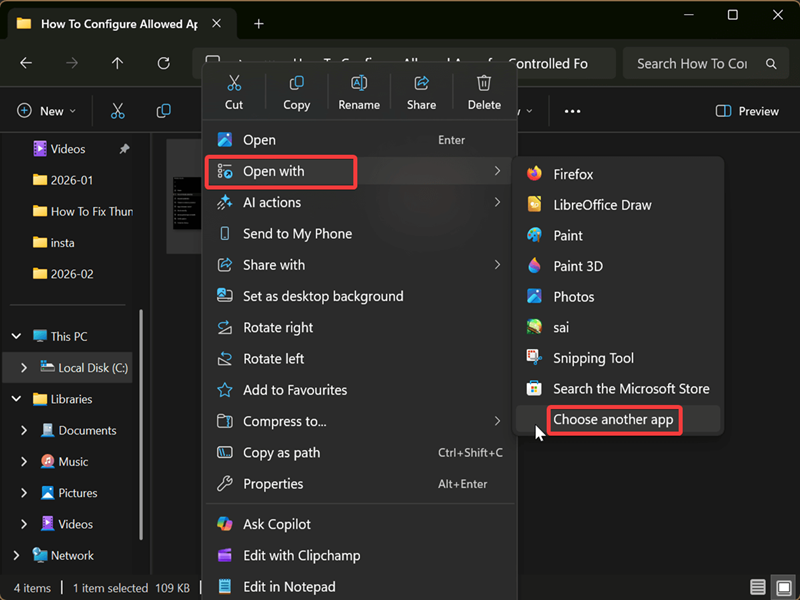
If you want to open a file with a specific program just that one time, select Just once instead. This won't set it up as a default for that file type.
Set defaults via File Properties
Alternatively, you can take a slightly different route:
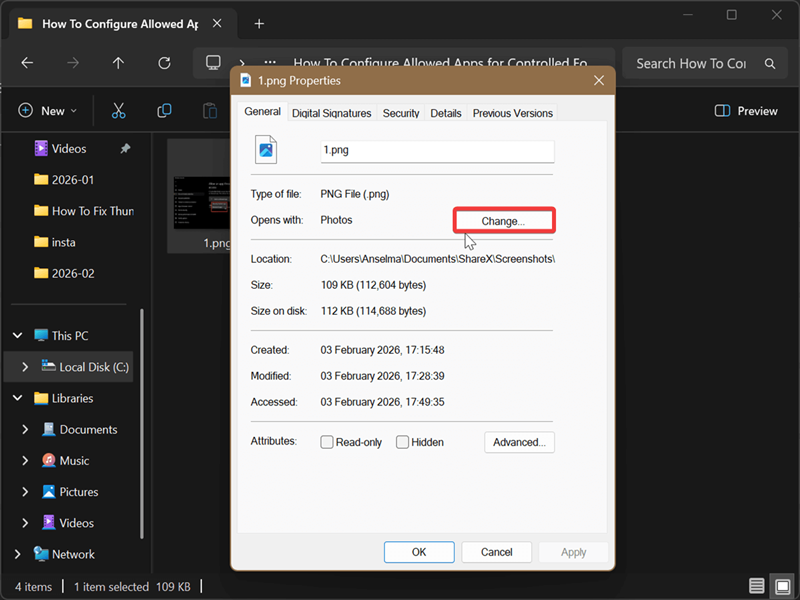
- Right-click a file, then select Properties.
- While you're in the General tab, hit the Change button next to Opens with.
- Either select a listed app, Browse apps in the Microsoft Store, or Choose an app on your PC.
- Click Set default.
Set defaults via Settings
You can change your preferences based on file/link type, or choose a program and then associate certain files with it. Here are the steps:
- Go to Settings > Apps > Default apps.
- To set a default for a file type or link type: Enter a file/link type in the search box, and press the Choose a default button. In the new window, click on a program from the list, Browse apps in the Microsoft Store, or Choose an app on your PC. When you're done, hit the Set default button.
- To set defaults for applications: Type the program's name in the search box, or choose it from the list. You should see a list of various file types. Pick the one you want. In the new window, select a default app for that file type from the suggested list, Browse apps in the Microsoft Store, or Choose an app on your PC. Finally, click the Set default button.
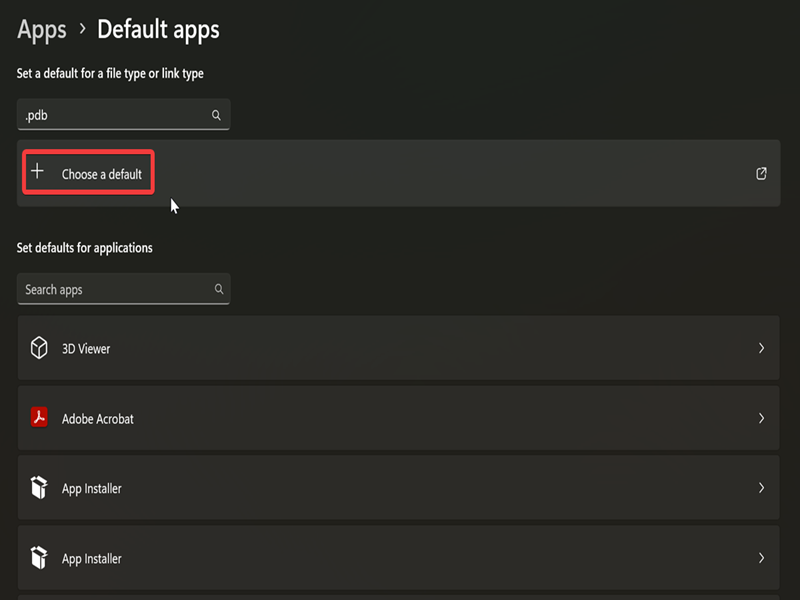
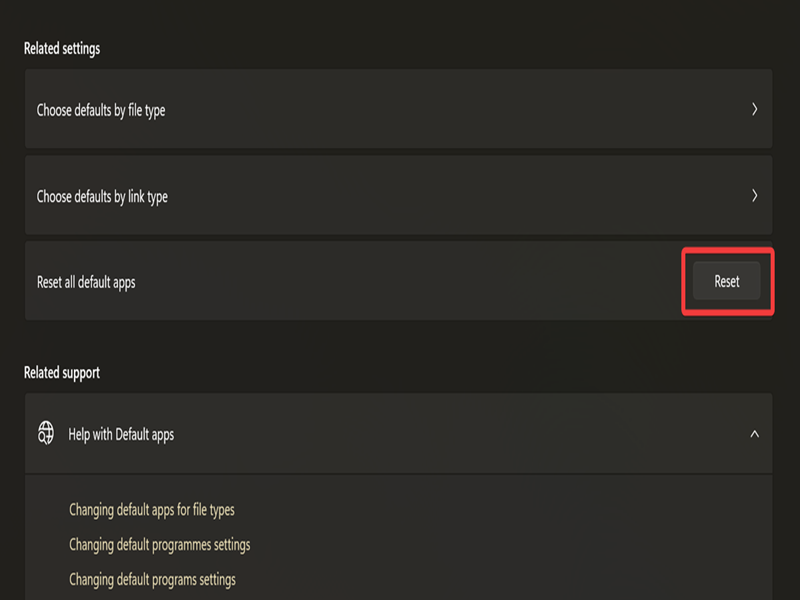
The search box at the top of the Default apps settings lets you look up both file types and link types. But if you want to focus solely on links, you can scroll down and click on Choose defaults by link type under Related settings. Alternatively, select Choose defaults by file type.
Set default browser
You'll probably want to switch from Microsoft Edge right after installing Windows. The process is slightly different from that for other programs, so I thought I should cover it, just in case.
Here's how to pick a new default browser:
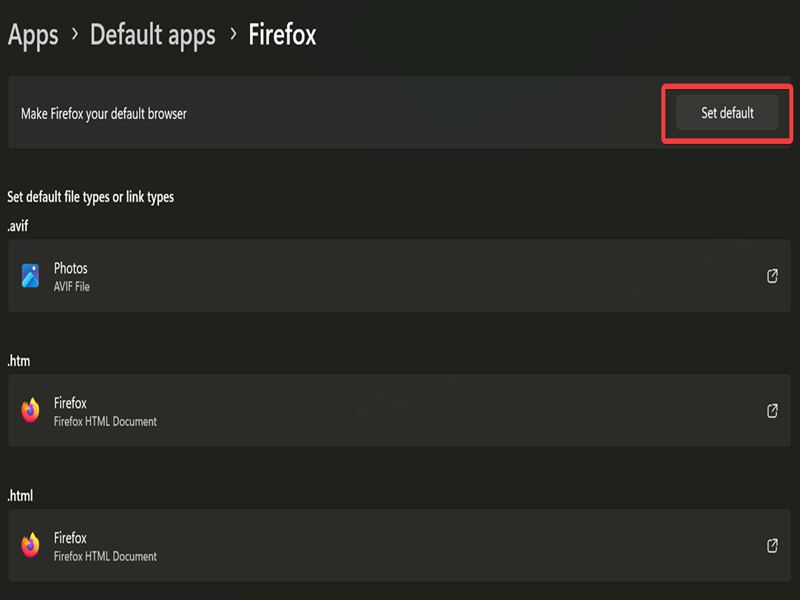
- Go to Settings > Apps > Default apps.
- Select the browser you want to use.
- Click the Set default button at the top of the page. You should see a check mark next to it once you click it.
Finally, if you want to reset all programs, you can do so on the Default apps settings page. Scroll down to Related settings, and hit the Reset button. Click OK to confirm your decision, and you're good to go.
Overall, you do have to jump through quite a few hoops to configure everything to your liking, at least compared to Windows 10.

|
selma citakovic
Selma is a gamer, geek and gremlin hunter with a passion for cyber security and smashing Windows bugs before they bite. She’s IBM-certified, loves real freeware, despises bloatware, and powers most of her troubleshooting with an unhealthy amount of coffee. |
comments powered by Disqus
