


How To Stop Edge and Chrome Default Browser Prompts
By selma čitakovićon 02/06/2026 |
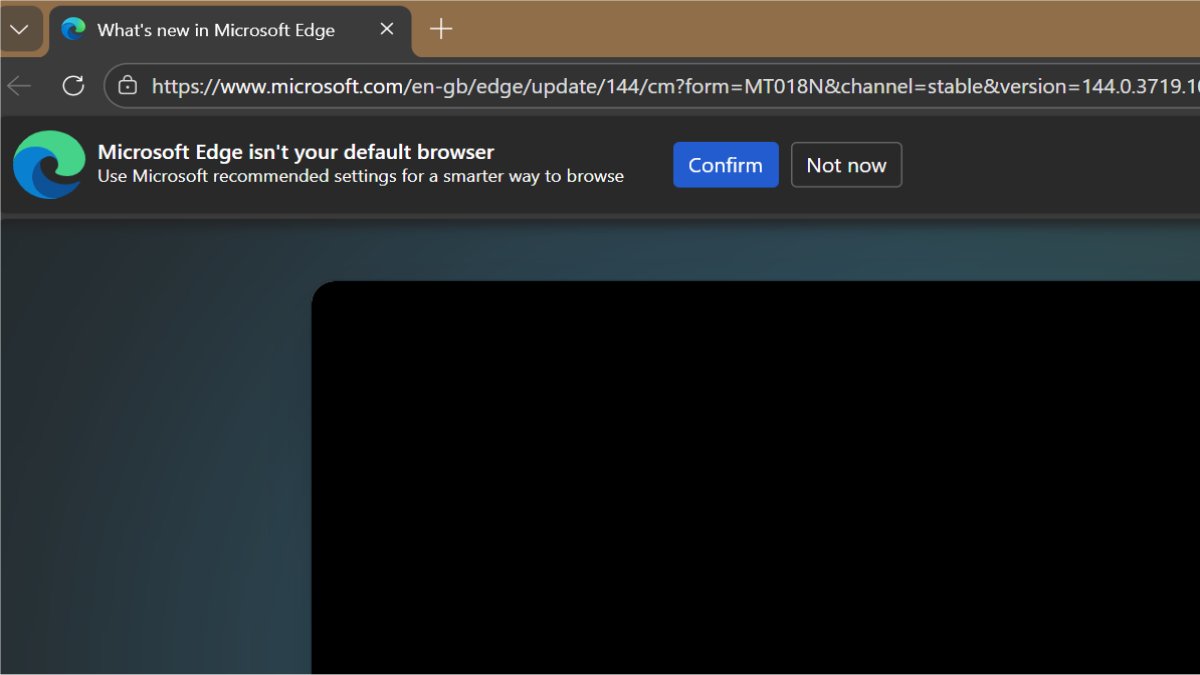
Annoyed by Microsoft Edge or Google Chrome constantly asking you to pick them as your default browser? Unfortunately, there's no option in either one's settings to disable the prompts. The "intended" way to make them stop is to agree to set them as your defaults, which is no choice at all.
However, you can still put an end to them with a couple of simple registry edits. If you're the type to get instantly wary as soon as the registry editor gets mentioned, don't worry. These tweaks are perfectly safe, and I'll guide you through the process, step by step.
Disable Microsoft Edge default browser prompts
You can do this for your current user account, or all users. But before we get into it, if you're worried you'll accidentally change something you shouldn't, you can create a system restore point. It will revert your computer to a previous state and undo all changes.
Here are the steps for current user:
- Type Registry Editor in Windows Search, and click on Open.
- Navigate to Computer\HKEY_CURRENT_USER\Software\Policies\Microsoft. You can paste this in the address bar at the top.
- Right-click the Microsoft folder and select New > Key. Name it Edge.
- Go to the new Edge key, right-click the right pane, and select New > DWORD (32-bit) Value. Name it DefaultBrowserSettingEnabled.
- Double-click DefaultBrowserSettingEnabled. Type 0 in the Value data field, and set it as Hexadecimal.
- Click OK and close the registry.
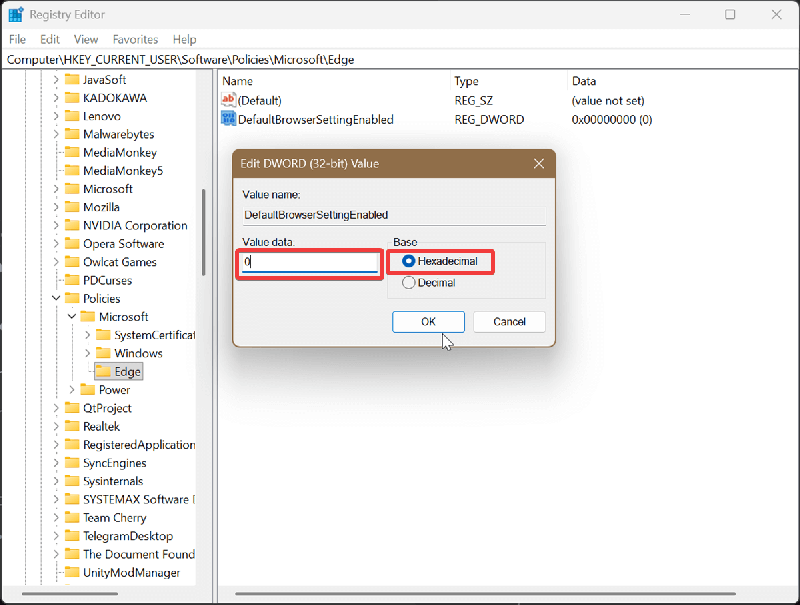
Try opening Edge now, and you should see that the prompt isn't there anymore.
Now, to achieve the same but for all users, follow these steps:
- Type Registry Editor in Windows Search, and select Run as administrator.
- Navigate to Computer\HKEY_LOCAL_MACHINE\SOFTWARE\Policies\Microsoft.
- Right-click the Microsoft folder and select New > Key. Name it Edge.
- While in the Edge key, right-click an empty spot in the right pane, and select New > DWORD (32-bit) Value. Name it DefaultBrowserSettingEnabled.
- Double-click DefaultBrowserSettingEnabled. Type 0 in the Value data field, and set it as Hexadecimal.
- Click OK and close the registry.
You'll need to sign in as an administrator to make these changes, but the steps are almost the same. It's just a different location.
To undo the edits, all you need to do is delete the DefaultBrowserSettingEnabled value. Right-click it and select Delete.
Disable Google Chrome default browser prompts
Similarly, you can turn off Chrome's "helpful" reminders for your current user account, or all users.
Let me show you how to do this for your current account first:
- Type Registry Editor in Windows Search, and click on Open.
- Navigate to Computer\HKEY_CURRENT_USER\Software\Policies. You can paste this in the address bar at the top.
- Right-click the Policies folder and select New > Key. Name it Google.
- Now, right-click the Google folder and select New > Key. Name it Chrome. Select the new Chrome key, and check if the full path looks like this: Computer\HKEY_CURRENT_USER\Software\Policies\Google\Chrome.
- Right-click the right pane, and select New > DWORD (32-bit) Value. Name it DefaultBrowserSettingEnabled.
- Double-click DefaultBrowserSettingEnabled. Type 0 in the Value data field, and set it as Hexadecimal.
- Click OK and close the registry.
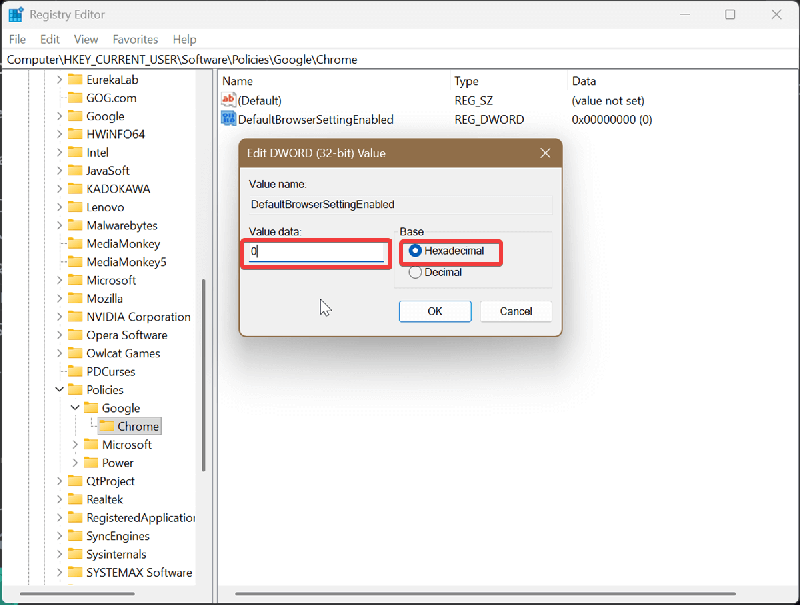
While I was trying this out, I had to create both Google and Chrome keys in Policies. If they're already there, you can just proceed to the fifth step with DefaultBrowserSettingEnabled.
Moving on to disabling the default prompts for all users:
- Type Registry Editor in Windows Search, and select Run as administrator.
- Navigate to Computer\HKEY_LOCAL_MACHINE\SOFTWARE\Policies.
- Right-click the Policies folder and select New > Key. Name it Google.
- Now, right-click the Google folder and select New > Key again. Name this one Chrome. Select the new Chrome key, and check if the full path looks like this: Computer\HKEY_LOCAL_MACHINE\SOFTWARE\Policies\Google\Chrome.
- Right-click the right pane, and select New > DWORD (32-bit) Value. Name it DefaultBrowserSettingEnabled.
- Double-click DefaultBrowserSettingEnabled. Type 0 in the Value data field, and set it as Hexadecimal.
- Click OK and close the registry.
Since this edit will apply to all users, you'll need to sign in as an administrator first.
After modifying the registry, you should see that Chrome is no longer bugging you to set it as a default browser.
Additionally, there will be another change in Settings > Default browser. Previously, you'd find a Make default button there, but now the page should look like this:
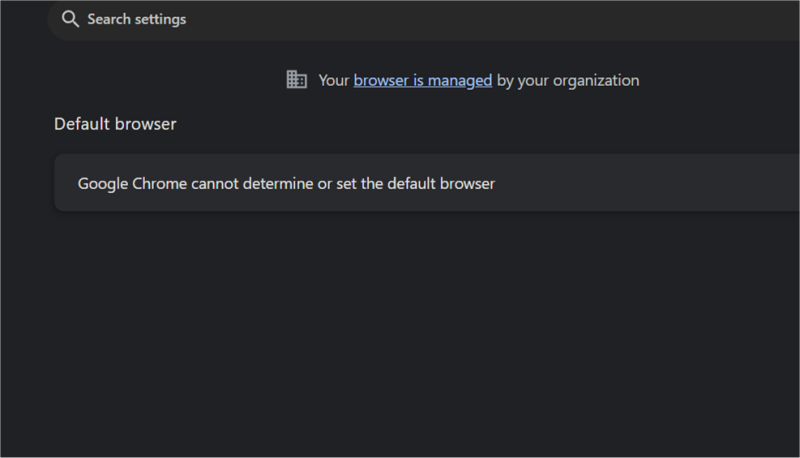
Like with Edge, you can easily undo these edits by right-clicking DefaultBrowserSettingEnabled and selecting Delete.
Admittedly, it sucks that you even have to make changes in the registry for something this trivial, instead of just toggling it off in the browser settings. But it is what it is. You can also disable website notification prompts for good measure.
comments powered by Disqus
