


How to Manage or Delete All the Apps, Websites and Games That Facebook Can Access
By Timothy Tibbettson 06/30/2023 |
Following the Cambridge Analytica fiasco, you might be wondering what apps can access your data. Anyone concerned about their privacy should stop and look to see where your Facebook data is going. Anyone who's used Facebook for years might be surprised to see how many apps have access to your data. Here's how to manage them.
Tutorial updated as the settings have changed slightly, and are reflected in this rewritten tutorial.
Click on the arrow in the top right corner, and click Settings and privacy. Click on Settings.
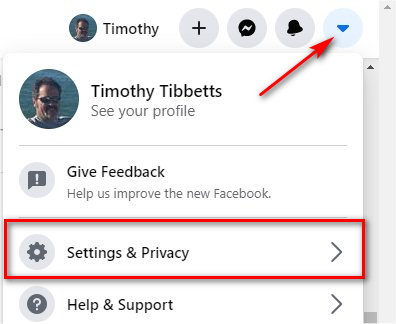
Scroll down and look on the left for Apps and Websites, and Instant Games.
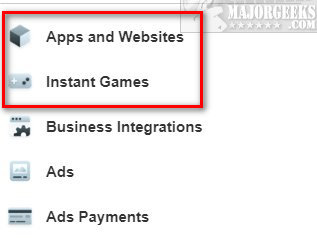
Managing Apps and Websites and Instant Games are identical.
Facebook only shows a handful of apps, websites, and games, so be sure to click See more if you have a long list.
To remove an app, website, or game, check the box next to the app or website name, and click Remove.
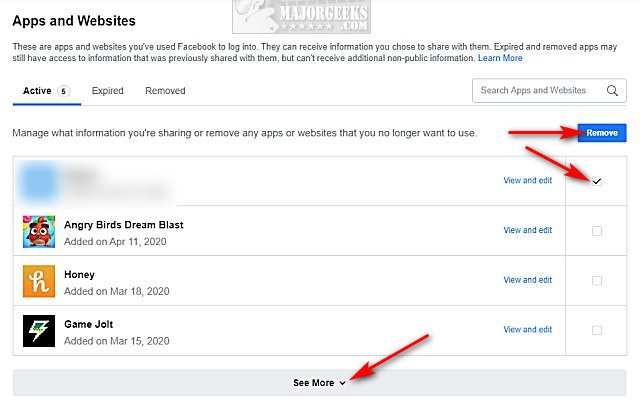
To edit an app or website, click on View and edit.
It's important to note that some apps require more information and permissions than others. For example, notice how little information Angry Birds Dream Blast asks for, while a casino app wants everything.
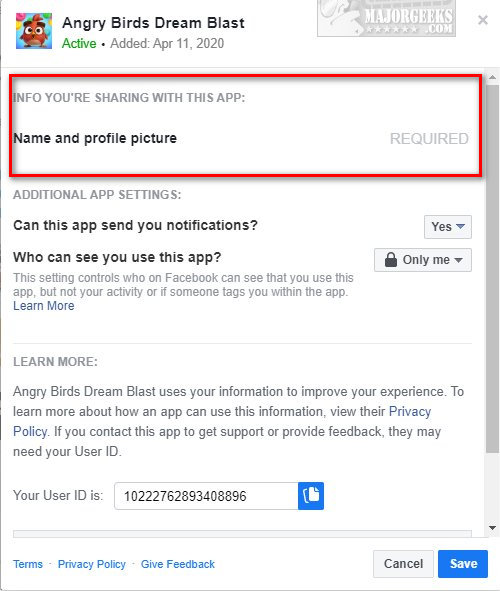
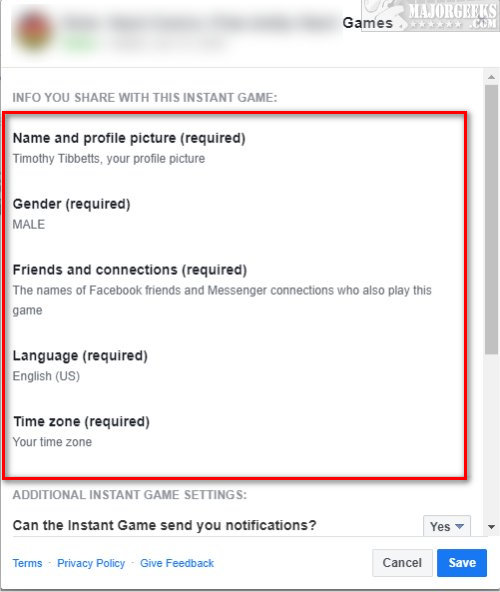
Scroll down and look for other permissions, including notifications, and who can see you using the app.
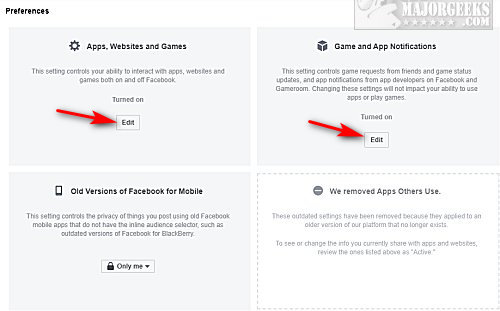
Finally, you can edit all app permissions at once at the bottom. There are two choices:
Apps, Websites, and Games - This setting controls your ability to interact with apps, websites, and games both on and off Facebook.
Game and App Notifications - This setting controls game requests from friends and game status updates, and app notifications from app developers on Facebook and Gameroom. Changing these settings will not impact your ability to use apps or play games.
Click on Edit, and you can turn access on or off for all apps, websites, and games.
Similar:
Why You Shouldn't Share Giveaways on Facebook
Why You Shouldn't Take Facebook Surveys or Quizzes
How to View and Delete Your Off-Facebook Activity
How to Delete or Remove Third-Party Facebook Applications and Websites
comments powered by Disqus
Tutorial updated as the settings have changed slightly, and are reflected in this rewritten tutorial.
Click on the arrow in the top right corner, and click Settings and privacy. Click on Settings.
Scroll down and look on the left for Apps and Websites, and Instant Games.
Managing Apps and Websites and Instant Games are identical.
Facebook only shows a handful of apps, websites, and games, so be sure to click See more if you have a long list.
To remove an app, website, or game, check the box next to the app or website name, and click Remove.
To edit an app or website, click on View and edit.
It's important to note that some apps require more information and permissions than others. For example, notice how little information Angry Birds Dream Blast asks for, while a casino app wants everything.
Scroll down and look for other permissions, including notifications, and who can see you using the app.
Finally, you can edit all app permissions at once at the bottom. There are two choices:
Click on Edit, and you can turn access on or off for all apps, websites, and games.
Similar:
comments powered by Disqus
