


Pause or Disable Automatic App Updates in Microsoft Store
By selma čitakovićon 02/02/2026 |
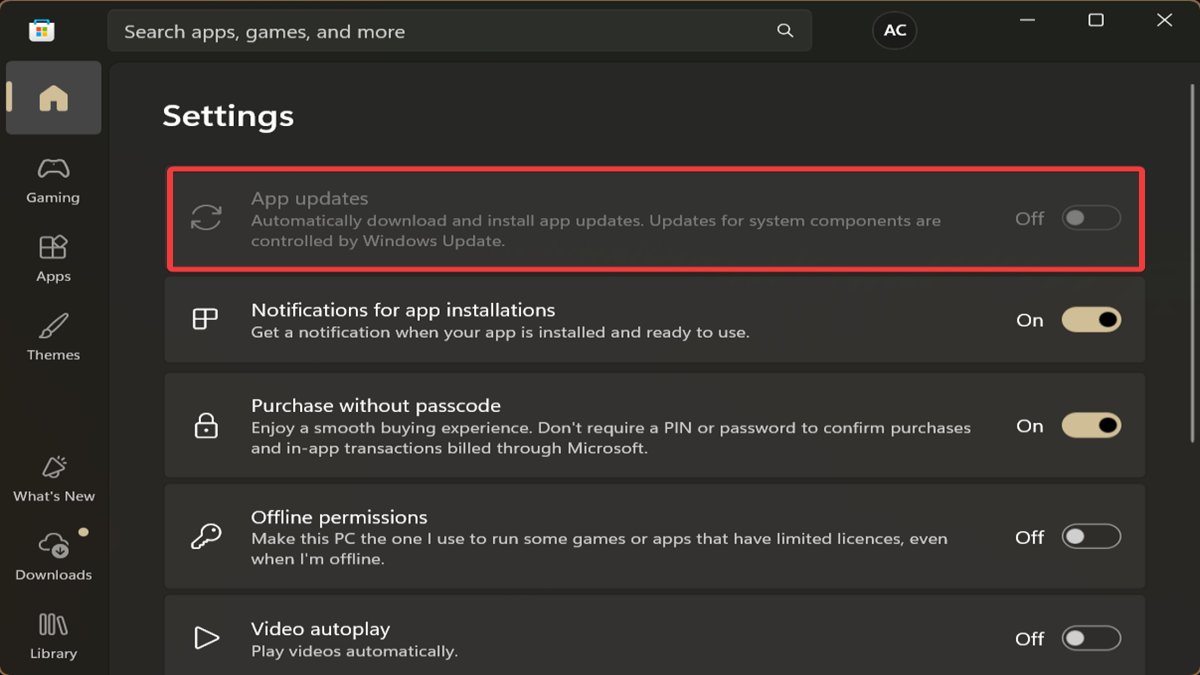
The Microsoft Store automatically downloads updates for apps by default. If you'd like to have more control over it, this guide is for you.
Earlier, you could completely disable automatic app updates right in the Microsoft Store settings. Sadly, this is no longer the case. Now, you can either pause them or take a slightly indirect route to disable them via Group Policy Editor or Registry Editor.
I'll show you all three methods below, so stay tuned.
Pause automatic updates in Microsoft Store settings
Let's do the "easy" (although limited) approach first:
- Open the Microsoft Store app, click your profile in the upper-right corner, then select Store settings.
- Toggle off Auto Updates.
- In the window that pops up, choose a pause duration. You can delay updates for up to five weeks, just like with Windows Update.
- Click Confirm.
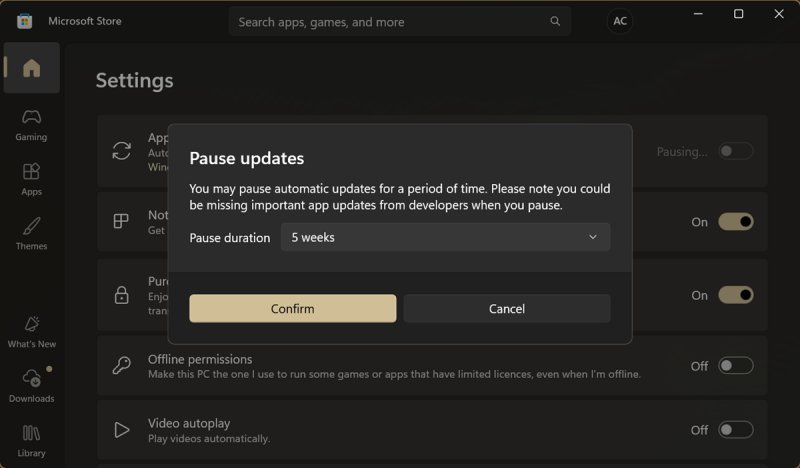
From now on, the Microsoft Store will only download updates if you manually check for them in Updates & downloads. Unfortunately, this delay will only last for five weeks at the most.
Disable automatic updates via Group Policy Editor
To fully disable automatic updates (until you feel like turning them back on again), you'll have to use the Group Policy Editor. It's only available on Windows 10/11 Pro, Education, and Enterprise. So, if you own the Home edition, skip to the next method.
Additionally, you should sign in as an administrator for this to work.
- Press Win + R, type gpedit.msc, and press Enter. Or find the Group Policy Editor with Windows Search, and click Open.
- On the left side of the editor, go to Computer Configuration > Administrative Templates > Windows Components > Store.
- While in the Store directory, double-click Turn off Automatic Download and Install of updates.
- Select Enabled in the new window, and click OK.
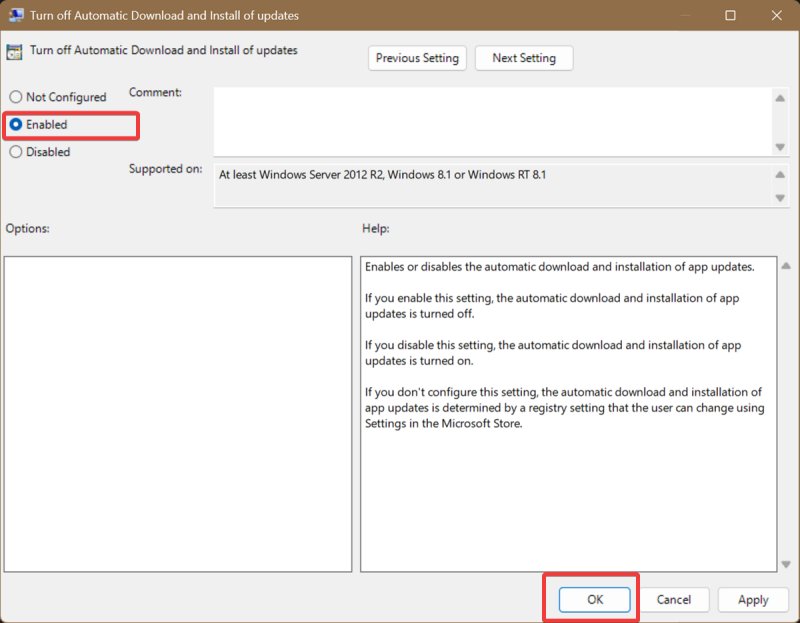
This will hard-disable automatic updates, and you won't be able to pause/unpause them. If you ever want to undo this change, select Not configured in the window for Turn off Automatic Download and Install of updates. That's the default setting.
Disable automatic updates via Registry Editor
Alternatively, you can achieve the same effects by editing the registry. As always, making these changes is perfectly safe as long as you closely follow the instructions. You can set up a restore point to undo them, just in case.
Here are the steps:
- Press Win + R, type regedit, and press Enter. Or find the Registry Editor in Windows Search and open it.
- Go to HKEY_LOCAL_MACHINE\SOFTWARE\Policies\Microsoft\WindowsStore. You can also paste this in the address bar. If you can't find the WindowsStore key under Microsoft, you'll have to create it yourself. I'll explain how in a bit.
- While in WindowsStore, double-click the AutoDownload DWORD Value.
- Change the value data to 2 to completely disable updates, and click OK. If you want to always keep them on, change it to 4.
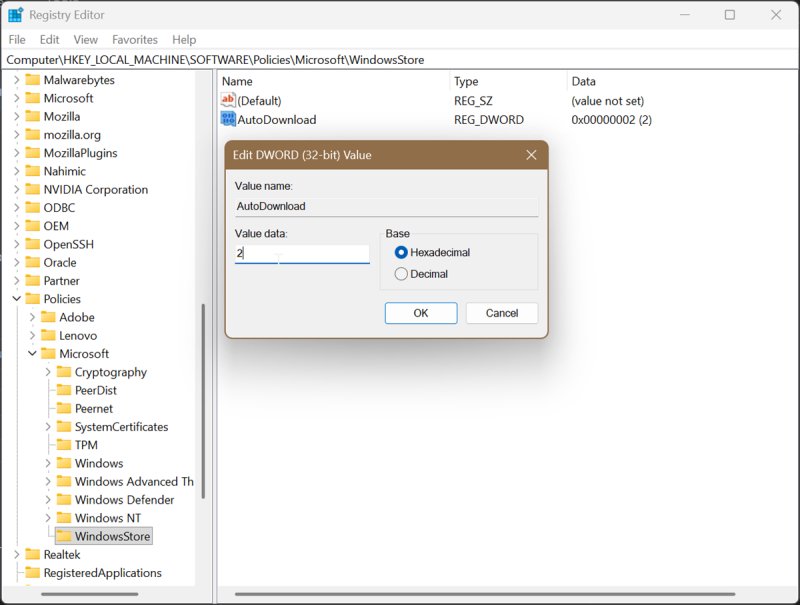
To undo these changes and keep the default settings, you can just delete the AutoDownload value.
Now, if you couldn't find WindowsStore and/or AutoDownload in the registry, here's what you need to do:
- Navigate to HKEY_LOCAL_MACHINE\SOFTWARE\Policies\Microsoft.
- Right-click the Microsoft folder (on the left side) and select New > Key. Name the new key WindowsStore.
- Go to your newly created key, and on the right side, right-click and select New > DWORD (32-bit) Value.
- Name it AutoDownload.
- Double-click AutoDownload and change the value data to 2 (to fully disable updates) or 4 (to always keep them on).
It's a bit annoying that you have to create them from scratch, but it's not hard to do. Now, if you go to the Microsoft Store settings, you'll notice that Auto Updates is greyed out and it says Off instead of Paused. That's good!
Again, you can easily undo all these edits and resume your updates whenever you're ready.

|
selma citakovic
Selma is a gamer, geek and gremlin hunter with a passion for cyber security and smashing Windows bugs before they bite. She’s IBM-certified, loves real freeware, despises bloatware, and powers most of her troubleshooting with an unhealthy amount of coffee. |
comments powered by Disqus
