


How to fix 'The Third-Party INF Does Not Contain Digital Signature Information'
By Timothy Tibbettson 06/26/2023 |
When installing drivers on your computer, you might see an error that reads, "The third-party INF does not contain digital signature information." Use these steps to resolve the problem.
-=- Advertisement -=-
The reason for the error is Windows checks for a digital signature. That signature tells Windows that the driver has been "signed" or is authentic.
What we do know about this error is that it's almost always when trying to install a third-party driver - something that we don't recommend unless necessary. Many third-party drivers are modified and often contain security risks and even viruses. In our thirty years of experience, we've never downloaded third-party drivers, and we never will.
While you could go through the complicated steps of disabling Driver Signature enforcement, the best solution is to download drivers from the manufacturer's website, hardware manufacturer website, Windows Updates, or use a driver updater. Let's discuss all four, so you can make the right decision.
1: Windows Updates
The typical computer user receives the latest drivers from Windows Updates and usually only needs to update their drivers when a problem occurs. While most drivers downloaded through Windows Updates work fine, the most common problem is outdated video drivers. Most video card companies update roughly once a month, meaning your video drivers are almost always out of date. You can disable Windows Update from downloading drivers if you like.
Peripherals, including mice, keyboards, and headsets, often come with proprietary software from the manufacturer and updates automatically. While you can download drivers only (we do), most gamers and hardcore users should consider downloading the latest software for your peripherals (see the list of links below).
Pros: Windows Updates requires no user intervention.
Cons: Windows Updates requires the drivers are WHQL certified. By the time the drivers are certified, and Microsoft makes them available, they're already out of date.
2: Third-Party Apps
Years ago, we used to look for our driver updates one at a time, and that could take hours. Now we have excellent third-party driver updating apps that can do all the work for you. Here are a few of our favorites:
Driver Booster
SlimDrivers
Snappy Driver Installer
Snappy Driver Installer Origin
SnailDriver
DUMo (Drivers Update Monitor)
Pros: You can't beat downloading all of the latest drivers all at once.
Cons: While most are freeware, some are ad-supported, meaning they offer to install other apps, offers, or show advertising. Occasionally, these programs don't always have the most current drivers for everything.
3: From Your Computer Manufacturer
If you purchased a brand-name computer, then your manufacturer offers the latest drivers for you. We only use this method if you can't find a driver you need, typically for an old computer and operating system.
Pros: We can't think of one.
Cons: The drivers they offer are customized drivers from the hardware manufacturer who provides what is known as a reference driver. While your computer manufacturer is busy adding their interface or logo, the drivers often are already out of date. Every computer builder offers driver updates for about a year, so if your computer is over a year old, don't bother.
4: From the Hardware Manufacturer
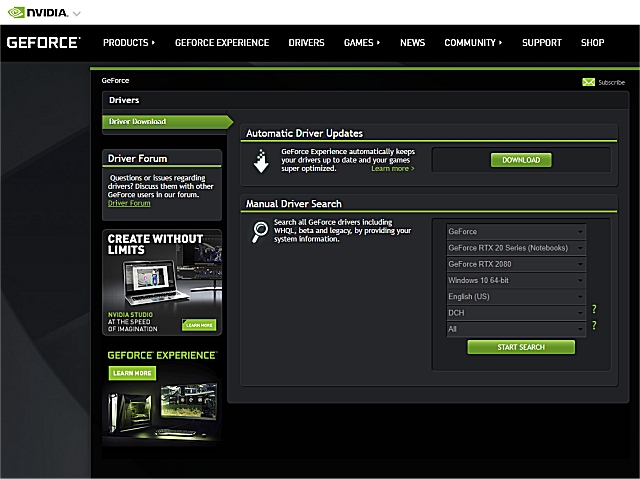
While listed last, downloading the latest drivers from each hardware manufacturer is the best way to be sure you have the latest drivers. But, it's time-consuming and rarely worth the time. We download from the manufacturer when we know we need a driver that's out of date. The most common drivers we get directly from the manufacturer is video drivers.
Pros: You always have the absolute latest drivers.
Cons: You may unintentionally download a beta driver or a driver that lacks features the manufacturer of your hardware added.
All three major video card manufacturers offer proprietary driver updater apps:
NVIDIA GeForce Experience
AMD Driver Autodetect
Intel Driver & Support Assistant
5: Popular Computer Manufactuers
Here is a list of links to the more popular hardware manufacturers if you need the latest drivers. Each website has a Support, Drivers, or Download page.
Video:
AMD
Intel
NVIDIA
Sound:
Asus
Creative Labs (Sound Blaster)
M-Audio
Realtek
Turtle Beach
Periphials
Kensington
Logitech
Mad Catz
Microsoft
Razer
Roccat
Saitek
SteelSeries
Thrustmaster
Zowie
Similar:
How to Download the Latest Drivers for Windows
What Are Windows DCH Drivers?
How-To Backup and Restore Your Drivers
How-To Stop Windows Updates From Downloading Drivers on Windows 10
How to View Recently Updated Windows Drivers
What is Windows Hardware Quality Labs or WHQL?
How to Change DPI Scaling Level in Windows 10
 TIP:
TIP: The reason for the error is Windows checks for a digital signature. That signature tells Windows that the driver has been "signed" or is authentic.
What we do know about this error is that it's almost always when trying to install a third-party driver - something that we don't recommend unless necessary. Many third-party drivers are modified and often contain security risks and even viruses. In our thirty years of experience, we've never downloaded third-party drivers, and we never will.
While you could go through the complicated steps of disabling Driver Signature enforcement, the best solution is to download drivers from the manufacturer's website, hardware manufacturer website, Windows Updates, or use a driver updater. Let's discuss all four, so you can make the right decision.
1: Windows Updates
The typical computer user receives the latest drivers from Windows Updates and usually only needs to update their drivers when a problem occurs. While most drivers downloaded through Windows Updates work fine, the most common problem is outdated video drivers. Most video card companies update roughly once a month, meaning your video drivers are almost always out of date. You can disable Windows Update from downloading drivers if you like.
Peripherals, including mice, keyboards, and headsets, often come with proprietary software from the manufacturer and updates automatically. While you can download drivers only (we do), most gamers and hardcore users should consider downloading the latest software for your peripherals (see the list of links below).
Pros: Windows Updates requires no user intervention.
Cons: Windows Updates requires the drivers are WHQL certified. By the time the drivers are certified, and Microsoft makes them available, they're already out of date.
2: Third-Party Apps
Years ago, we used to look for our driver updates one at a time, and that could take hours. Now we have excellent third-party driver updating apps that can do all the work for you. Here are a few of our favorites:
Driver Booster
SlimDrivers
Snappy Driver Installer
Snappy Driver Installer Origin
SnailDriver
DUMo (Drivers Update Monitor)
Pros: You can't beat downloading all of the latest drivers all at once.
Cons: While most are freeware, some are ad-supported, meaning they offer to install other apps, offers, or show advertising. Occasionally, these programs don't always have the most current drivers for everything.
3: From Your Computer Manufacturer
If you purchased a brand-name computer, then your manufacturer offers the latest drivers for you. We only use this method if you can't find a driver you need, typically for an old computer and operating system.
Pros: We can't think of one.
Cons: The drivers they offer are customized drivers from the hardware manufacturer who provides what is known as a reference driver. While your computer manufacturer is busy adding their interface or logo, the drivers often are already out of date. Every computer builder offers driver updates for about a year, so if your computer is over a year old, don't bother.
4: From the Hardware Manufacturer
While listed last, downloading the latest drivers from each hardware manufacturer is the best way to be sure you have the latest drivers. But, it's time-consuming and rarely worth the time. We download from the manufacturer when we know we need a driver that's out of date. The most common drivers we get directly from the manufacturer is video drivers.
Pros: You always have the absolute latest drivers.
Cons: You may unintentionally download a beta driver or a driver that lacks features the manufacturer of your hardware added.
All three major video card manufacturers offer proprietary driver updater apps:
NVIDIA GeForce Experience
AMD Driver Autodetect
Intel Driver & Support Assistant
5: Popular Computer Manufactuers
Here is a list of links to the more popular hardware manufacturers if you need the latest drivers. Each website has a Support, Drivers, or Download page.
Video:
AMD
Intel
NVIDIA
Sound:
Asus
Creative Labs (Sound Blaster)
M-Audio
Realtek
Turtle Beach
Periphials
Kensington
Logitech
Mad Catz
Microsoft
Razer
Roccat
Saitek
SteelSeries
Thrustmaster
Zowie
Similar:
How to Download the Latest Drivers for Windows
What Are Windows DCH Drivers?
How-To Backup and Restore Your Drivers
How-To Stop Windows Updates From Downloading Drivers on Windows 10
How to View Recently Updated Windows Drivers
What is Windows Hardware Quality Labs or WHQL?
How to Change DPI Scaling Level in Windows 10
