


6 Ways To Clear Clipboard History
By selma čitakovićon 05/11/2026 |
![{$insert['content_title']](/content/file/5954_image2.jpg
)
Your clipboard history remembers up to 25 copied items. Everything you copy ends up on the list, provided you enabled the feature first, of course. But if you copy over 25 items, the older ones get deleted, unless you've pinned them. Additionally, each restart clears your history - excluding your pinned items.
However, if you want to clean up your clipboard history at will without having to restart, we've got you covered. This guide includes six methods in total, depending on whether you want to keep your precious pinned entries or just delete everything.
So, let's get into it!
Delete from Win + V
You can remove specific items using the feature's shortcut:
- Press Win + V to bring up the clipboard history.
- Click the three dots right next to the entry you want to delete.
- Click the trashcan button.
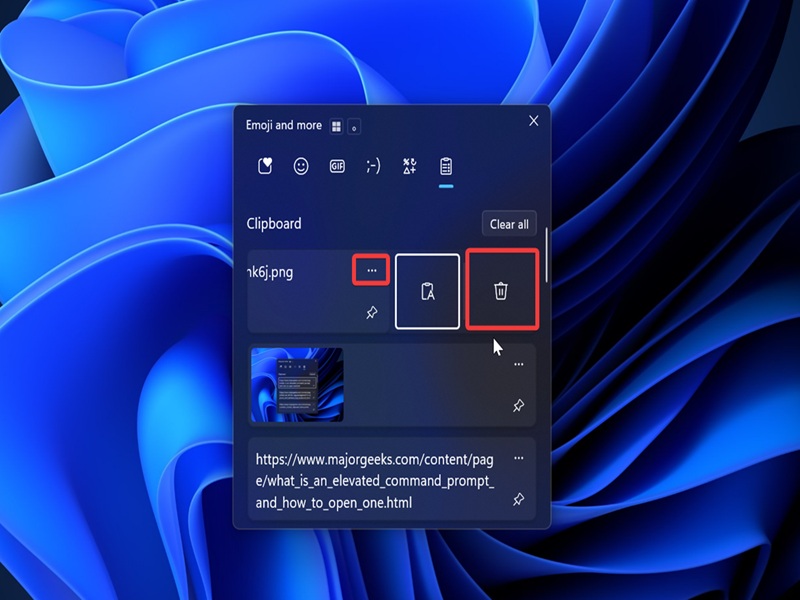
Or, if you want to clear all data except your pinned items:
- Once again, press Win + V to open the history.
- Click the Clear all button at the top of the list.
To delete everything, you'll first have to unpin everything and then hit the Clear all button.
Delete via Settings
Similarly, you can exclude your pinned entries in the Settings:
- Go to Settings > System > Clipboard.
- Click the Clear button right next to Clear clipboard data.
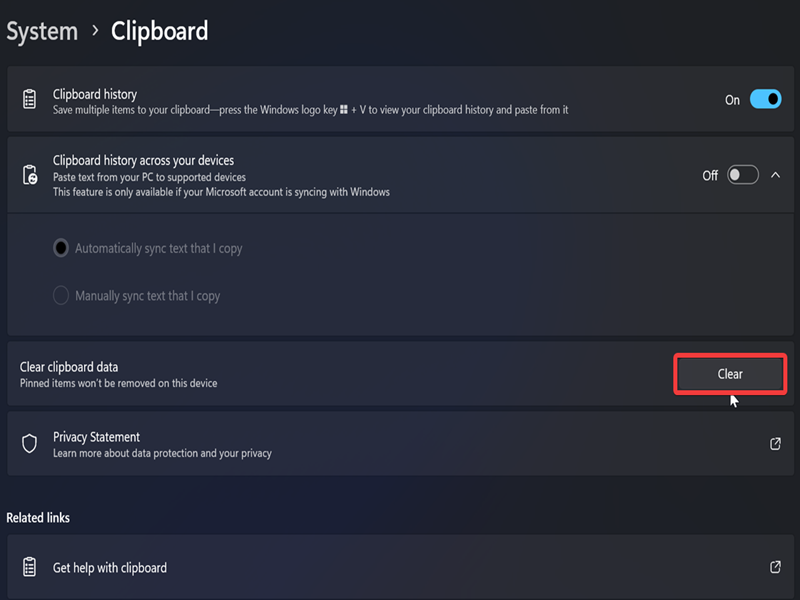
If the button is greyed out, it means you've already cleaned up your history.
Or if you want to be more thorough and delete everything:
- Go to Settings > System > Clipboard.
- Toggle off Clipboard history. This will remove all the data you previously copied.
You can then toggle it back on again and continue using it.
Delete via PowerShell
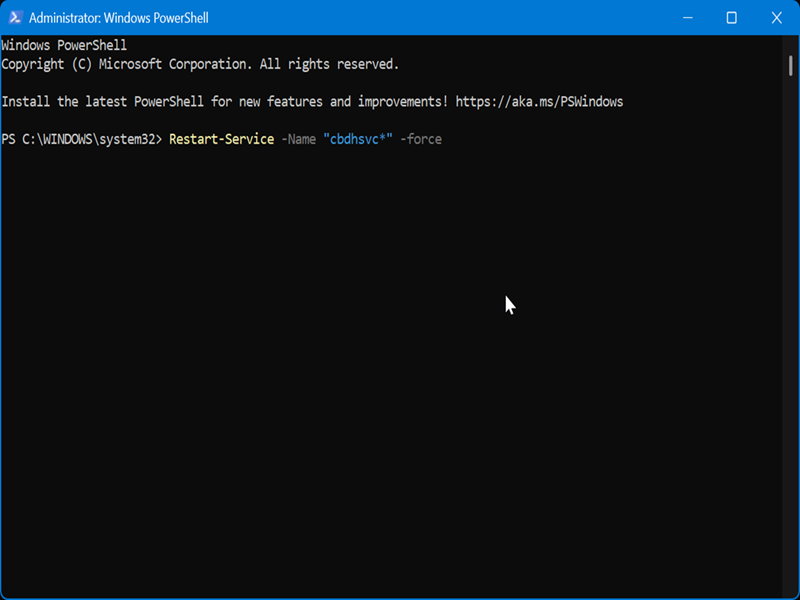
These commands will clear all clipboard history except your pinned items. So, if you want to preserve them, try this method. Keep in mind that you'll need to sign in as an administrator first, though.
- Type PowerShell in Windows Search, and select Run as administrator.
- Type the following command and press Enter: Restart-Service -Name "cbdhsvc*" -force
- Or you can use this command for the same effect: Restart-Service -DisplayName "Clipboard*" -force
Delete via Command Prompt
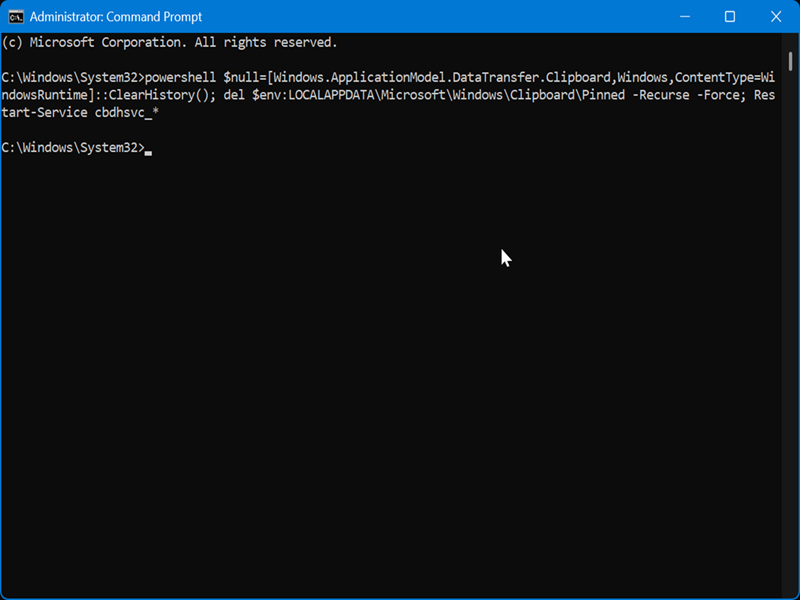
Finally, if you want to clear all data, including your pinned stuff, you can do so with an elevated Command Prompt.
First, sign in as an admin and then:
- Type CMD in Windows Search, and select Run as administrator.
- Type the following command and press Enter: powershell $null=[Windows.ApplicationModel.DataTransfer.Clipboard,Windows,ContentType=WindowsRuntime]::ClearHistory(); del $env:LOCALAPPDATA\Microsoft\Windows\Clipboard\Pinned -Recurse -Force; Restart-Service cbdhsvc_*
You can also create a handy shortcut for deleting your clipboard history. Whichever method you end up picking, we hope it helps you tidy up your list and makes copy-pasting easier.

|
selma citakovic
Selma is a gamer, geek and gremlin hunter with a passion for cyber security and smashing Windows bugs before they bite. She’s IBM-certified, loves real freeware, despises bloatware, and powers most of her troubleshooting with an unhealthy amount of coffee. |
comments powered by Disqus
