


How to Get a Dark Start Menu and Taskbar in Windows 10 & 11
By Timothy Tibbettson 05/12/2025 |
As geeks working in our dimly lit basements (or at least pretending we do), we tend to prefer everything in dark mode. It's easier on the eyes, looks slick, and lets us pretend we're hacking into the mainframe when we're really just playing games
Unfortunately, often after a Windows Feature Update, Microsoft sometimes decides to blast us with blinding light by resetting the Start Menu and Taskbar to the default light theme. Here's how to bring back the darkness where it belongs.
Why bother? Dark mode isn't just a style choice, it's easier on the eyes, especially in low light, reduces glare, and honestly, just looks cooler.
Some say it even helps save a bit of battery on OLED screens. But, that is actually a myth. Anyway, here's how:
Video tutorial:
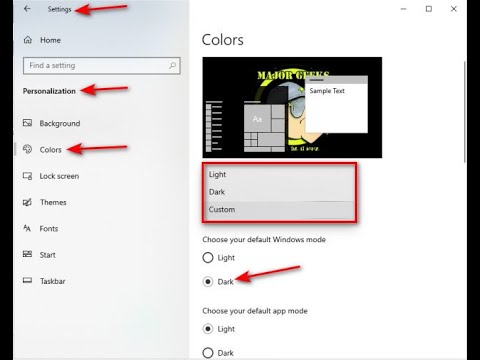
Click on Start > Settings > Personalization.
Click on Colors on the left.
Click on the dropdown box under Choose your color.
Choose from Light, Dark, or Custom.
You can spend some time here trying out different colors if you like; otherwise, to restore just the Taskbar and Start Menu dark mode, click on Custom.
Two more options will appear.
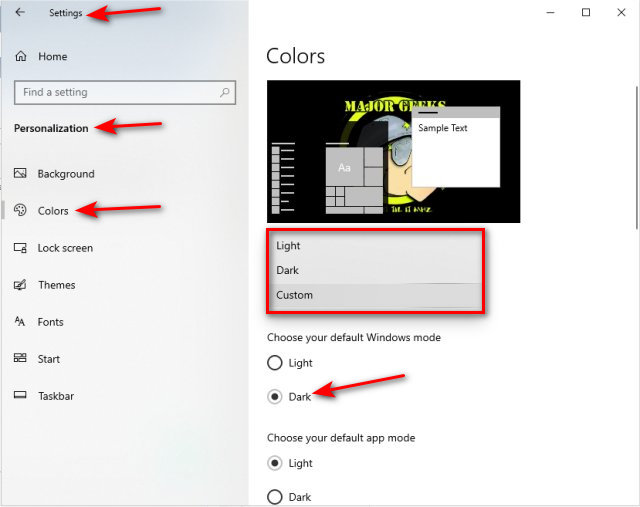
Click on Dark underneath Choose your Windows Default mode.
Your Taskbar and Start Menu are now dark again.
Similar:
How to Disable Transparency Effects in Windows 10
How to Add Color to Your Start, Taskbar, Action Center, and Title Bars
How to Disable Window Shadows in Windows 10
comments powered by Disqus
Unfortunately, often after a Windows Feature Update, Microsoft sometimes decides to blast us with blinding light by resetting the Start Menu and Taskbar to the default light theme. Here's how to bring back the darkness where it belongs.
Why bother? Dark mode isn't just a style choice, it's easier on the eyes, especially in low light, reduces glare, and honestly, just looks cooler.
Some say it even helps save a bit of battery on OLED screens. But, that is actually a myth. Anyway, here's how:
▶
Click on Start > Settings > Personalization.
Click on Colors on the left.
Click on the dropdown box under Choose your color.
Choose from Light, Dark, or Custom.
You can spend some time here trying out different colors if you like; otherwise, to restore just the Taskbar and Start Menu dark mode, click on Custom.
Two more options will appear.
Click on Dark underneath Choose your Windows Default mode.
Your Taskbar and Start Menu are now dark again.
Similar:
comments powered by Disqus
