


Windows 11 Remembers Your USB Drives. Here's How to See Them
By selma čitakovićon 10/11/2026 |
![{$insert['content_title']](/content/file/6466_image2.jpg
)
Yes, it's true: Windows remembers every USB drive you've ever connected. However, it's not as bad as it sounds. Really! Here's how it works.
When you insert a USB storage device, Windows creates a USBSTOR key in the registry for it. You can find it in HKEY_LOCAL_MACHINE\SYSTEM\CurrentControlSet\Enum\USBSTOR. This includes mass storage devices run by the Usbstor.sys driver. Other gadgets like USB keyboards, mice, webcams, etc. are excluded.
In any case, when you dismount your USB drive, Windows can't tell whether you've removed it temporarily or permanently. So, it keeps the stored info about it for later, so Plug and Play can easily recognize it again. It acts like cached metadata for previous devices.
Moreover, the USBSTOR key doesn't keep a record of the files that were on your drives or whether you've copied them. It also doesn't store a complete history of every time you've plugged in a drive. It does keep a generic USB storage device name and its drive letter, hardware identifier, when it was first set up, and the last time it was connected/disconnected.
It's nothing out of the ordinary. So, no one can use USB records to prove data theft or similar activities.
If you're curious about it and want to see it for yourself, here's how you can find your USB history.
Via Device Manager
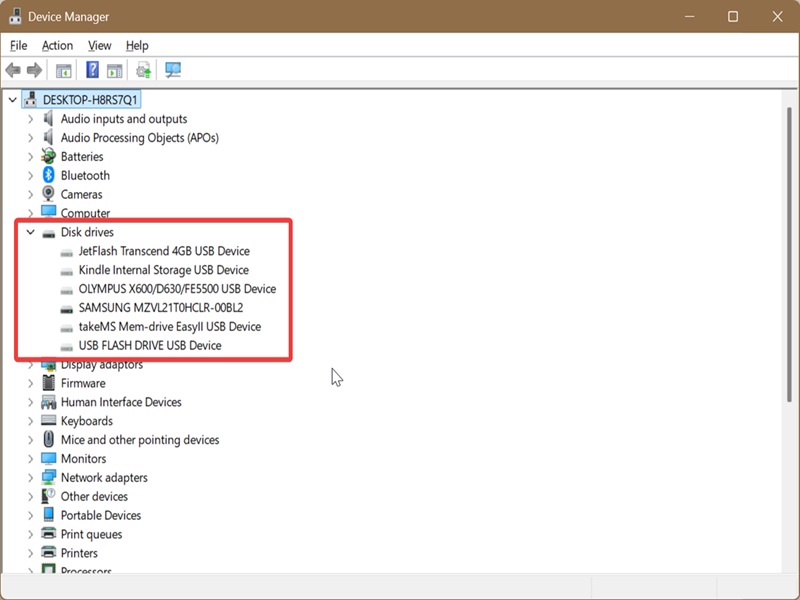
Naturally, the Device Manager keeps track of your connected USB drives:
- Press Win + X and select Device Manager.
- Click the View tab and check Show hidden devices. You won't be able to see the USB history otherwise.
- Click on the Disk drives category to expand it. You'll see currently connected devices (like your SSD or HDD) and greyed-out ones. They represent the USB drives you've previously mounted.
Via PowerShell
You can also check out your history with a quick command:
- Press Win + X, select Terminal, and open PowerShell.
- Paste the following command and hit Enter: Get-ItemProperty -Path HKLM:\SYSTEM\CurrentControlSet\Enum\USBSTOR\*\*\ | Select FriendlyName
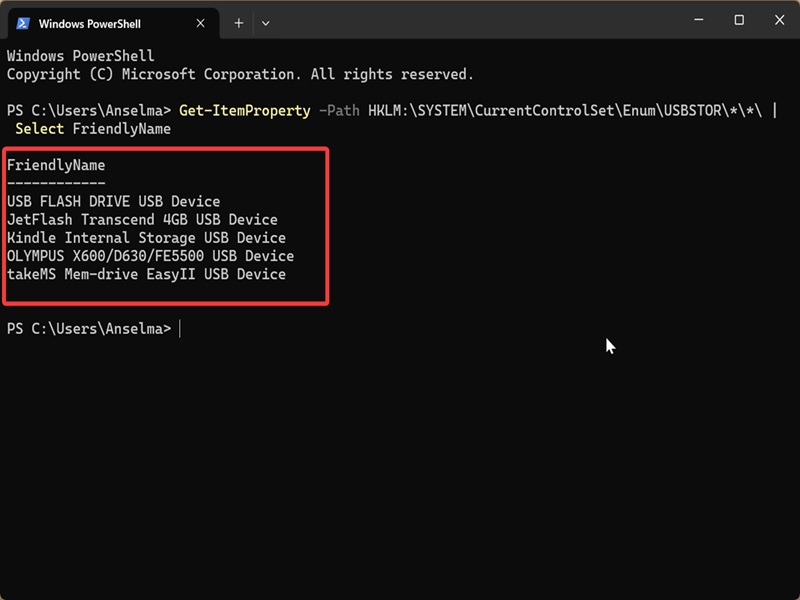
You'll see a list of USB storage devices under FriendlyName.
Via Registry Editor
Finally, you can visit the registry and look at the USBSTOR list directly. Since you won't change anything, there's no real need to create a system restore point as a precaution (unless your cat walks over your keyboard).
Simply follow these steps:
- Press Win + R, type regedit, and hit Enter.
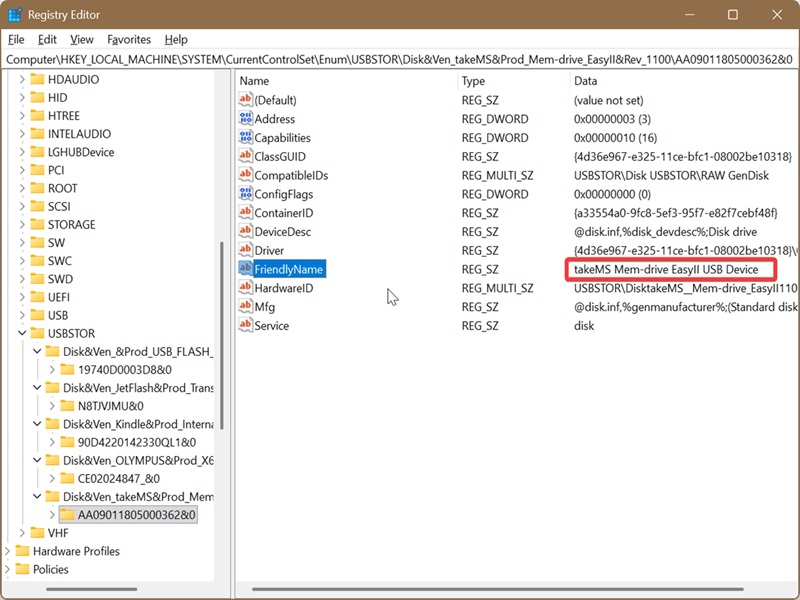
- Navigate to HKEY_LOCAL_MACHINE\SYSTEM\CurrentControlSet\Enum\USBSTOR
- On the left side, click on the USBSTOR key to expand it.
- You'll see a list of subkeys, which represent all the previously connected USB storage devices.
- Click on the one you want to check out, and on the right side, you'll see its name next to the FriendlyName string value.
Hopefully, this satisfies your curiosity!

|
selma citakovic
Selma is a gamer, geek and gremlin hunter with a passion for cyber security and smashing Windows bugs before they bite. She’s IBM-certified, loves real freeware, despises bloatware, and powers most of her troubleshooting with an unhealthy amount of coffee. |
comments powered by Disqus
