


Windows 11 Won't Boot? Here's How to Use Startup Repair
By selma čitakovićon 10/15/2026 |
![{$insert['content_title']](/content/file/6354_image3.jpg
)
Windows failing to start can be a bit scary. In that situation, usually your first move is to use Startup Repair. It's a built-in recovery tool in the Windows Recovery Environment.
Simply put, it can automatically diagnose and repair the most common startup issues. This includes boot configuration errors, corrupted or missing system files, incompatible drivers, registry errors, and more. If it doesn't fix the problem outright, it will generate a detailed report of the diagnosed issues, which can point you in the right direction for more troubleshooting.
Let me show you how to use it and (hopefully) resolve your issue.
How to access Startup Repair
Most likely, you can't boot into Windows at all, so you'll have to access the Windows Recovery Environment directly with a hard reboot. To do so, press and hold the power button to turn off your PC, then immediately turn it on again, and repeat this until you see the Windows logo screen, "Please wait" or "Diagnosing your PC." It may take several tries, so keep going at it.
Once you get to a blue menu screen:
- Click on See advanced repair options or Advanced options.
- Go to Troubleshoot > Advanced options.
- Select Startup Repair.
- You'll see a screen saying "Diagnosing your PC." Wait for the process to complete.
But if you've previously enabled Quick Machine Recovery, you'll see that tool instead of Startup Repair. You can disable it in Settings > System > Recovery > Quick Machine Recovery.
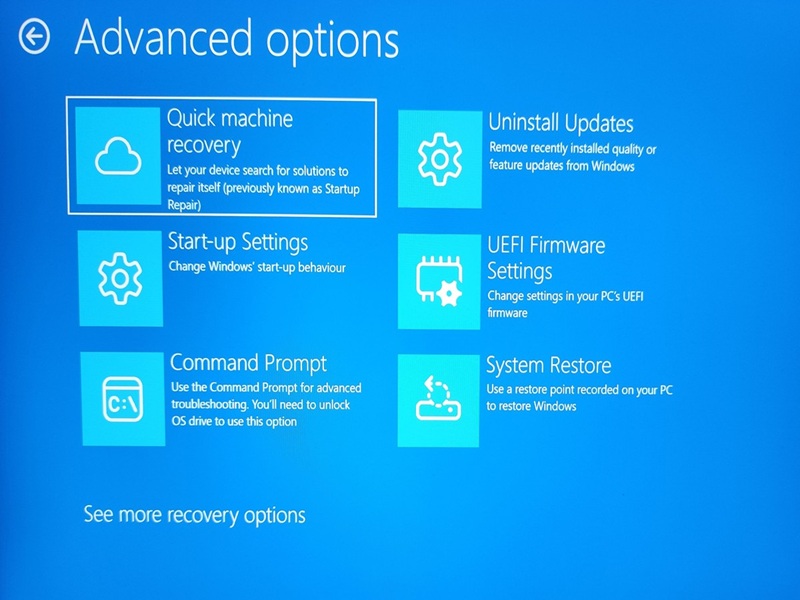
If it doesn't manage to repair the problem at first, you can run it again. It's funny, but sometimes running it a couple of times more with a restart does work. Under "Startup Repair couldn't repair your PC," select Advanced options, and then run the tool again.
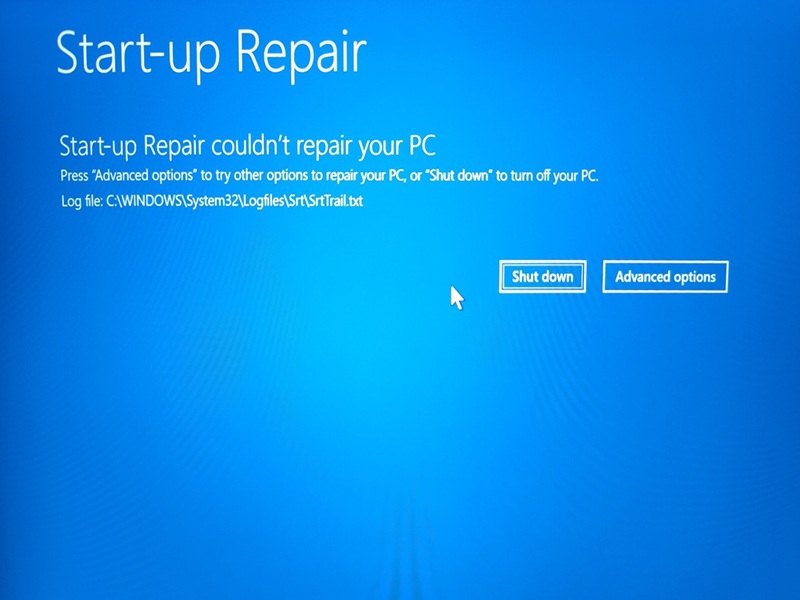
This screen also tells you where you can find the log file with the diagnosed problems.
Alternatively, you can access WinRE by going to Settings > System > Recovery, and clicking on the Restart now button next to Advanced startup. From there, once the PC reboots, you can follow the numbered steps above. However, this method assumes you can access Windows Settings normally, so it probably won't work for you if you're having serious startup issues.

|
selma citakovic
Selma is a gamer, geek and gremlin hunter with a passion for cyber security and smashing Windows bugs before they bite. She’s IBM-certified, loves real freeware, despises bloatware, and powers most of her troubleshooting with an unhealthy amount of coffee. |
comments powered by Disqus
