


Windows Media Player Won’t Open
By Timothy Tibbettson 06/19/2023 |
If you're having trouble getting Windows Media Player to open, there are a few possibilities and easy fixes including the built-in troubleshooter, reregistering DLL files or using a third-party app like Fix WMP Let's get your Windows Media Player going again. You can try each step, in any order and see if Windows Media Player opens after each.
If you're Windows Media Player will open, but you're having other problems, please check out How to Troubleshoot Windows Media Player Issues.
1: Re-Register Three DLL Files
It's possible you need to re-register the DLL files related to Windows Media Player. We need to open a command prompt as admin to do this.
Press the Windows key + S and begin typing command prompt until you see Command Prompt. Right-click and choose Run as Administrator.
Copy and paste or type the following three lines, one at a time, followed by the enter key.
regsvr32 vbscript.dll
regsvr32 jscript.dll
regsvr32 wmp.dll
2: Run the Built-in Troubleshooters
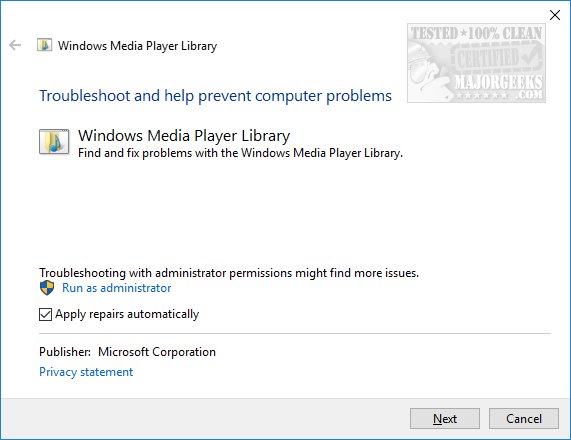
There are three troubleshooters available; Windows Media Player Settings, Windows Media Player DVD, and Windows Media Player Library. Go to Start, Run or press the Winodws key + R and type in the following lines, one at a time:
msdt.exe -id WindowsMediaPlayerConfigurationDiagnostic
msdt.exe -id WindowsMediaPlayerLibraryDiagnostic
msdt.exe -id WindowsMediaPlayerDVDDiagnostic
If you don't have one of the troubleshooters included with your copy of Windows you can download them - Windows Media Player Troubleshooters.
3: Run the Fix WMP Utility
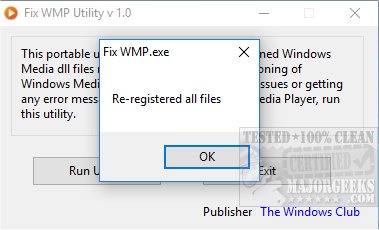
Fix WMP is a freeware and portable app that will re-register all Windows Media DLL files if your Windows Media Player is running poorly or giving you errors.
Fix WMP is simple enough to use. Just run it and either select "Run Utility" or "Exit." There are no settings or options to be found, and it will complete and notify you when it's done. In our case, it only took seconds. Close the app and see if your problem was resolved.
Download it here.
4: Use System Restore to Roll Back
If these troubleshooters didn't resolve your problem, and you know roughly when the problems started, you can always restore to an earlier restore point -
Enable, Disable, Manage, Delete or Create a System Restore Point.
5: Uninstall and Reinstall Windows Media Player
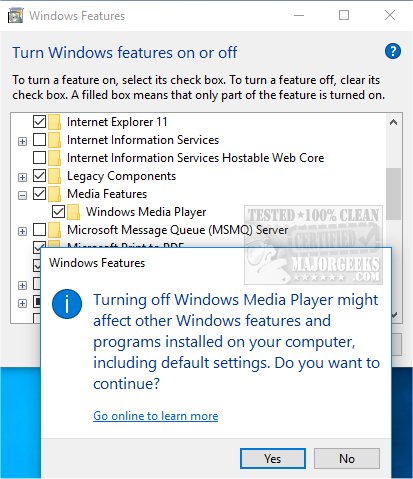
The above steps should help, but if not we may need to uninstall and reinstall Windows Media Player. Press the Winodws key + S and start typing Windows features until you see Turn Windows features on and off.
Scroll down to, and expand Media Features and uncheck Windows Media Player. You'll get a warning that turning it off may affect other features and programs. Click Yes.
Restart your computer at this point and when your computer restarts follow the above steps and recheck the box next to Windows Media Player.
6: Restore Some Windows Settings
Because many Windows problems come with many possible solutions, we've had great luck using Tweaking.Com Windows Repair. It's safe, free, and has a consistent 5-star rating. It does not replace or remove anything but instead checks all expected Windows settings to see if anything has changed and reverts those settings to what they are supposed to be. There are different scans you can run to save time, so choose the one you think might fix your problem. Odds are, Windows Repair will find and fix your problem.
7: Ditch Windows Media Player
If all else fails, get a better media player. Most geeks do, and we lean towards using PotPlayer or VLC Media Player. It might sound like an extreme option, but you'll thank us later. See the ratings and comments on either media player.
comments powered by Disqus
If you're Windows Media Player will open, but you're having other problems, please check out How to Troubleshoot Windows Media Player Issues.
1: Re-Register Three DLL Files
It's possible you need to re-register the DLL files related to Windows Media Player. We need to open a command prompt as admin to do this.
Press the Windows key + S and begin typing command prompt until you see Command Prompt. Right-click and choose Run as Administrator.
Copy and paste or type the following three lines, one at a time, followed by the enter key.
regsvr32 vbscript.dll
regsvr32 jscript.dll
regsvr32 wmp.dll
2: Run the Built-in Troubleshooters
There are three troubleshooters available; Windows Media Player Settings, Windows Media Player DVD, and Windows Media Player Library. Go to Start, Run or press the Winodws key + R and type in the following lines, one at a time:
msdt.exe -id WindowsMediaPlayerConfigurationDiagnostic
msdt.exe -id WindowsMediaPlayerLibraryDiagnostic
msdt.exe -id WindowsMediaPlayerDVDDiagnostic
If you don't have one of the troubleshooters included with your copy of Windows you can download them - Windows Media Player Troubleshooters.
3: Run the Fix WMP Utility
Fix WMP is a freeware and portable app that will re-register all Windows Media DLL files if your Windows Media Player is running poorly or giving you errors.
Fix WMP is simple enough to use. Just run it and either select "Run Utility" or "Exit." There are no settings or options to be found, and it will complete and notify you when it's done. In our case, it only took seconds. Close the app and see if your problem was resolved.
Download it here.
4: Use System Restore to Roll Back
If these troubleshooters didn't resolve your problem, and you know roughly when the problems started, you can always restore to an earlier restore point -
Enable, Disable, Manage, Delete or Create a System Restore Point.
5: Uninstall and Reinstall Windows Media Player
The above steps should help, but if not we may need to uninstall and reinstall Windows Media Player. Press the Winodws key + S and start typing Windows features until you see Turn Windows features on and off.
Scroll down to, and expand Media Features and uncheck Windows Media Player. You'll get a warning that turning it off may affect other features and programs. Click Yes.
Restart your computer at this point and when your computer restarts follow the above steps and recheck the box next to Windows Media Player.
6: Restore Some Windows Settings
Because many Windows problems come with many possible solutions, we've had great luck using Tweaking.Com Windows Repair. It's safe, free, and has a consistent 5-star rating. It does not replace or remove anything but instead checks all expected Windows settings to see if anything has changed and reverts those settings to what they are supposed to be. There are different scans you can run to save time, so choose the one you think might fix your problem. Odds are, Windows Repair will find and fix your problem.
7: Ditch Windows Media Player
If all else fails, get a better media player. Most geeks do, and we lean towards using PotPlayer or VLC Media Player. It might sound like an extreme option, but you'll thank us later. See the ratings and comments on either media player.
comments powered by Disqus
