


CleanGeek 1.0.5
|
Author:
TechyGeeksHome
Date: 09/26/26 Size: 29-87 MB License: Freeware Requires: 11|10 Downloads: 847 times  TIP:
Click Here to Repair or
TIP:
Click Here to Repair orRestore Missing Windows Files |
Download (EXE) Download (Portable) Download@MajorGeeks Download@MajorGeeks
|
MajorGeeks: Setting the standard for editor-tested, trusted, and secure downloads since 2002. |
 Avast Free Antivirus Worried about finance scams?
Get free antivirus with AI-powered online scam detection Download Free!
CleanGeek scans your device, identifies unnecessary data, and lets you remove only the files you choose.
CleanGeek efficiently manages various types of unnecessary files on your system. It targets temporary files, Windows Update leftovers, delivery optimization cache, crash dumps, thumbnail and icon caches, browser caches, and memory dumps from blue screen errors that are rarely reviewed. The tool first measures the impact of these files, with clear explanations of how much storage space they occupy. You have complete control over the cleanup process, since CleanGeek removes only the files you select.
CleanGeek operates on a two-step process that prioritizes safety and user control. The first step involves scanning your system to identify areas for cleanup without making any changes. In the second step, you can remove only the items you select so that you can see the number of items before deletion and the total recovered space afterward.
The application highlights important notes about specific actions: for instance, clearing cookies may log you out of most websites, and any saved form data will be permanently lost, with explicit warnings next to each option before you select it. Notably, saved passwords are safeguarded and not included in the cleanup process; no version of the application removes password storage.
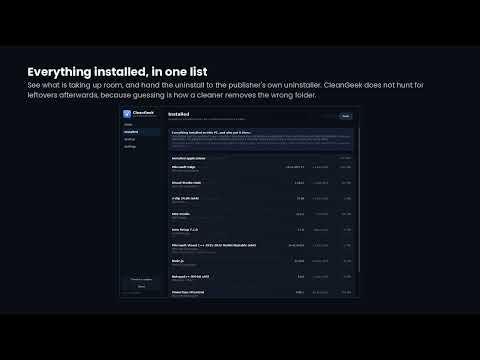
Additionally, CleanGeek offers a comprehensive list of installed applications, sorted and searchable by publisher and version. Uninstallation is delegated to each application's own uninstaller, rather than having CleanGeek delete application files or guess at leftover data.
For startup management, users can view applications that initiate with Windows, as well as recommendations on which entries to leave untouched, such as security software, audio drivers, touchpad settings, and file synchronization tools, all with clear explanations.
CleanGeek also allows for scheduled scans that track performance without executing any deletions. These scheduled runs generate logs and follow strict safety protocols to prevent automated deletions when no one is present at the machine.
The Recycle Bin is a critical part of the system cleanup process; it will only be emptied at your direct instruction, not as part of a broader cleanup sweep. This ensures potentially recoverable items are deleted only when you decide.
It is never a bad idea to have a current restore point handy, just in case you run into an issue.
CleanGeek can be a vital tool for those with a full C: drive, helping to clear space taken up by remnants from Windows Updates, delivery optimization cache, and browser caches. It's especially useful for older laptops that need a thorough clean. Best part: it has clear instructions, and you control what gets deleted.
Similar:
● Best Drive Cleaner? CCleaner VS Wise Disk Cleaner VS PrivaZer
● How to Use Storage Sense to Delete Junk Files in Windows 10 & 11 Automatically
● How to Securely Delete Files in Windows 10 With PowerShell and Cipher
● How to Back up or Restore the Windows Registry
Let CleanGeek Help You Free Up Space
CleanGeek efficiently manages various types of unnecessary files on your system. It targets temporary files, Windows Update leftovers, delivery optimization cache, crash dumps, thumbnail and icon caches, browser caches, and memory dumps from blue screen errors that are rarely reviewed. The tool first measures the impact of these files, with clear explanations of how much storage space they occupy. You have complete control over the cleanup process, since CleanGeek removes only the files you select.
Two-Step Process for Control & Safety
CleanGeek operates on a two-step process that prioritizes safety and user control. The first step involves scanning your system to identify areas for cleanup without making any changes. In the second step, you can remove only the items you select so that you can see the number of items before deletion and the total recovered space afterward.
Provides Helpful Info about Actions
The application highlights important notes about specific actions: for instance, clearing cookies may log you out of most websites, and any saved form data will be permanently lost, with explicit warnings next to each option before you select it. Notably, saved passwords are safeguarded and not included in the cleanup process; no version of the application removes password storage.
View Your Installed Apps from UI
Additionally, CleanGeek offers a comprehensive list of installed applications, sorted and searchable by publisher and version. Uninstallation is delegated to each application's own uninstaller, rather than having CleanGeek delete application files or guess at leftover data.
▶
Manage Startup Items
For startup management, users can view applications that initiate with Windows, as well as recommendations on which entries to leave untouched, such as security software, audio drivers, touchpad settings, and file synchronization tools, all with clear explanations.
CleanGeek Offers Scheduled Scans
CleanGeek also allows for scheduled scans that track performance without executing any deletions. These scheduled runs generate logs and follow strict safety protocols to prevent automated deletions when no one is present at the machine.
Only Delete Items When You Are Ready
The Recycle Bin is a critical part of the system cleanup process; it will only be emptied at your direct instruction, not as part of a broader cleanup sweep. This ensures potentially recoverable items are deleted only when you decide.
It is never a bad idea to have a current restore point handy, just in case you run into an issue.
Geek Verdict
CleanGeek can be a vital tool for those with a full C: drive, helping to clear space taken up by remnants from Windows Updates, delivery optimization cache, and browser caches. It's especially useful for older laptops that need a thorough clean. Best part: it has clear instructions, and you control what gets deleted.
Similar:
● Best Drive Cleaner? CCleaner VS Wise Disk Cleaner VS PrivaZer
● How to Use Storage Sense to Delete Junk Files in Windows 10 & 11 Automatically
● How to Securely Delete Files in Windows 10 With PowerShell and Cipher
● How to Back up or Restore the Windows Registry
 Screenshot for CleanGeek
Top Downloads In Drive Cleaners
 WinSysClean 23.0 [ 2026-09-21 08:49:11 | 19 MB | Freemium | 11|10|8 | 4 ] PrivaZer 4.0.127 [ 2026-10-04 08:05:26 | 28 MB | Freemium | 11|10|8|7 | 4 ] CCleaner Standard 7.12.1526.0 [ 2026-09-29 10:46:53 | Size Varies | Ad-Supported | 11|10|8|7|macOS | 5 ] CCleaner Portable 6.4.1.11567 [ 2026-06-20 15:32:10 | 78 MB | Ad-Supported | 11|10|8|7 | 5 ] CCleaner Slim 6.4.1.11567 [ 2026-06-20 15:32:09 | 81 MB | Ad-Supported | 11|10|8|7|macOS | 5 ]
 Tactical Briefings
Comment Rules & Etiquette - We welcome all comments from our readers, but any comment section requires some moderation. Some posts are auto-moderated to reduce spam, including links and swear words. When you make a post, and it does not appear, it went into moderation. We are emailed when posts are marked as spam and respond ASAP. Some posts might be deleted to reduce clutter. Examples include religion, politics, and comments about listing errors (after we fix the problem and upvote your comment). Finally, be nice. Thank you for choosing MajorGeeks.

© 2000-2026 MajorGeeks.com
Powered by Contentteller® CMS System