


Windows Can’t Get the Network Settings From the Router
By Timothy Tibbettson 06/15/2023 |
Windows can’t get the Network Settings from the router is an error known to appear using various internet-connected items, including your printer, hotspot, and more. Here are a few things to try to fix this error.
1: Internet 101 Steps
There are always a few necessary steps one should take when diagnosing a problem. Odds are you're familiar or tried these, but let's cover them all in one step.
Restart Your Router - Unplug your router. Wait a few minutes and plug it back in.
Verify if It's the Router or Windows - Verify with another device that you can connect. If other devices can connect, it's a Windows problem.
Verify Your Router Password or Pin - If your error is appearing after entering it, double-check your password.
Make Sure Your Internet Is Working - A fundamental step, but it happens.
2: Disable and Reenable Your Network
Find the network you use for the internet. These settings can move around on different builds of Windows, but you can usually get there by pressing the Windows Key + X and select Network Connections. Select Wireless or Ethernet, then Change adapter options. Optionally, head to the Control Panel, Network & Internet.
Right-click on your internet connection and select disable. Wait a minute, then right-click and select Enable.
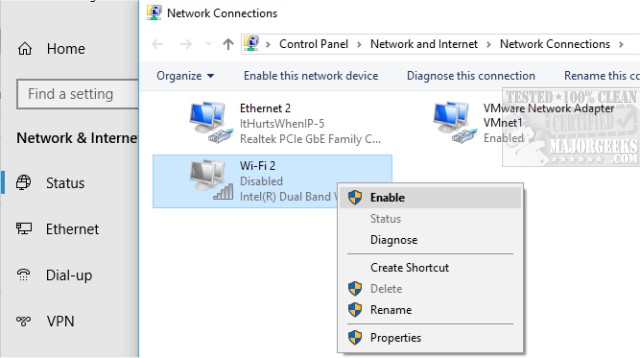
Keep this Windows open for step 2.
3: Run the Network Diagnostic Troubleshooter
If Step 1 didn't help, there's a button that says Diagnose. This starts the Network Diagnostic Troubleshooter. Follow the prompts. Often, the troubleshooter won't find a problem, so we have to try a few other ideas.
4: Reset Your Network
Close all open programs. Press the Windows Key + S and begin typing in Network Reset, and click on that. Windows will reset your network settings and restart your computer. If you'd rather not reset everything, Tweaking.Com Windows Repair has a networking-specific category that should resolve your problems.
Similar:
How to Improve Your Wireless Network Performance
Hide or Block Neighbor's Wi-Fi Networks on Windows
Windows Couldn’t Automatically Bind the IP Protocol Stack to the Network Adapter
How to See Your Network Adapter Speed in Windows 10
How to Reset Network Settings in Windows 10
Network Diagnostics Troubleshooter Reports Problem With Wireless Adapter or Access Point
Windows Could Not the Start Peer Networking Grouping Service on Local Computer
Your Connection Was Interrupted - A Network Change Was Detected - ERR_NETWORK_CHANGED
comments powered by Disqus
1: Internet 101 Steps
There are always a few necessary steps one should take when diagnosing a problem. Odds are you're familiar or tried these, but let's cover them all in one step.
2: Disable and Reenable Your Network
Find the network you use for the internet. These settings can move around on different builds of Windows, but you can usually get there by pressing the Windows Key + X and select Network Connections. Select Wireless or Ethernet, then Change adapter options. Optionally, head to the Control Panel, Network & Internet.
Right-click on your internet connection and select disable. Wait a minute, then right-click and select Enable.
Keep this Windows open for step 2.
3: Run the Network Diagnostic Troubleshooter
If Step 1 didn't help, there's a button that says Diagnose. This starts the Network Diagnostic Troubleshooter. Follow the prompts. Often, the troubleshooter won't find a problem, so we have to try a few other ideas.
4: Reset Your Network
Close all open programs. Press the Windows Key + S and begin typing in Network Reset, and click on that. Windows will reset your network settings and restart your computer. If you'd rather not reset everything, Tweaking.Com Windows Repair has a networking-specific category that should resolve your problems.
Similar:
How to Improve Your Wireless Network Performance
Hide or Block Neighbor's Wi-Fi Networks on Windows
Windows Couldn’t Automatically Bind the IP Protocol Stack to the Network Adapter
How to See Your Network Adapter Speed in Windows 10
How to Reset Network Settings in Windows 10
Network Diagnostics Troubleshooter Reports Problem With Wireless Adapter or Access Point
Windows Could Not the Start Peer Networking Grouping Service on Local Computer
Your Connection Was Interrupted - A Network Change Was Detected - ERR_NETWORK_CHANGED
comments powered by Disqus
