


4 Ways to Turn Bluetooth On or Off in Windows 11
By selma čitakovićon 09/27/2026 |
![{$insert['content_title']](/content/file/6431_image5.jpg
)
You can pair various Bluetooth devices with your PC in just a couple of clicks. If you do this often, you'll probably want to know the fastest ways to turn Bluetooth on and off.
Below, we'll show you several methods. You can use whichever works best for you!
Via Quick Settings
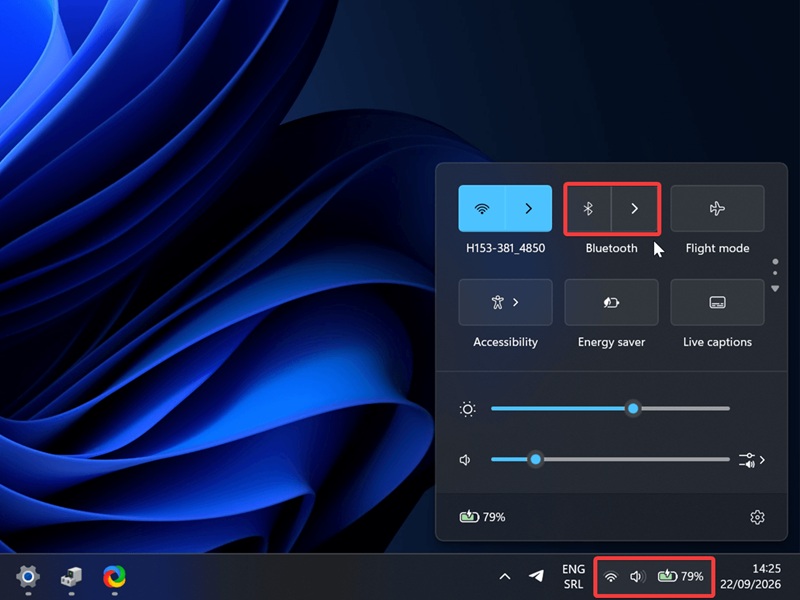
One of the simplest ways to access Bluetooth is from the aptly named Quick Settings on the taskbar. Click on the little section right next to the date in the lower-right corner, or press Win + A.
Then, click the Bluetooth button to toggle it on or off.
Via Settings
Alternatively, you can take the slightly longer route and do this:
- Go to Settings > Bluetooth & devices.
- Toggle Bluetooth on or off.
Or, you can do this instead:
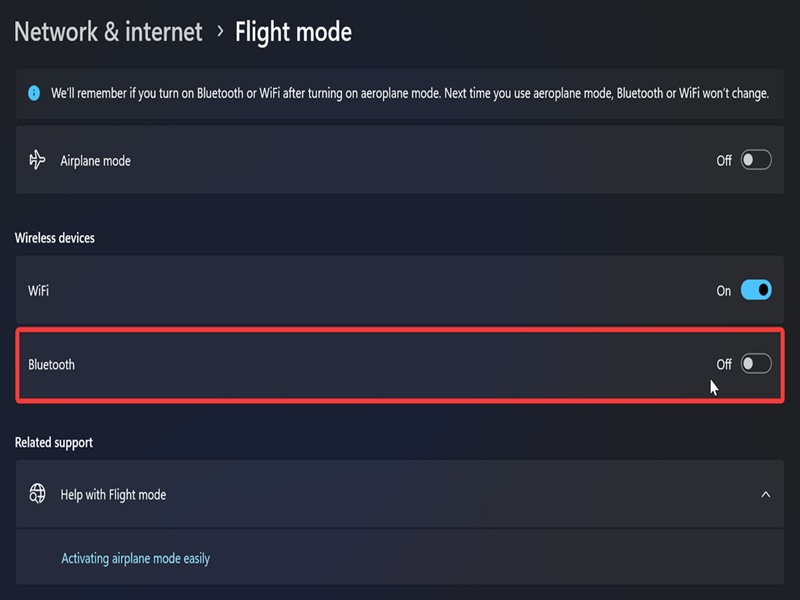
- Go to Settings > Network & internet > Airplane mode or Flight mode.
- Under Wireless devices, turn Bluetooth on or off.
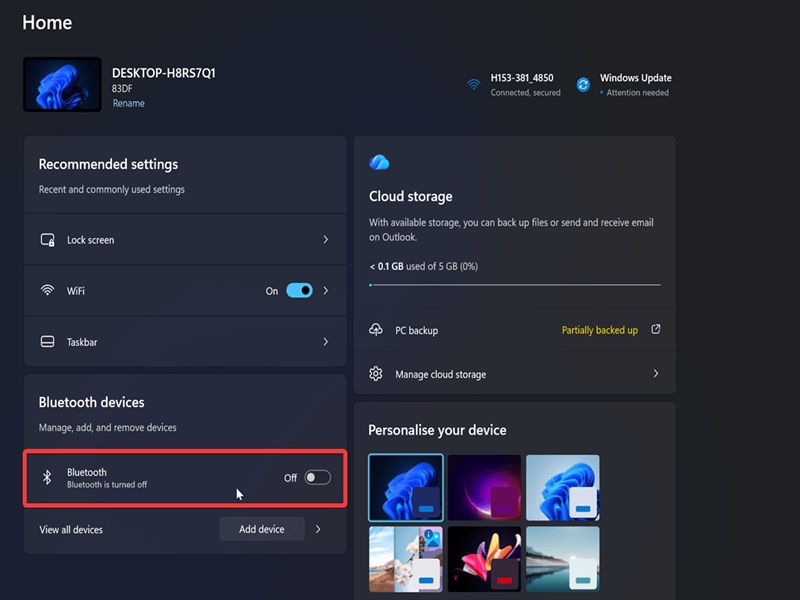
I've also noticed that the Settings home page has a quick link for Bluetooth. You can turn it on or off right from there. However, the Home page layout tends to change after updates, so this option may not always be available.
Via Game Bar
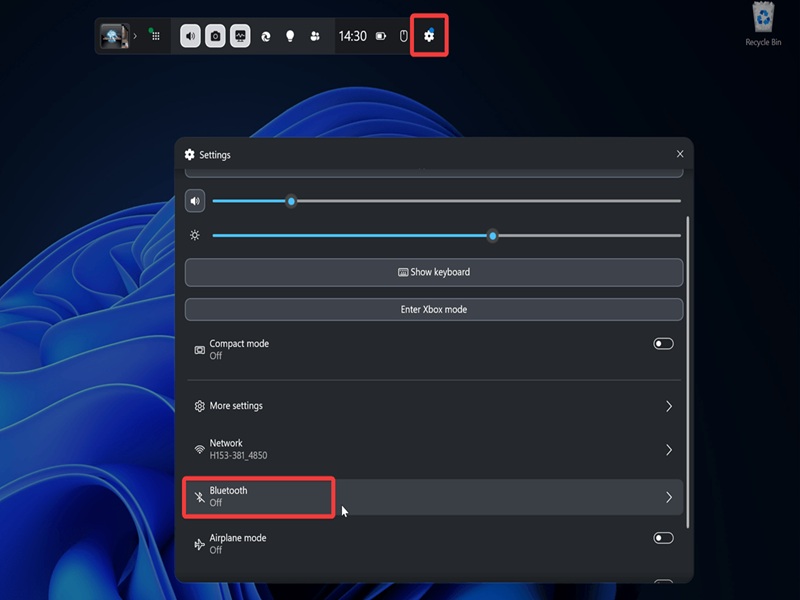
If you have the Xbox PC app installed, you can also use the built-in Game Bar to access Bluetooth:
- Press Win + G.
- Click on the Settings cog in the top menu bar.
- Select Bluetooth and turn it on or off.
Via Device Manager
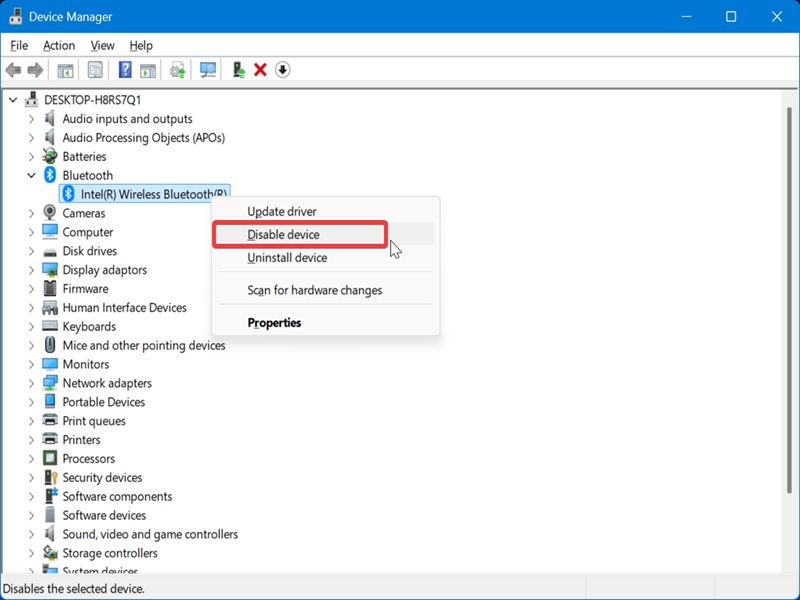
Finally, you can fully disable or enable Bluetooth in the Device Manager. If you disable it here, you won't be able to turn it on or off using the previous methods. So, think of this as a more permanent option, but you can still undo it easily.
Here are the steps:
- Press Win + R, type devmgmt.msc, and hit Enter.
- Find Bluetooth in the list of devices and click on it to expand it.
- Right-click your Bluetooth device and select Enable device (default) or Disable device.
- If asked to confirm your decision, click Yes.
Overall, the first method is the quickest and most convenient if you often use Bluetooth. You can also create a shortcut and pin it to your taskbar.

|
selma citakovic
Selma is a gamer, geek and gremlin hunter with a passion for cyber security and smashing Windows bugs before they bite. She’s IBM-certified, loves real freeware, despises bloatware, and powers most of her troubleshooting with an unhealthy amount of coffee. |
comments powered by Disqus
