


5 Ways to Open Administrative Tools in Windows 10 & 11
By Timothy Tibbettson 06/15/2023 |
Windows 10 Administrative tools contain many useful tools for advanced users and system administrators. There are some tools that anyone will appreciate, including Disk Cleanup, Services, System Information, Defragment, and Memory Diagnostics. Here are five ways you can open Administrative Tools.
Here are the Administrative tools available:
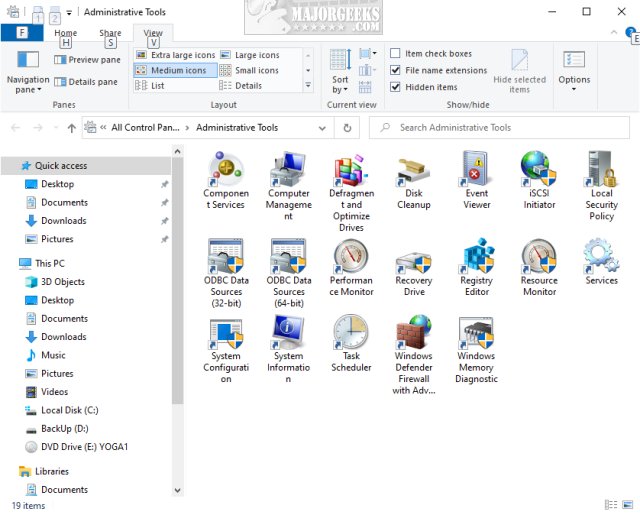
Component Services - Configure and administer the Component Object Model (COM) components, designed for use by developers and administrators.
Computer Management - Manage local or remote computers by using a single, consolidated desktop tool.
Defragment and Optimize Drives - Use Defragment and Optimize drives to help your computer run more efficiently.
Disk Cleanup - Reduce the number of unnecessary files on your computer's drives.
Event Viewer - View information about significant events, such as a program starting or stopping or a security error, which are recorded in event logs.
Hyper-V Manager - Provides management access to your virtualization platform.
iSCSI Initiator - Configure advanced connections between storage devices on a network.
Local Security Policy - View and edit Group Policy security settings.
ODBC Data Sources - Use Open Database Connectivity (ODBC) to move data from one type of database (a data source) to another.
Performance Monitor - View advanced system information about the central processing unit (CPU), memory, hard disk, and network performance.
Print Management - Manage printers and print servers on a network and perform other administrative tasks.
Resource Monitor - See how processes and services are using your system resources. Resource Monitor can help you analyze unresponsive processes, identify which apps are using files, and manage processes and services.
Services - Manage the different services that run in the background on your computer.
System Configuration - Identify problems that might be preventing Windows from running correctly.
System Information - View details about your computer, operating system, hardware, and software, including drivers—also known as msinfo32.exe.
Task Scheduler - Schedule programs or other tasks to run automatically.
Windows Firewall with Advanced Security - Configure advanced firewall settings on both this computer and remote computers on your network.
Windows Memory Diagnostic - Check your computer's memory to see if it's functioning properly.
1: Open Administrative Tools from Control Panel
We start with opening the Control Panel because opening the Classic Control Panel is pretty awesome.
Press the Windows Key + S or type control panel into search. Click on top where you see Control Panel App to open.
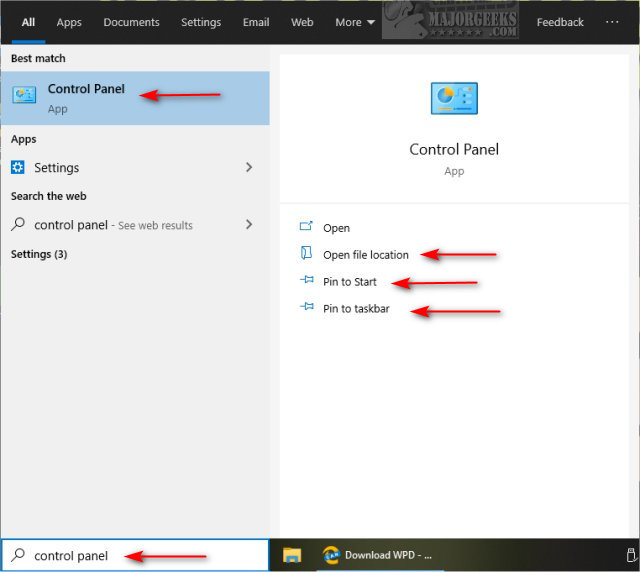
Another reason we prefer the search method is the ability to Pin to Start or Pin to taskbar for future access.
You can also click on Open file location, right-click on the executable, and copy anywhere you like; maybe the Desktop?
2: Open Administrative Tools from Search
Press the Windows Key + S or start typing administrative tools into search, and click on Windows Administrative Tools.
You can also Pin to Start, Pin to taskbar and Open file location as mentioned above.
3: Open Administrative Tools from Start
Click Start and scroll Down to Windows Administrative Tools.
4: Open Administrative Tools from File Explorer
Open File Explorer and type Control Panel\All Control Panel Items\Administrative Tools in the Search bar.
The Administrative Tools folder will open.
5: Open Administrative Tools from Settings
Windows 10 Pro users can go to Start > Settings > System > About. On the right, look for Additional administrative tools.
Windows 10 Home users don't have this option.
Similar:
How to Open the Control Panel Instead of Settings on Windows 10
How to Clear All Event Logs in Event Viewer in Windows
How to Enable and Use Diagnostic Data Viewer in Windows 10
How to Use the Microsoft Support Diagnostic Tool & System Diagnostic Report
How to Use the Windows Memory Diagnostic Tool in Windows
comments powered by Disqus
Here are the Administrative tools available:
1: Open Administrative Tools from Control Panel
We start with opening the Control Panel because opening the Classic Control Panel is pretty awesome.
Press the Windows Key + S or type control panel into search. Click on top where you see Control Panel App to open.
Another reason we prefer the search method is the ability to Pin to Start or Pin to taskbar for future access.
You can also click on Open file location, right-click on the executable, and copy anywhere you like; maybe the Desktop?
2: Open Administrative Tools from Search
Press the Windows Key + S or start typing administrative tools into search, and click on Windows Administrative Tools.
You can also Pin to Start, Pin to taskbar and Open file location as mentioned above.
3: Open Administrative Tools from Start
Click Start and scroll Down to Windows Administrative Tools.
4: Open Administrative Tools from File Explorer
Open File Explorer and type Control Panel\All Control Panel Items\Administrative Tools in the Search bar.
The Administrative Tools folder will open.
5: Open Administrative Tools from Settings
Windows 10 Pro users can go to Start > Settings > System > About. On the right, look for Additional administrative tools.
Windows 10 Home users don't have this option.
Similar:
comments powered by Disqus
