


6 Ways To Access Magnifier in Windows 11
By selma čitakovićon 08/22/2026 |
![{$insert['content_title']](/content/file/6307_image5.jpg
)
The magnifier tool allows you to zoom in on all parts of your screen. You can use the fullscreen mode, docked (with a fixed magnified strip), or lens mode that tracks your mouse.
Below, we'll show you how to access it in several ways, so choose the one you like the most.
Via keyboard
One of the quickest methods is to press the Windows key and the + key together. It's a pretty memorable keyboard shortcut.
To exit it, press Win + Esc.
At the sign-in screen
You can also turn it on as soon as you sign into Windows. Click the Accessibility icon (the little guy) in the lower right corner, and toggle Magnifier on or off.
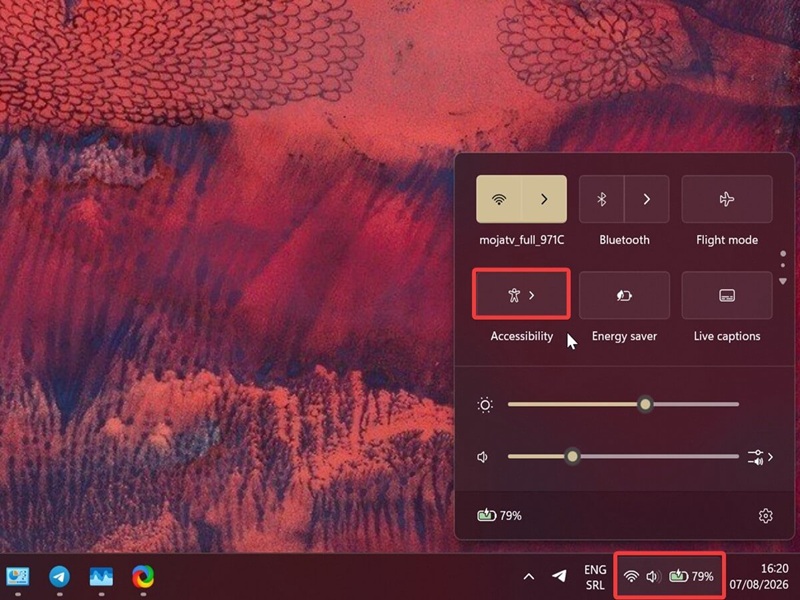
Via Quick settings
Alternatively, you can press Win + A to access Quick Settings, and click the Accessibility button. Then, simply toggle Magnifier on or off.
Via Settings
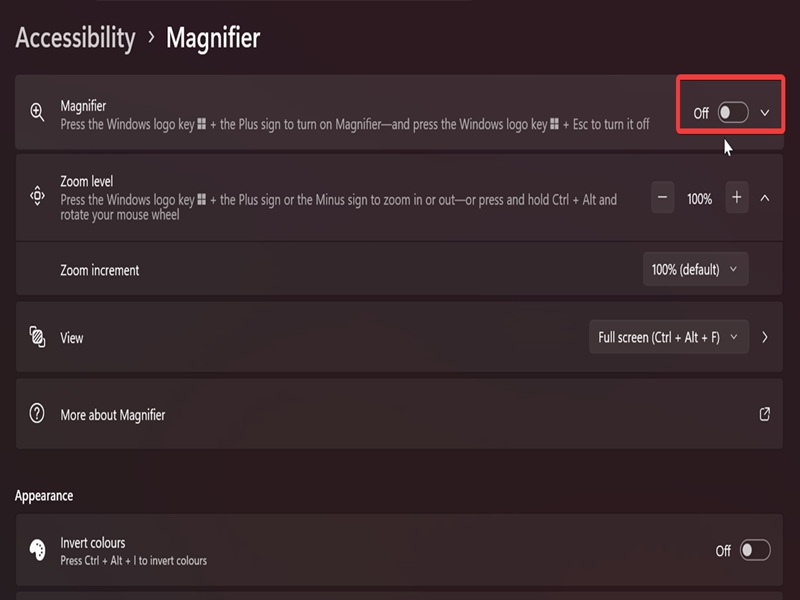
Naturally, you can do the same in the "regular" Settings:
- Go to Accessibility > Magnifier.
- Toggle Magnifier on or off.
Via Windows Search
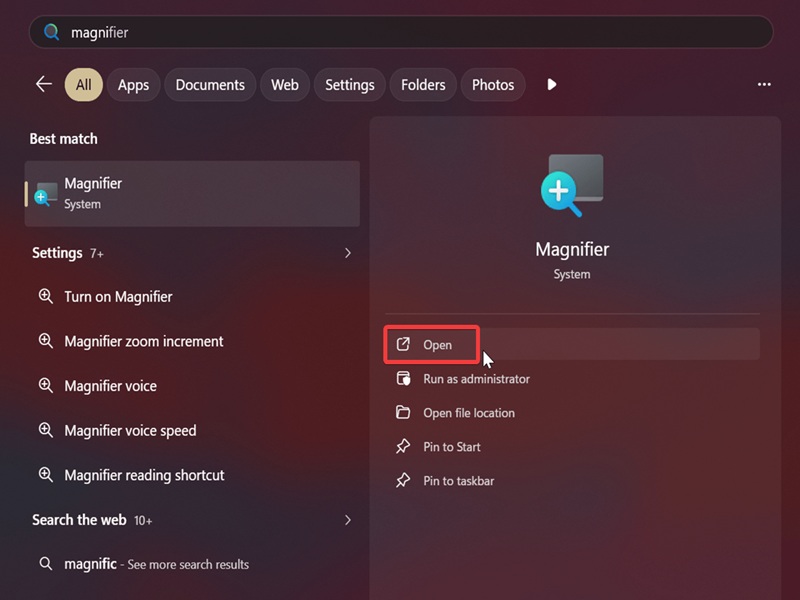
To run Magnifier, do this:
- Press Win + S to bring up the Search window.
- Type magnifier.
- Select Open.
Via Control Panel
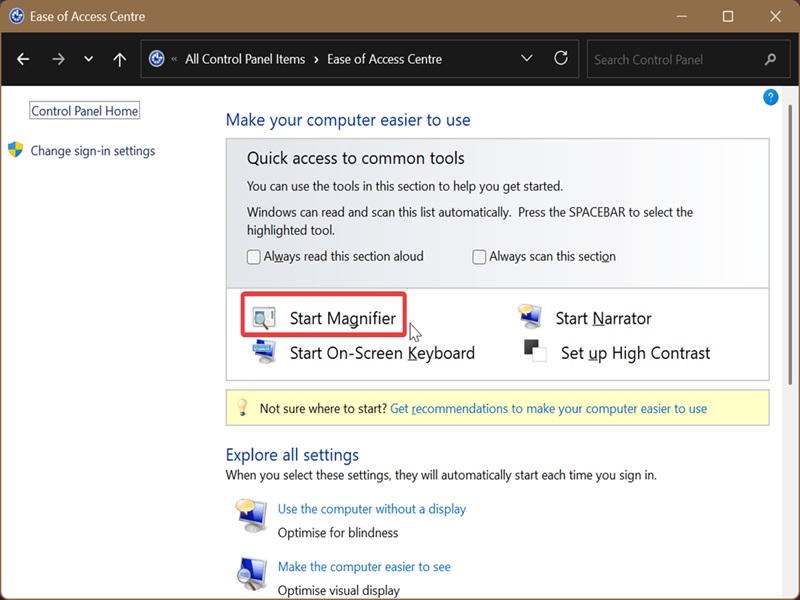
If you prefer using Control Panel (old habits die hard), you can find it here:
- Open Control Panel, and click on Small icons or Large icons in View by: in the corner.
- Select Ease of Access Center.
- Click on Start Magnifier.
To close it, you can just click on the X on the Magnifier window, or right-click it on the Taskbar and select Close window.
And if it's being really stubborn and refusing to cooperate, you can use Task Manager. Press Ctrl + Shift + Esc, go to Processes, and scroll down until you find Microsoft Screen Magnifier. Right-click it and select End task.
Or, if you've enabled the option to end tasks right from the taskbar, you can do that instead. It's much quicker.

|
selma citakovic
Selma is a gamer, geek and gremlin hunter with a passion for cyber security and smashing Windows bugs before they bite. She’s IBM-certified, loves real freeware, despises bloatware, and powers most of her troubleshooting with an unhealthy amount of coffee. |
comments powered by Disqus
