


Aw, Snap! Something Went Wrong While Displaying This Webpage
By Timothy Tibbettson 06/15/2023 |
Google Chrome users will occasionally bump into an error message that states, "Aw, Snap! Something Went Wrong While Displaying This Webpage." Here's a look at some possible solutions.
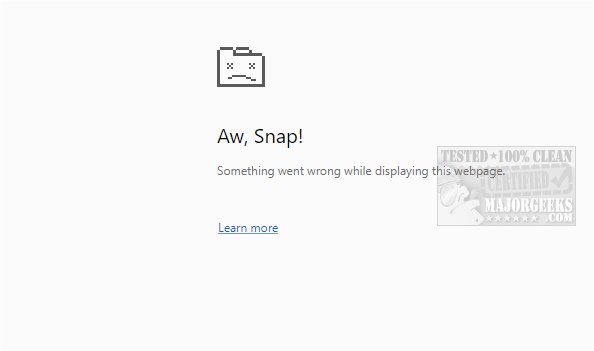
As far as we can tell, this is merely a Google Chrome bug, also known as a feature to programmers ;) We say this because we have gotten this error on a high-end computer and today on a clean install. We were able to reproduce this error when using a lot of memory, usually while working with graphics and copy and paste.
1: Refresh the Page
Our number one answer is most likely all you need to know. With Google Chrome being your active window, press F5 or the Reload this page button at the top left. The Aw, Snap error happens occasionally, and if a refresh works, then it doesn't happen enough to try troubleshooting the problem.
From the time you open a webpage, your browser has to resolve the IP address and follow the path to get to the server with the webpage, then load it for you. A lot is going on here that you never see and a lot that could go wrong, for example, if there's a broken switch between you and the server you're trying to reach.
2: Clear Junk Files
Some seem to think this helps, but we discovered today that it happens on a clean windows installation. Still, cleaning junk files is just a good idea occasionally, so grab CCleaner or Wise Disk Cleaner and free up some space. Both of those download pages also include video tutorials.
3: Check Your Internet Connection
Odds are you know better, but verify your internet is working. Aw, Snap! Something Went Wrong While Displaying This Webpage does show up because there's a problem with your internet. Maybe your ISP, internet connection, or wireless connection glitched temporarily.
4: Update Google Chrome or Try Firefox
If the above steps didn't help, click the settings button located at the top left (3 dots) and go to Help, About Google Chrome and verify your up to date. Once again, Google Chrome updates automatically, so this is a longshot.
5: Try Another Browser Like Firefox
If you're not in love with Google Chrome, , try Firefox or the Chromium-based Microsoft Edge. We don't get these errors in our Firefox tests. While changing browsers seems like a stretch, it's a good choice if Aw, Snap! keeps appearing. To each his (or her) own, we think that most of the big browsers are very similar and a simple adjustment.
If you can't change browsers, you might need to close programs that are using a lot of memory.
Broken:
How to Make Google Chrome and Mozilla Firefox Run Like New Again
How to Reset or Repair Google Chrome, Mozilla Firefox or Microsoft Edge
How to Stop Google Chrome Crash Reports Sending Personal Information
Fix: Google Chrome Is Unresponsive - Relaunch Now
How-To Fix Google Chrome Kill Pages or Wait Error
comments powered by Disqus
As far as we can tell, this is merely a Google Chrome bug, also known as a feature to programmers ;) We say this because we have gotten this error on a high-end computer and today on a clean install. We were able to reproduce this error when using a lot of memory, usually while working with graphics and copy and paste.
1: Refresh the Page
Our number one answer is most likely all you need to know. With Google Chrome being your active window, press F5 or the Reload this page button at the top left. The Aw, Snap error happens occasionally, and if a refresh works, then it doesn't happen enough to try troubleshooting the problem.
From the time you open a webpage, your browser has to resolve the IP address and follow the path to get to the server with the webpage, then load it for you. A lot is going on here that you never see and a lot that could go wrong, for example, if there's a broken switch between you and the server you're trying to reach.
2: Clear Junk Files
Some seem to think this helps, but we discovered today that it happens on a clean windows installation. Still, cleaning junk files is just a good idea occasionally, so grab CCleaner or Wise Disk Cleaner and free up some space. Both of those download pages also include video tutorials.
3: Check Your Internet Connection
Odds are you know better, but verify your internet is working. Aw, Snap! Something Went Wrong While Displaying This Webpage does show up because there's a problem with your internet. Maybe your ISP, internet connection, or wireless connection glitched temporarily.
4: Update Google Chrome or Try Firefox
If the above steps didn't help, click the settings button located at the top left (3 dots) and go to Help, About Google Chrome and verify your up to date. Once again, Google Chrome updates automatically, so this is a longshot.
5: Try Another Browser Like Firefox
If you're not in love with Google Chrome, , try Firefox or the Chromium-based Microsoft Edge. We don't get these errors in our Firefox tests. While changing browsers seems like a stretch, it's a good choice if Aw, Snap! keeps appearing. To each his (or her) own, we think that most of the big browsers are very similar and a simple adjustment.
If you can't change browsers, you might need to close programs that are using a lot of memory.
Broken:
How to Make Google Chrome and Mozilla Firefox Run Like New Again
How to Reset or Repair Google Chrome, Mozilla Firefox or Microsoft Edge
How to Stop Google Chrome Crash Reports Sending Personal Information
Fix: Google Chrome Is Unresponsive - Relaunch Now
How-To Fix Google Chrome Kill Pages or Wait Error
comments powered by Disqus
