


Hide Extra User Accounts from the Windows 11 Sign-In Screen
By selma čitakovićon 09/20/2026 |
![{$insert['content_title']](/content/file/6393_image2.jpg
)
As you may have noticed, Windows 11 shows all user accounts at the sign-in screen when you lock your computer. It displays them in the lower-left corner, so it's easier to switch between them. However, if you don't want to look at the list of users every time you lock your PC, we've got you.
Here's how to hide it under a Switch user button instead.
Via Registry Editor
All it takes is a quick registry edit. You'll be changing the value data of one of the existing DWORD values. If this sounds like gibberish, don't worry. We'll show you how below. You can also create a system restore point as a precaution.
First, you should sign in as an administrator since you'll need elevated rights for this. Then, do the following:
- Type regedit in Windows Search and select Run as administrator.
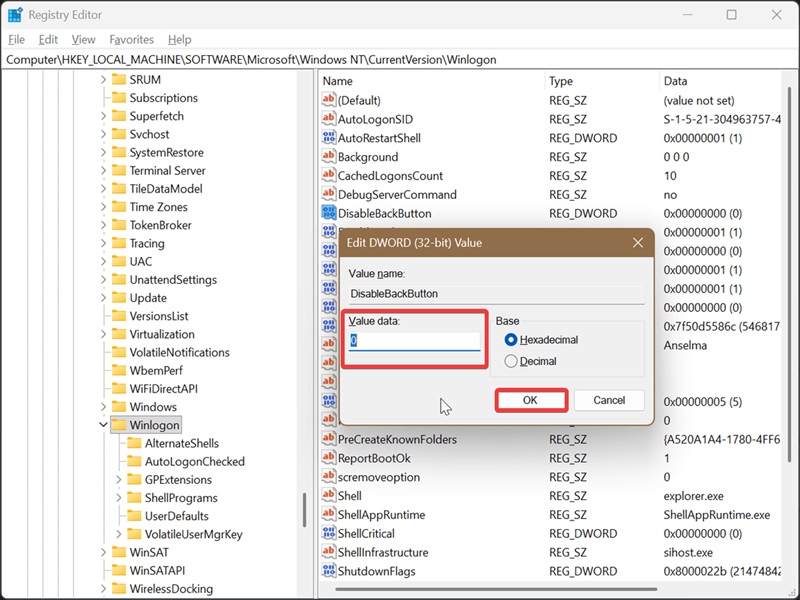
- Navigate to Computer\HKEY_LOCAL_MACHINE\SOFTWARE\Microsoft\Windows NT\CurrentVersion\Winlogon on the left side. You can also paste this path in the address bar at the top.
- While in the Winlogon folder, find DisableBackButton on the right and double-click it.
- In the Value data field, type 0 to hide the list of user accounts on your sign-in screen. Click OK.
Once you apply it, you'll see a Switch user button in the same bottom-left corner when you lock your computer.
If you want to undo this, type 1 in the same field and click OK. That's the default value for this setting.
Finally, if there's a user account you'd like to delete, we've got just the guide for you.

|
selma citakovic
Selma is a gamer, geek and gremlin hunter with a passion for cyber security and smashing Windows bugs before they bite. She’s IBM-certified, loves real freeware, despises bloatware, and powers most of her troubleshooting with an unhealthy amount of coffee. |
comments powered by Disqus
