


How To Restart the Start Menu Without Rebooting in Windows 11
By selma čitakovićon 04/26/2026 |
![{$insert['content_title']](/content/file/5950_image1.jpg
)
If the Start menu is buggy or won't open, you can try restarting the StartMenuExperienceHost.exe process. It's quicker than rebooting!
In older Windows versions, it used to be part of the explorer.exe process. You had to restart File Explorer if you had any problems with the Start menu. But since Microsoft separated the two, troubleshooting it is even easier now.
So, here are three methods that work in Windows 11.
Via Task Manager
As usual, Task Manager is the go-to tool for troubleshooting processes. Here's how to use it:
- Press Ctrl+Shift+Esc, or right-click the Start button and select Task Manager from the list.
- Open the Processes section.
- You should see Start on the list, in the Name column. Select it and click the End task button. Or, you can right-click it and then select End task.
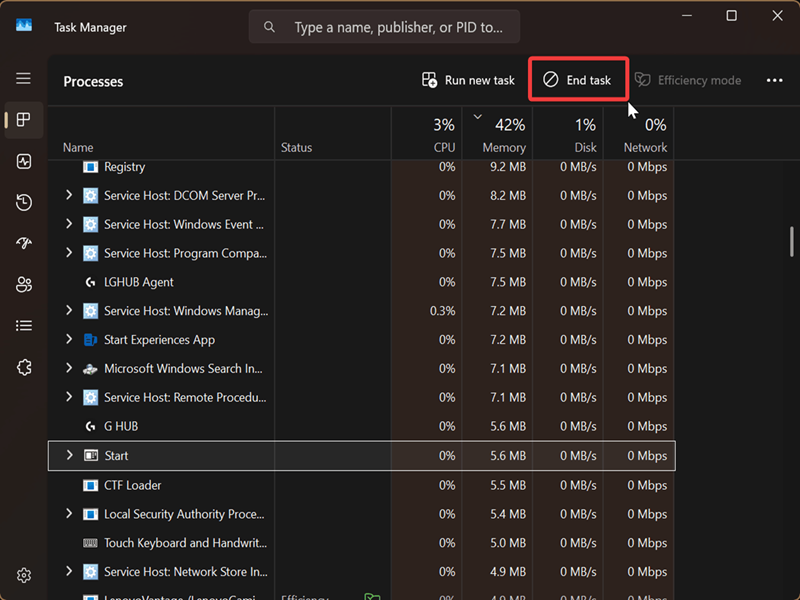
It should automatically restart after this.
If it doesn't, open File Explorer and navigate to C:\Windows\SystemApps\Microsoft.Windows.StartMenuExperienceHost_cw5n1h2txyewy. You can paste that in the address bar at the top to speed things up.
Once you do, double-click the StartMenuExperienceHost.exe file to run it. That will restart the Start menu.
Alternatively, you can go to a different section of Task Manager:
- Click the Details icon. (You can mouse over the icons on the left to read their names, if your navigation menu is minimized like on my previous screenshot.)
- Find the StartMenuExperienceHost.exe process in the Name column, and select End task.
- You'll be asked to confirm your decision. Click on End process.
Via PowerShell
Or if you prefer using commands, try this:
- Press Win + R, type PowerShell, and press Enter.
- Type the following command and press Enter: Stop-Process -Name "StartMenuExperienceHost" -Force
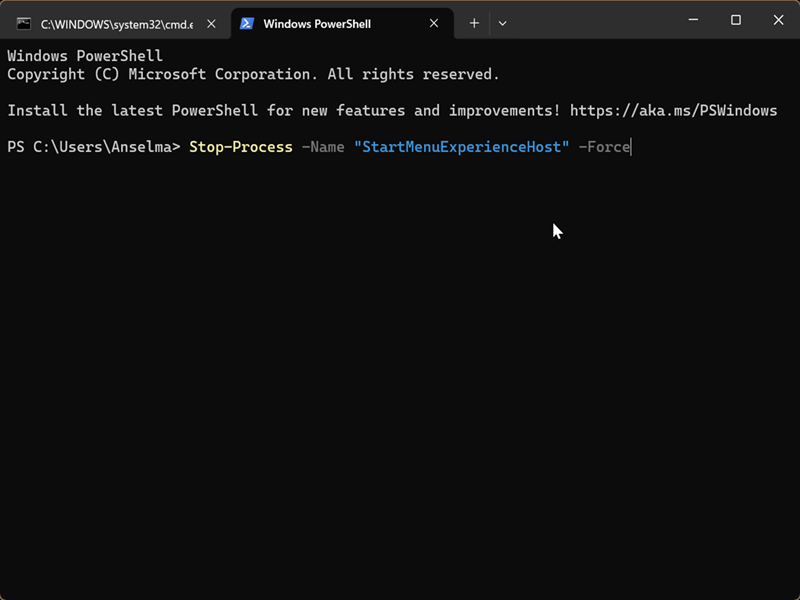
This will immediately stop and start the StartMenuExperienceHost process again. If it doesn't for some reason, use this command: Start-Process -FilePath "C:\Windows\SystemApps\Microsoft.Windows.StartMenuExperienceHost_cw5n1h2txyewy\StartMenuExperienceHost.exe"
Via Command Prompt
Lastly, you can achieve the same effect with Command Prompt instead:
- Press Win + R, type cmd, and press Enter.
- Type the following command and press Enter: taskkill /f /im StartMenuExperienceHost.exe
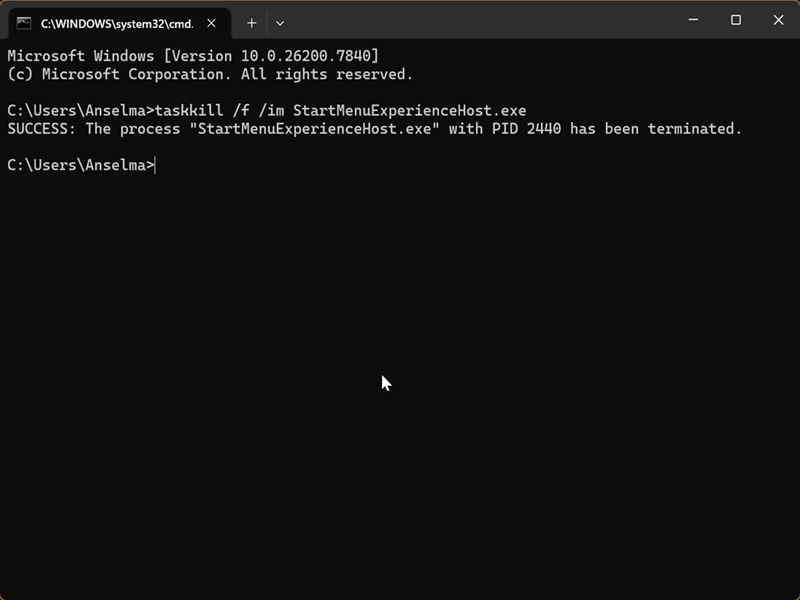
If it doesn't automatically restart, type this in the same terminal and press Enter: start C:\Windows\SystemApps\Microsoft.Windows.StartMenuExperienceHost_cw5n1h2txyewy\StartMenuExperienceHost.exe
Most often, people reported issues with the Start Menu after certain Windows updates. I hope these tips will help you restore it to working condition!

|
selma citakovic
Selma is a gamer, geek and gremlin hunter with a passion for cyber security and smashing Windows bugs before they bite. She’s IBM-certified, loves real freeware, despises bloatware, and powers most of her troubleshooting with an unhealthy amount of coffee. |
comments powered by Disqus
