


Location Services - How To Turn On/Off in Windows 11
By selma čitakovićon 06/04/2026 |
![{$insert['content_title']](/content/file/6054_image1.png
)
Location services allow Microsoft to pinpoint your exact location. This feature relies on a combination of your IP address, GPS, cell towers, and nearby wireless APs.
Your location information is de-identified and then used for features like Find my device, Weather, and automatic time zone. It's also shared with various apps. You should see a small arrow icon in the right corner of your taskbar when an app is using your location.
But if you don't like the idea of sharing your precise whereabouts, you can turn off location services. I keep it off all the time and haven't encountered any problems or glitches so far.
To do so, you'll need to sign in as an administrator first.
Via Settings
You can change your location-sharing preferences right in the Settings:
- Go to Settings > Privacy & security > Location (under App permissions).
- Toggle on or off Location services.
- If you toggled it off, you'll have to click on Turn off to confirm your decision.
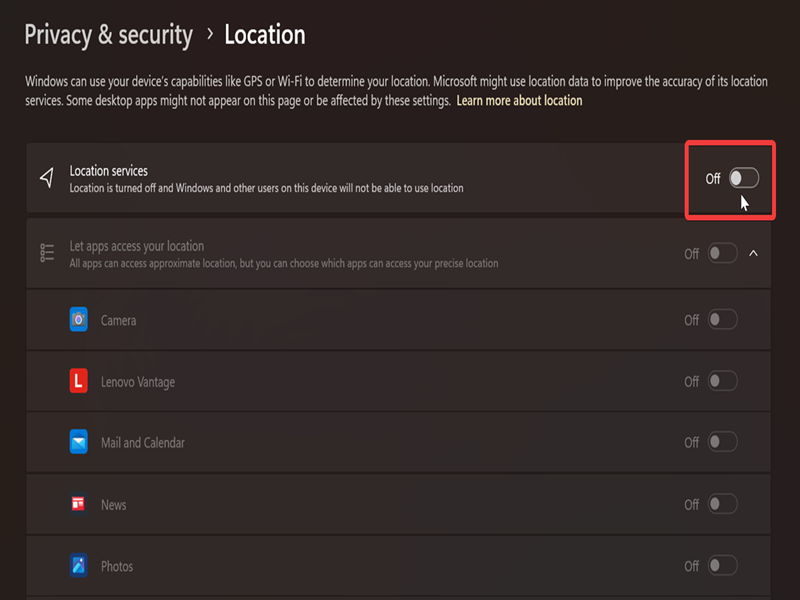
Turning it off will automatically grey out Let apps access your location and Let desktop apps access your location.
Via PowerShell/Command Prompt
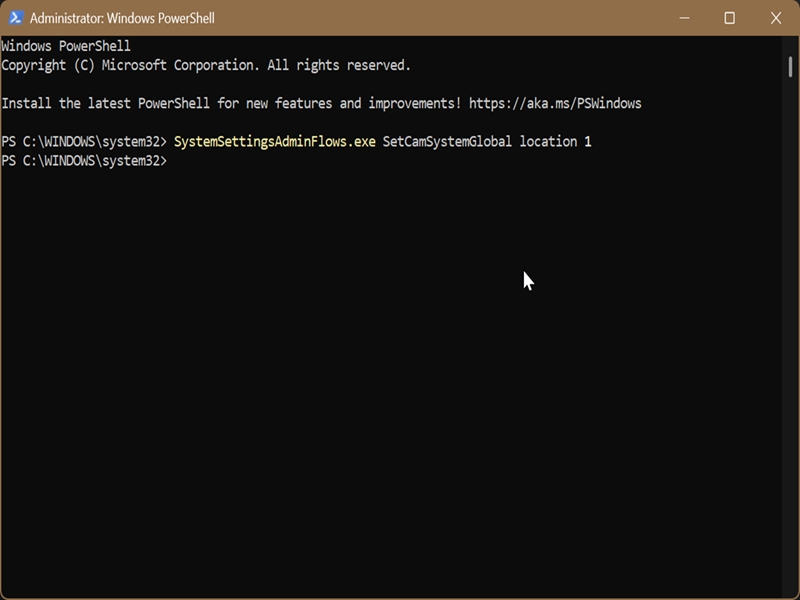
Alternatively, you can quickly switch it on or off with these commands:
- Press Win + X, select Terminal (Admin), and open either elevated PowerShell or Command Prompt.
- To turn on location services, paste the following command and press Enter: SystemSettingsAdminFlows.exe SetCamSystemGlobal location 1
- To turn off location services, try this one instead: SystemSettingsAdminFlows.exe SetCamSystemGlobal location 0
Via Local Group Policy Editor
Finally, there's a policy setting you can configure to enable or disable location services. However, if you disable location sharing this way, you won't be able to turn it back on again using the first or second method. You'll have to undo the change first.
Additionally, only certain Windows editions (Pro, Enterprise, and Education) include the Group Policy editor. Home edition owners will have to look for a workaround.
Here are the steps:
- Press Win + R, type gpedit.msc, and press Enter.
- Go to Computer Configuration > Administrative Templates > Windows Components > Location and Sensors on the left side.
- On the right side, double-click Turn off location.
- In the new window that opens, select Not configured to turn on location services. If you want to turn them off, select Enabled.
- Click OK when you're done.

Not configured is the default setting.
Overall, if you're concerned about your privacy and want to stop Windows from spying on you, turning off location services is a step in the right direction. But if you'd still like to keep it on, I recommend spending some time configuring which apps can access your location in Settings.

|
selma citakovic
Selma is a gamer, geek and gremlin hunter with a passion for cyber security and smashing Windows bugs before they bite. She’s IBM-certified, loves real freeware, despises bloatware, and powers most of her troubleshooting with an unhealthy amount of coffee. |
comments powered by Disqus
