


How to Open Disk Management in Windows 10 & 11
By Timothy Tibbettson 08/22/2022 |
Windows Disk Management is a powerful drive tool that can manage partitions, change drive letters, initialize a new hard drive, etc. Windows offers numerous ways to open Disk Management in Windows 10 & 11. Here are four ways to open Disk Management.

Video tutorial:
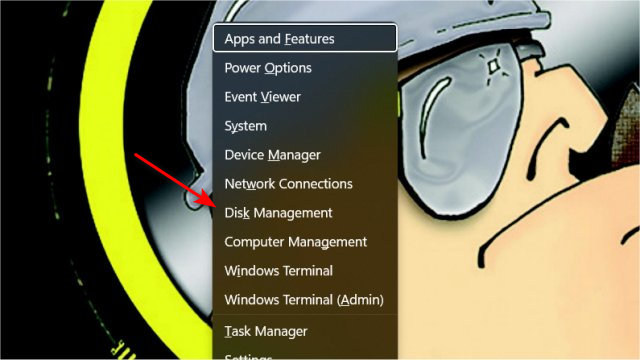
1: How to Open Disk Management in Windows 10 & 11 - Power User Menu
Press the Windows Key + X or right-click on Start.
Click on Disk Management.
2: How to Open Disk Management in Windows 10 & 11 - Run Menu
Press the Windows Key + R.
Type in diskmgmt.msc, and press Enter.
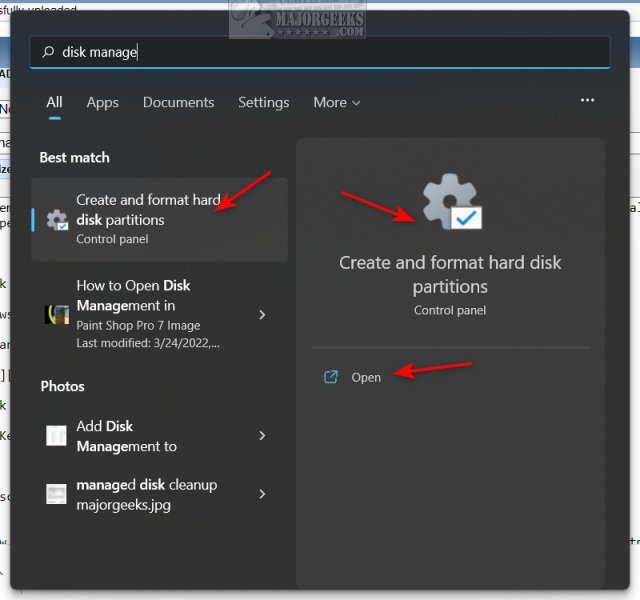
3: How to Open Disk Management in Windows 10 & 11 - Windows Search
Press the Windows Key + S.
Begin typing disk management.
Click on Create and format hard disk partitions.
4: How to Open Disk Management in Windows 10 & 11 - Windows Terminal, Command Prompt or PowerShell
Press the Windows Key + X.
Click on Windows Terminal.
Type in diskmgmt.msc, and press Enter.
There are a few other ways to open Disk Management, mostly through "Computer Management," but these four steps should get you there quickly.
Similar:
How to Add Disk Management to Control Panel in Windows
6 Ways to Open Settings in Windows 10 & 11
How to Check Your Hard Disk Health Using WMIC
How to Check SMART Predict Failure in Windows
How to Format Any Hard Drive in Windows 10 & 11
Quick Format and Full Format Explained
comments powered by Disqus
1: How to Open Disk Management in Windows 10 & 11 - Power User Menu
Press the Windows Key + X or right-click on Start.
Click on Disk Management.
2: How to Open Disk Management in Windows 10 & 11 - Run Menu
Press the Windows Key + R.
Type in diskmgmt.msc, and press Enter.
3: How to Open Disk Management in Windows 10 & 11 - Windows Search
Press the Windows Key + S.
Begin typing disk management.
Click on Create and format hard disk partitions.
4: How to Open Disk Management in Windows 10 & 11 - Windows Terminal, Command Prompt or PowerShell
Press the Windows Key + X.
Click on Windows Terminal.
Type in diskmgmt.msc, and press Enter.
There are a few other ways to open Disk Management, mostly through "Computer Management," but these four steps should get you there quickly.
Similar:
comments powered by Disqus
