


5 Ways to Open Windows Security in Windows 11
By Timothy Tibbettson 06/15/2023 |
Windows Security is included with Windows 11 and includes Microsoft Defender Antivirus. If you use a different antivirus app, Microsoft Defender Antivirus will be disabled, but Windows Security remains in use. Here are different ways to open Windows Security on Windows 11.
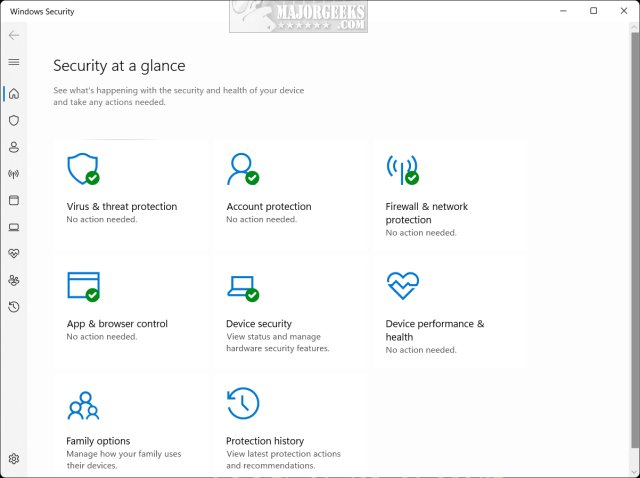
You might be wondering why Windows Security continues to run even if you use different antivirus. The threats on the internet are constantly evolving, and some antivirus apps don't offer what Windows Security does. Windows Security includes the following features for free:
Virus & threat protection
Account protection
Firewall & network protection
App & browser control
Device security
Device performance & health
Family options.
We stopped using third-party antiviruses a few years ago because Microsoft Defender Antivirus is now very capable and well-rated. Many of the so-called free antivirus apps now include bundleware, are crippled, and tend to be very bloated. Every antivirus app has its strong and weak points, but using Microsoft Defender Antivirus, for us, is one less thing.
If you need to access Windows Security, here are five ways you can do that.
Video tutorial:
5 Ways to Open Windows Security in Windows 11 - Taskbar
The Taskbar is the easiest, most convenient way to open Windows Security.
Look for the shield icon in the lower-right corner and click on it. If you don't see it, click the arrow to expand hidden icons.

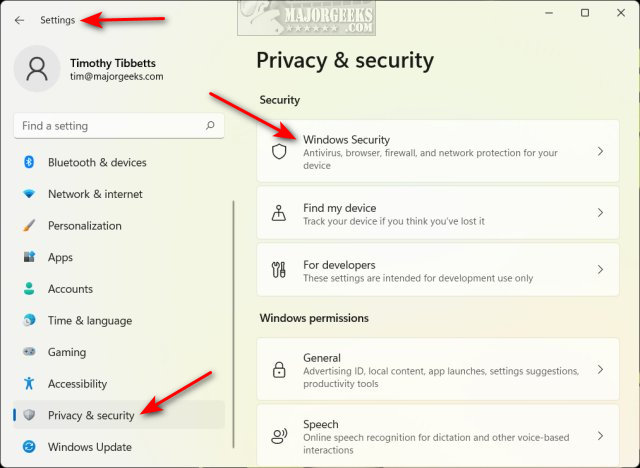
5 Ways to Open Windows Security in Windows 11 - Settings
Click on Start > Settings. Click on Privacy & security on the left.
5 Ways to Open Windows Security in Windows 11 - Start Menu
Click on Start > All apps.
Scroll down and click on Windows Security.
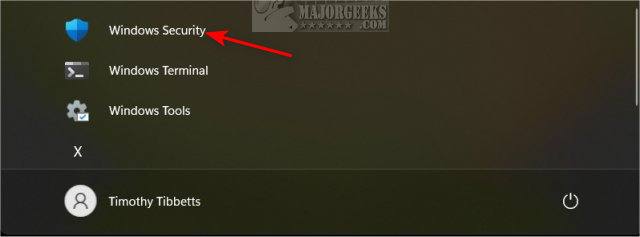
If you like to access Windows Security from the Start Menu later, you can right-click and Pin to Start.
5 Ways to Open Windows Security in Windows 11 - Search
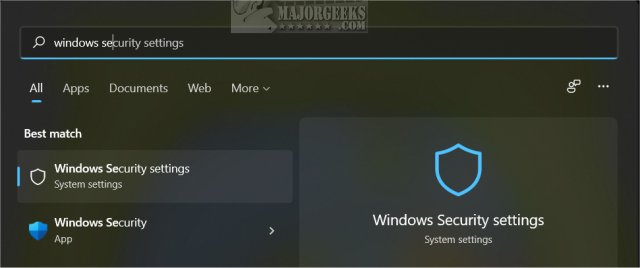
Press the Search icon, or press the Windows Key +S.
Begin typing, and click on Windows Security or Windows Security settings.
5 Ways to Open Windows Security in Windows 11 - Windows Terminal
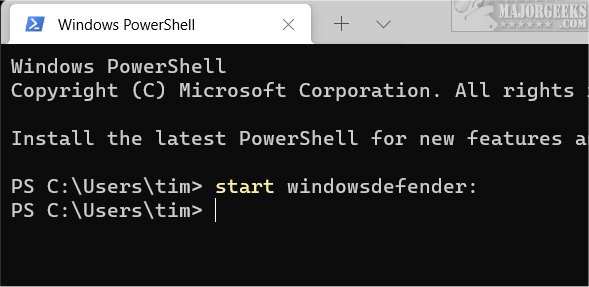
As a last resort, you might need to use Windows Terminal (PowerShell or Command Prompt) when nothing else is working.
Press the Windows Key + X and click on Windows Terminal.
Type in start windowsdefender: and press Enter.
Similar:
What's the Best Antivirus and Is Windows Defender Good Enough?
How to Run a Microsoft Defender Offline Scan
Windows Device Performance & Health Explained
How to Tell the Difference Between a Virus and a False Positive
Which Anti-Malware App Is Best and Can It Run Alongside My Antivirus
What to Do When Your Norton or McAfee Antivirus Expire
comments powered by Disqus
You might be wondering why Windows Security continues to run even if you use different antivirus. The threats on the internet are constantly evolving, and some antivirus apps don't offer what Windows Security does. Windows Security includes the following features for free:
We stopped using third-party antiviruses a few years ago because Microsoft Defender Antivirus is now very capable and well-rated. Many of the so-called free antivirus apps now include bundleware, are crippled, and tend to be very bloated. Every antivirus app has its strong and weak points, but using Microsoft Defender Antivirus, for us, is one less thing.
If you need to access Windows Security, here are five ways you can do that.
5 Ways to Open Windows Security in Windows 11 - Taskbar
The Taskbar is the easiest, most convenient way to open Windows Security.
Look for the shield icon in the lower-right corner and click on it. If you don't see it, click the arrow to expand hidden icons.
5 Ways to Open Windows Security in Windows 11 - Settings
Click on Start > Settings. Click on Privacy & security on the left.
5 Ways to Open Windows Security in Windows 11 - Start Menu
Click on Start > All apps.
Scroll down and click on Windows Security.
If you like to access Windows Security from the Start Menu later, you can right-click and Pin to Start.
5 Ways to Open Windows Security in Windows 11 - Search
Press the Search icon, or press the Windows Key +S.
Begin typing, and click on Windows Security or Windows Security settings.
5 Ways to Open Windows Security in Windows 11 - Windows Terminal
As a last resort, you might need to use Windows Terminal (PowerShell or Command Prompt) when nothing else is working.
Press the Windows Key + X and click on Windows Terminal.
Type in start windowsdefender: and press Enter.
Similar:
comments powered by Disqus
