


4 Ways To Add/Remove Optional Windows Features
By selma čitakovićon 05/16/2026 |
![{$insert['content_title']](/content/file/6008_image4.png
)
Windows 11 has lots of optional features or FODs (Features on Demand) that you might not know about. This includes various language packs, deprecated tools like WMIC, the legacy Windows Media Player, RSAT, and numerous other add-ons. Some are pretty obscure!
If you're curious about them, I can show you where to find them. But first, make sure you sign in as an administrator. You'll need elevated privileges to install or uninstall optional features.
Via Settings
The arguably easiest way to get on-demand features is through the Settings. Here's how:
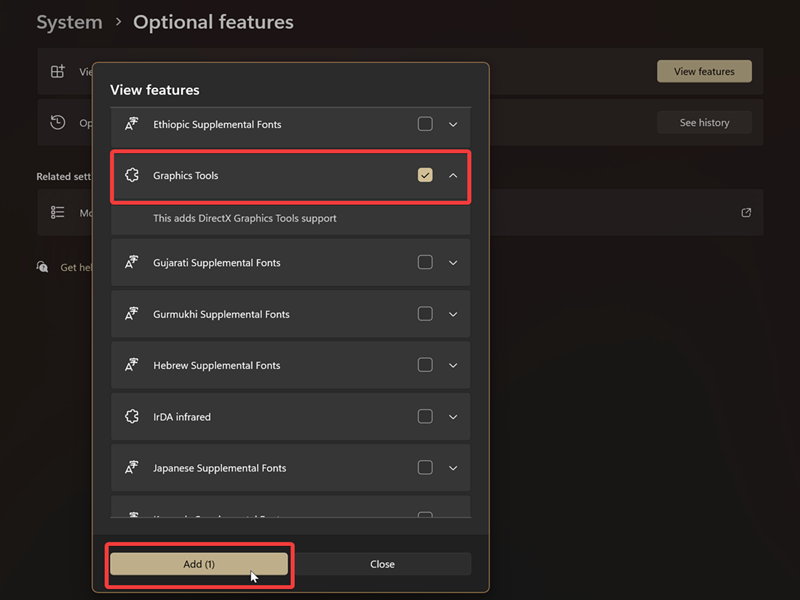
- Go to Settings > System > Optional features.
- Click the View features button.
- Click the See available features link at the top.
- Find the feature you want to add, click the checkbox next to it, and hit the Add button.
- Wait for the process to finish.
Now, to remove an installed feature:
- Navigate to the same section (Settings > System > Optional features) and click the View features button.
- It should show you the features you've already added. Find the one you want to uninstall, click its checkbox, and hit Remove.
- Wait for it to finish.
Via Windows Features
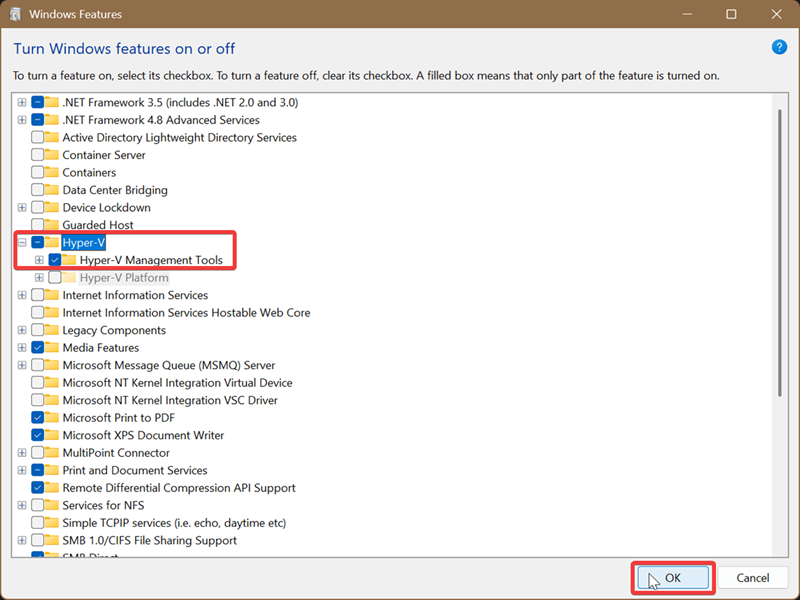
You can also use OptionalFeatures.exe. However, the features listed here may differ from those in the first method. So, I recommend checking out both if you can't find what you need in the Settings.
- Press Win + R, type OptionalFeatures.exe, and press Enter.
- Check the feature you want to add, and click OK. Alternatively, if you want to remove it, uncheck it and hit OK.
- You may be prompted to restart to complete the changes. Click the Restart now button.
Via PowerShell
If you prefer using commands, try this approach:
- Type PowerShell in Windows Search, and select Run as Administrator.
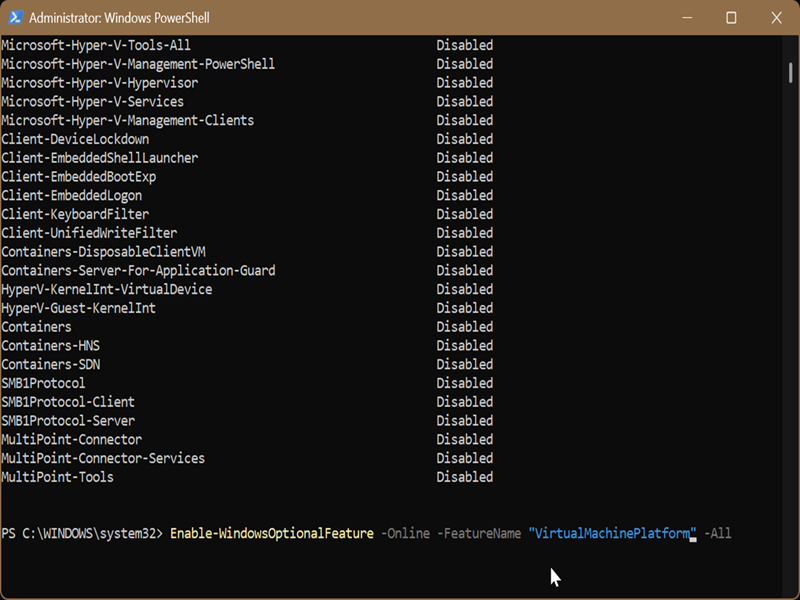
- First, paste this command and press Enter: Get-WindowsOptionalFeature -Online | FT
- You'll see a list of the features that are currently enabled or disabled. Copy the name of the one you want to add or remove. You'll need that info in a moment.
- To add a feature, type the following command and press Enter: Enable-WindowsOptionalFeature -Online -FeatureName "*name*" -All
- Or, to remove it: Disable-WindowsOptionalFeature -Online -FeatureName "*name*"
- In both cases, make sure you replace the placeholder *name* with the actual feature name.
- You may be prompted to restart. Type Y in the terminal and press Enter to restart immediately.
Via DISM
You can use DISM.exe to enable or disable on-demand features and packages. Here are the steps:
- Type either PowerShell or Command Prompt in Windows Search, and click on Run as Administrator.
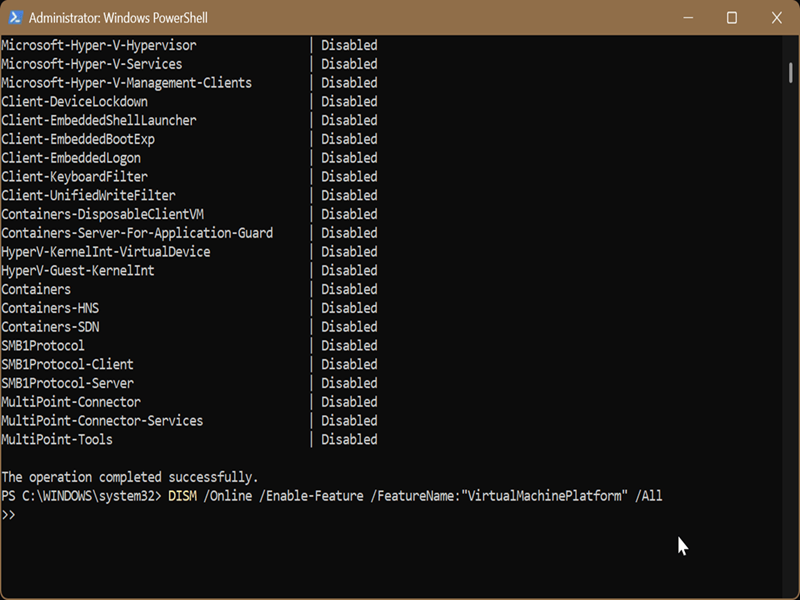
- First, let's check the current state of the optional features. Paste this command and press Enter: DISM /Online /Get-Features /Format:Table
- You should see a formatted list of features. Copy the name of the one you want to add/remove, as you'll need it in just a bit.
- To add a feature, use this command and press Enter: DISM /Online /Enable-Feature /FeatureName:"*name*" /All
- Or, if you want to remove it: DISM /Online /Disable-Feature /FeatureName:"*name*"
- Remember that name you copied? Replace the placeholder *name* in the command with it.
- If prompted to restart, type Y.
Additionally, you can use the same command-line tool to get (or remove) capabilities, which are basically just like features. Since the steps are the same as before, but with different commands, I'll keep this short:
- Type DISM /Online /Get-Capabilities /Format:Table in an elevated terminal and hit Enter. Copy the name of the feature you need.
- To add a feature, type this and press Enter: DISM /Online /Add-Capability /CapabilityName:*name*
- To remove it: DISM /Online /Remove-Capability /CapabilityName:*name*
- Replace *name* with the one you copied previously.
- Type Y to restart your computer if prompted.
Finally, you can go to Settings > System > Optional features > Optional features history to easily keep track of all the add-ons you've installed or uninstalled.

|
selma citakovic
Selma is a gamer, geek and gremlin hunter with a passion for cyber security and smashing Windows bugs before they bite. She’s IBM-certified, loves real freeware, despises bloatware, and powers most of her troubleshooting with an unhealthy amount of coffee. |
comments powered by Disqus
