


How to Fix Windows Update Error 0xc1900201
By Timothy Tibbettson 06/26/2023 |
When trying to update Windows 10, you might see error code 0xc1900201. Here are some steps you can try to resolve this error and install the latest updates.
The full error message reads - 0xC1900201: The system did not pass the minimum requirements to install the update. Contact the hardware vendor to get the latest updates.
1: Windows Update Error 0xC1900201 - Reboot
Many times, a reboot might be required to install pending updates, or to verify that all the Windows Update services are running.
2: Windows Update Error 0xC1900201 - Run The Troubleshooter
Always try a troubleshooter when available first. Press Start > Settings > Update & security. Click on Troubleshoot on the left.
Click on Additional troubleshooter.
Scroll down and click on Windows Update, then Run the troubleshooter.
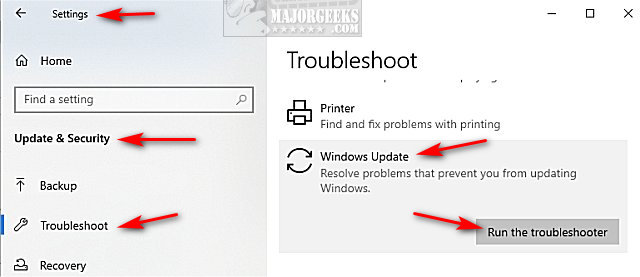
Follow the prompts and automatically repair any problems.
3: Windows Update Error 0xC1900201 - Windows Repair
Windows Repair can reset all the Windows Update settings saving you a lot of work.
Download Windows Repair from MajorGeeks.
Boot into Safe Mode.
Select Preset: Windows Updates.
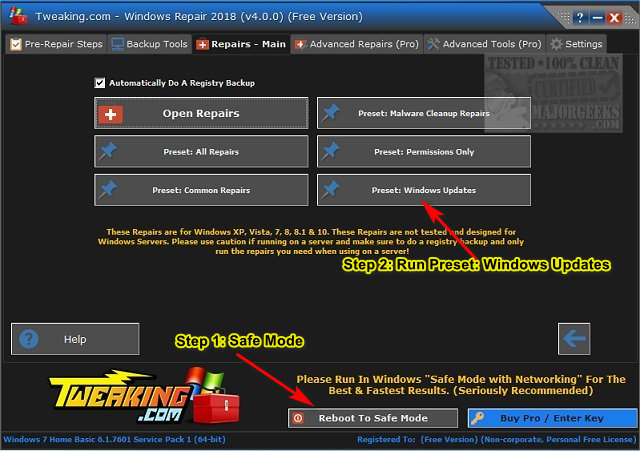
Reboot when completed.
4: Windows Update Error 0xC1900201 - Clear SoftwareDistribution Folder
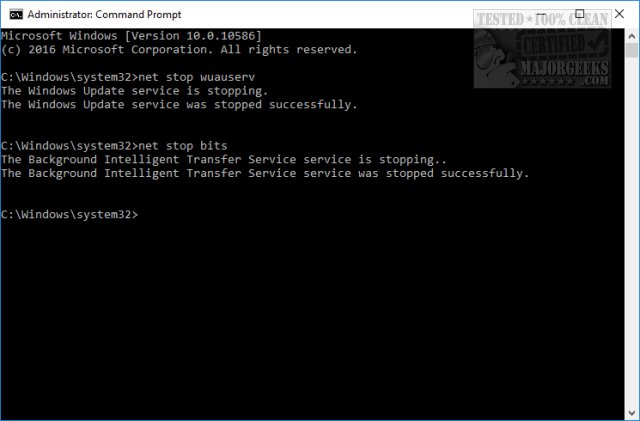
Open a elevated command prompt and type in the following two lines, and press Enter after each:
net stop wuauserv
net stop bits
Each command should take a few seconds, so wait until you see the messages that the services were stopped successfully. Leave the command prompt open for now.
Navigate to C:\Windows\SoftwareDistribution and open the folder. Press CTRL + A to select all files and folder, then press the Delete key. All the files in the SoftwareDistribution should be deleted. We don't want to delete the folder itself.
Rebooting will start the two services we stopped, but if you don't want to reboot, open up the command prompt again and type in the following two lines, and press Enter after each:
net start wuauserv
net start bits
5: Windows Update Error 0xC1900201 - Run Windows Memory Diagnostics Tool
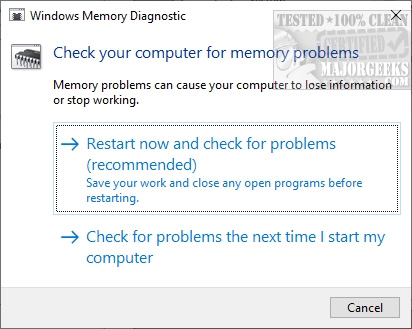
Press the Windows Key + S and type memory in the search bar at the top and click on Windows Memory Diagnostic. You can also press the Windows Key + R and type in mdsched.
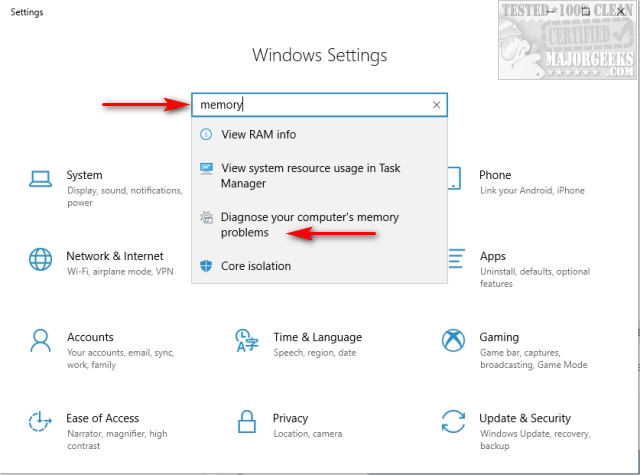
You now have the option to restart and check now or check on the next reboot.
Once you reboot, the Windows Memory Diagnostic Tool will begin testing in Standard mode, the best mode for most situations.
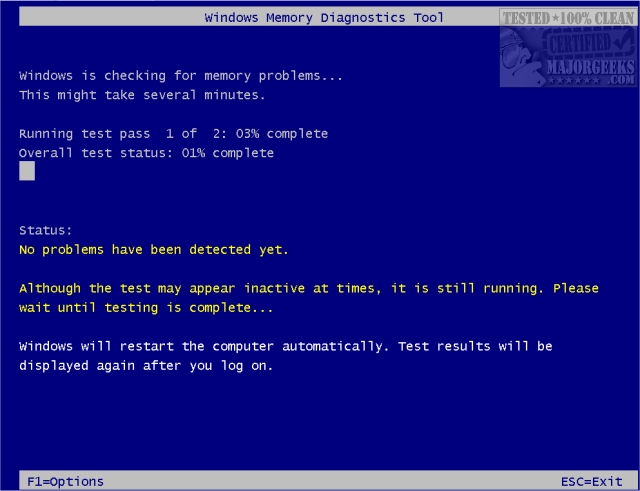
You can press F1 and choose Basic or Extended scans. Press the tab key to change the cache or pass count settings; if you decide to change these settings, press f10 to Apply and continue.
If you change your mind, press the Escape (ESC) key at any time to stop and return to Windows.
6: Windows Update Error 0xC1900201 - Reset Windows Update Agent
Reset Windows Update Agent is designed to reset Windows Update, but it can also run diagnostics and fix other typically related issues with Winsock, registry, and more. A video tutorial is available.
Download Reset Windows Update Agent here.
7: Windows Update Error 0xC1900201 - Perform a Clean Boot
A Clean Boot is very similar to Safe Mode but specifically designed to narrow down a problem by allowing a certain number of drivers or startup programs and eliminate them until you find the problem.
Try running Windows Updates from a Clean boot.
Similar:
How to View Windows Update History in Windows 10
How to Delete the Windows.old Folder from Windows 10
What Is the $Windows.~Bt Folder and Can I Delete It?
How-To Delete Pending Windows Updates
How to Uninstall Windows 10 Updates
Rename or Delete the Software Distribution Folder in Windows 10/8/7
comments powered by Disqus
The full error message reads - 0xC1900201: The system did not pass the minimum requirements to install the update. Contact the hardware vendor to get the latest updates.
1: Windows Update Error 0xC1900201 - Reboot
Many times, a reboot might be required to install pending updates, or to verify that all the Windows Update services are running.
2: Windows Update Error 0xC1900201 - Run The Troubleshooter
Always try a troubleshooter when available first. Press Start > Settings > Update & security. Click on Troubleshoot on the left.
Click on Additional troubleshooter.
Scroll down and click on Windows Update, then Run the troubleshooter.
Follow the prompts and automatically repair any problems.
3: Windows Update Error 0xC1900201 - Windows Repair
Windows Repair can reset all the Windows Update settings saving you a lot of work.
Download Windows Repair from MajorGeeks.
Boot into Safe Mode.
Select Preset: Windows Updates.
Reboot when completed.
4: Windows Update Error 0xC1900201 - Clear SoftwareDistribution Folder
Open a elevated command prompt and type in the following two lines, and press Enter after each:
net stop wuauserv
net stop bits
Each command should take a few seconds, so wait until you see the messages that the services were stopped successfully. Leave the command prompt open for now.
Navigate to C:\Windows\SoftwareDistribution and open the folder. Press CTRL + A to select all files and folder, then press the Delete key. All the files in the SoftwareDistribution should be deleted. We don't want to delete the folder itself.
Rebooting will start the two services we stopped, but if you don't want to reboot, open up the command prompt again and type in the following two lines, and press Enter after each:
net start wuauserv
net start bits
5: Windows Update Error 0xC1900201 - Run Windows Memory Diagnostics Tool
Press the Windows Key + S and type memory in the search bar at the top and click on Windows Memory Diagnostic. You can also press the Windows Key + R and type in mdsched.
You now have the option to restart and check now or check on the next reboot.
Once you reboot, the Windows Memory Diagnostic Tool will begin testing in Standard mode, the best mode for most situations.
You can press F1 and choose Basic or Extended scans. Press the tab key to change the cache or pass count settings; if you decide to change these settings, press f10 to Apply and continue.
If you change your mind, press the Escape (ESC) key at any time to stop and return to Windows.
6: Windows Update Error 0xC1900201 - Reset Windows Update Agent
Reset Windows Update Agent is designed to reset Windows Update, but it can also run diagnostics and fix other typically related issues with Winsock, registry, and more. A video tutorial is available.
Download Reset Windows Update Agent here.
7: Windows Update Error 0xC1900201 - Perform a Clean Boot
A Clean Boot is very similar to Safe Mode but specifically designed to narrow down a problem by allowing a certain number of drivers or startup programs and eliminate them until you find the problem.
Try running Windows Updates from a Clean boot.
Similar:
comments powered by Disqus
