


How to Add or Remove New Folder Context Menu in Windows 10
By Timothy Tibbettson 06/15/2023 |
Customizing your Context Menu (right-click) can make life easier. In this tutorial, we show you how to move the New Folder context menu entry to the New context menu foldout to free up some space.
If you don't use New Folder often, moving to the New subfolder can free up a little space for more important things, while still having the New Folder option available.
Here's the before and after:
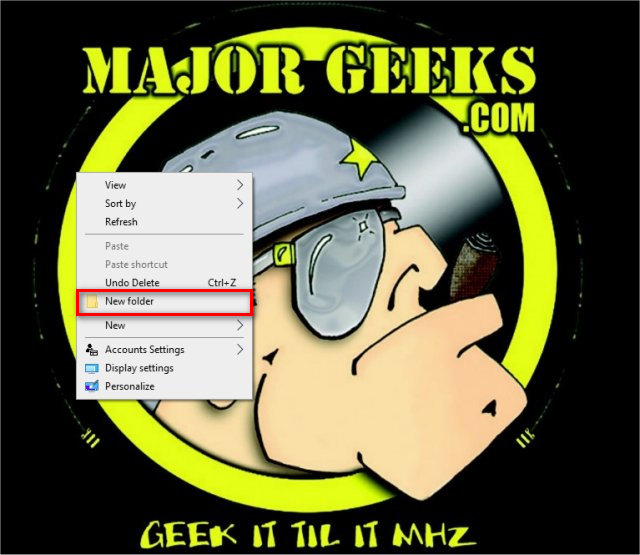
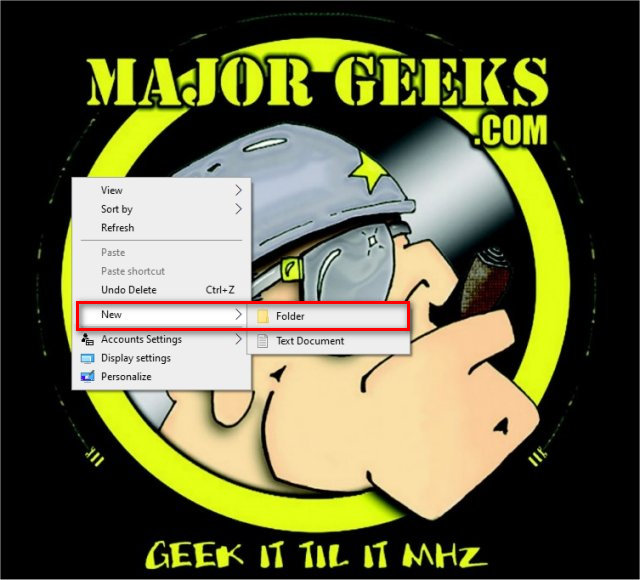
Download the registry files from MajorGeeks and extract the two files:
Remove New Folder Context Menu.reg
Remove Rotate Right Left Context Menu.reg
Double-click the reg file to add or remove the New Folder.
Click Yes when prompted by User Account Control.
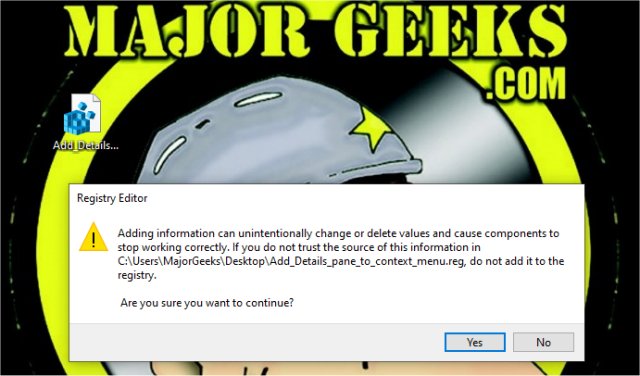
Click Yes when prompted by Registry Editor.
Click OK when prompted by the Registry Editor.
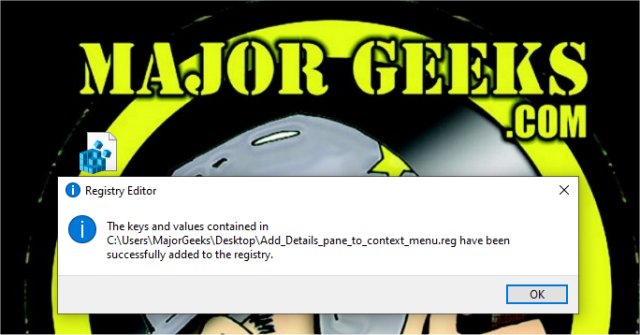
No reboot is required.
Be sure to check out our huge list of other Context Menu tweaks:
Similar:
Disable or Enable Context Menu Items With ShellExView
How to Delete, Add, and Edit Context Menu Items
Add the Control Panel to the Context Menu in Windows 10
Add or Remove the Classic Personalize Context Menu
Remove the "Share" Context Menu in Windows 10
Add "Copy As Path' to the Right-Click or Context Menu
Open Powershell Window Here as Administrator Context Menu
How to Add or Remove New Folder Context Menu in Windows 10
How to Add Timeline or TaskView to the Windows 10 Context Menu
How to Add Details Pane to the File Explorer Context Menu
How to Add 'Open With Notepad' Context Menu
comments powered by Disqus
If you don't use New Folder often, moving to the New subfolder can free up a little space for more important things, while still having the New Folder option available.
Here's the before and after:
Download the registry files from MajorGeeks and extract the two files:
Remove New Folder Context Menu.reg
Remove Rotate Right Left Context Menu.reg
Double-click the reg file to add or remove the New Folder.
Click Yes when prompted by User Account Control.
Click Yes when prompted by Registry Editor.
Click OK when prompted by the Registry Editor.
No reboot is required.
Be sure to check out our huge list of other Context Menu tweaks:
Similar:
Disable or Enable Context Menu Items With ShellExView
How to Delete, Add, and Edit Context Menu Items
Add the Control Panel to the Context Menu in Windows 10
Add or Remove the Classic Personalize Context Menu
Remove the "Share" Context Menu in Windows 10
Add "Copy As Path' to the Right-Click or Context Menu
Open Powershell Window Here as Administrator Context Menu
How to Add or Remove New Folder Context Menu in Windows 10
How to Add Timeline or TaskView to the Windows 10 Context Menu
How to Add Details Pane to the File Explorer Context Menu
How to Add 'Open With Notepad' Context Menu
comments powered by Disqus
