


How to Fix 'We Can't Sign Into Your Account' and 'You've Been Signed in With a Temporary Profile' in Windows 10
By Timothy Tibbettson 06/15/2023 |
In this tutorial, we're going to address two error messages - "We Can't Sign Into Your Account" and "You've Been Signed in With a Temporary Profile."
We can't sign into your account
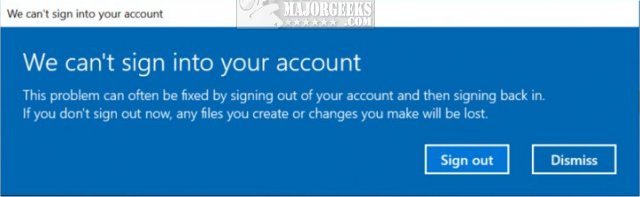
This problem can often be fixed by signing out of your account and then signing back in. If you don't sign out now, any files you create or changes you make will be lost.
You've been signed in with a temporary profile
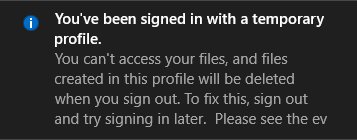
You can't access your files, and files created in this profile will be deleted when you sign out. To fix this, sign out and try signing in later. Please see the event log for more details or contact your system administrator.
Please back up your computer or C:UsersUsername folder before proceeding. There is a risk of deleting your User folder with all your account details.
Video tutorial:
1: Reboot Up to Four Times
Reboot your computer completely four times. Each time you reboot to the desktop, see which account you're logged in to. We've seen this work for the majority of people, so don't discount this step.
2: Registry Fixes
Before you proceed, you should back up your registry. You must be logged in to an Administrator account. If you can't log in to an Administrator account, boot into Windows Troubleshooting Menu.
Open the Command Prompt or PowerShell, and type in whoami /user. Keep the Command Prompt window open, because we will need the SID (Security Identifier) in the following steps.
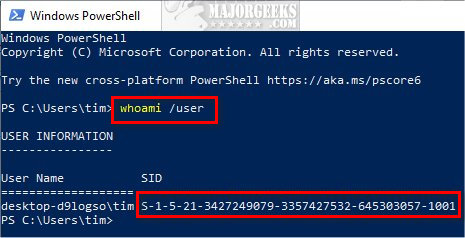
Next, we need to identify your problem. Open the Registry Editor and type:
HKEY_LOCAL_MACHINE\SOFTWARE\MicrosoftWindows NTCurrentVersionProfileList
into the address bar and press Enter.
Expand ProfileList, and find the registry key that matches your SID in the Command Prompt.
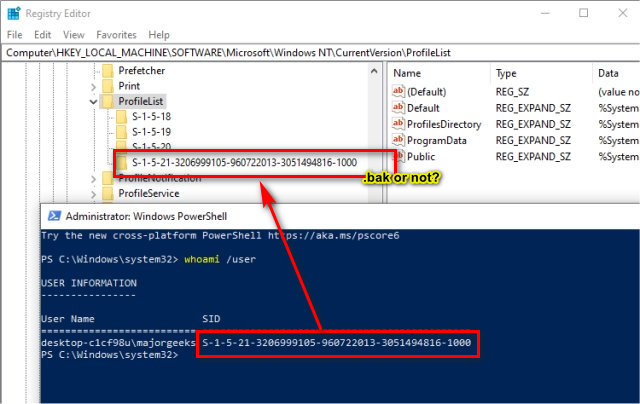
To resolve the problem, take note if you have any duplicate SID's or if you have a SID with a .bak, .Laptop or .DevToolsUser extension and follow one of the three steps below that match your SID. While a tad confusing, the following instructions are all very similar, depending on your registry keys.
Key Without .bak Extensions
On the right, double-click ProfileImagePath.
Enter the correct path to your user account (C:UsersUsername). If the user folder no longer exits, delete the registry key and reboot.
Double-click the State DWORD and verify the Value data is 0. You can also glance at the last number under the Data tab and verify that it's 0.
Key With .bak Extensions
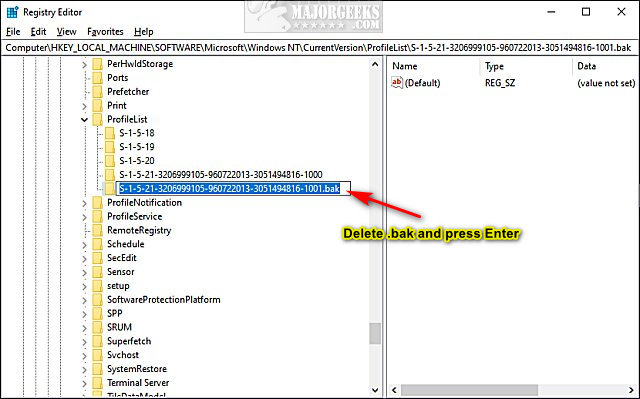
Right-click on the key with the .bak extension, and click Rename. Delete .bak (Click at the end, and press backspace four times) and press Enter.
On the right, double-click ProfileImagePath.
Enter the correct path to your user account (C:UsersUsername). If the user folder no longer exits, delete the registry key and reboot.
Double-click the State DWORD and verify the Value data is 0. You can also glance at the last number under the Data tab and check that it's 0.
SID key is listed twice
Right-click on the SID key without the .bak extension, and click Delete.
Right-click on the key with the .bak extension, and click Rename. Delete .bak (Click at the end, and press backspace four times) and press Enter.
On the right, double-click ProfileImagePath.
Enter the correct path to your user account (C:UsersUsername). If the user folder no longer exits, delete the registry key and reboot.
Double-click the State DWORD and verify the Value data is 0. You can also glance at the last number under the Data tab and check that it's 0.
If all else fails, you may need to reset your PC or use System Restore to restore to a point before the User account errors started.
Similar:
How to Change Your User And Account Names in Windows 10
How to Check if User Accounts are Administrator or Standard Users
How to View Full Details of Any User Accounts in Windows
How to Switch Between a Microsoft and Local Account in Windows 10
How to Hide User Accounts from the Windows 10 Sign-In Screen
How to Delete a User Profile in Windows 10
comments powered by Disqus
We can't sign into your account
This problem can often be fixed by signing out of your account and then signing back in. If you don't sign out now, any files you create or changes you make will be lost.
You've been signed in with a temporary profile
You can't access your files, and files created in this profile will be deleted when you sign out. To fix this, sign out and try signing in later. Please see the event log for more details or contact your system administrator.
Please back up your computer or C:UsersUsername folder before proceeding. There is a risk of deleting your User folder with all your account details.
1: Reboot Up to Four Times
Reboot your computer completely four times. Each time you reboot to the desktop, see which account you're logged in to. We've seen this work for the majority of people, so don't discount this step.
2: Registry Fixes
Before you proceed, you should back up your registry. You must be logged in to an Administrator account. If you can't log in to an Administrator account, boot into Windows Troubleshooting Menu.
Open the Command Prompt or PowerShell, and type in whoami /user. Keep the Command Prompt window open, because we will need the SID (Security Identifier) in the following steps.
Next, we need to identify your problem. Open the Registry Editor and type:
HKEY_LOCAL_MACHINE\SOFTWARE\MicrosoftWindows NTCurrentVersionProfileList
into the address bar and press Enter.
Expand ProfileList, and find the registry key that matches your SID in the Command Prompt.
To resolve the problem, take note if you have any duplicate SID's or if you have a SID with a .bak, .Laptop or .DevToolsUser extension and follow one of the three steps below that match your SID. While a tad confusing, the following instructions are all very similar, depending on your registry keys.
Key Without .bak Extensions
On the right, double-click ProfileImagePath.
Enter the correct path to your user account (C:UsersUsername). If the user folder no longer exits, delete the registry key and reboot.
Double-click the State DWORD and verify the Value data is 0. You can also glance at the last number under the Data tab and verify that it's 0.
Key With .bak Extensions
Right-click on the key with the .bak extension, and click Rename. Delete .bak (Click at the end, and press backspace four times) and press Enter.
On the right, double-click ProfileImagePath.
Enter the correct path to your user account (C:UsersUsername). If the user folder no longer exits, delete the registry key and reboot.
Double-click the State DWORD and verify the Value data is 0. You can also glance at the last number under the Data tab and check that it's 0.
SID key is listed twice
Right-click on the SID key without the .bak extension, and click Delete.
Right-click on the key with the .bak extension, and click Rename. Delete .bak (Click at the end, and press backspace four times) and press Enter.
On the right, double-click ProfileImagePath.
Enter the correct path to your user account (C:UsersUsername). If the user folder no longer exits, delete the registry key and reboot.
Double-click the State DWORD and verify the Value data is 0. You can also glance at the last number under the Data tab and check that it's 0.
If all else fails, you may need to reset your PC or use System Restore to restore to a point before the User account errors started.
Similar:
How to Change Your User And Account Names in Windows 10
How to Check if User Accounts are Administrator or Standard Users
How to View Full Details of Any User Accounts in Windows
How to Switch Between a Microsoft and Local Account in Windows 10
How to Hide User Accounts from the Windows 10 Sign-In Screen
How to Delete a User Profile in Windows 10
comments powered by Disqus
